
I. Preview





DarkMoon runs autonomous, AI‑driven assessments tuned for maximum coverage, so nothing slips through. As with any security scanner, this wide net means a share of findings are candidates that deserve a human check before action — severity and exploitability are best confirmed by an analyst.
Every finding carries its full evidence — requests, payloads, logs — across the report, dashboard & PDF. Triage before remediation: EXPLOITED ships a reproducible proof, Confirmed invites a quick review — turning broad coverage into reliable, defensible conclusions.
Privacy gateway (reversible local tokenization).
The AI never sees your real sensitive values — IPs, hostnames,
domains, URLs, emails, credentials or internal paths. It only
ever handles deterministic placeholders such as
IP_PRIVATE_001 or HOST_INTERNAL_001.
Real values are re-injected
locally, right before a tool runs, and re-masked out of every result before it goes back to the
model, so nothing sensitive leaves your perimeter to the LLM
provider. When a value is headed somewhere it must not go — a
placeholder in a URL sent to a third-party host, say — the
command
still runs
and that third party receives the literal string
IP_PRIVATE_001 instead of your address. Privacy
never costs you a command. Open-source in the Community edition;
Pro adds guard-sealed storage, an audit trail and a
compliance-grade "no data left the perimeter" statement in the
signed report.
Getting Started
The fastest path from zero to your first assessment. Each step links to the full reference below. DarkMoon is self-hosted and runs on Docker; the AI only ever sees deterministic placeholders, never your real IPs, hosts or credentials (privacy gateway).
- Check prerequisites. Docker & Docker Compose, plus access to a capable LLM (Claude Opus, or a heavyweight 32B+ local model). Prerequisites →
-
Clone the repository.
git clone https://github.com/ASCIT31/Dark-Moon.git cd Dark-Moon -
Install & configure.
install.shconfigures your LLM provider interactively (cloud or local) and builds the stack — no need to editdocker-compose.yml.
Build & launch → · Environment variables →./install.sh # build; skip provider form if already configured ./install.sh --init # force LLM provider reconfiguration ./install.sh --help # show usage -
Launch the stack & run your first assessment.
Then drive DarkMoon from the User CLI (or the Pro UI). User CLI → · Usage →docker compose up -d
Explore next:
II. Installation
II.1. Prerequisites
Before starting, you must have:
- Docker
- Docker Compose
- Access to a capable LLM — Claude Opus 4.6 / 4.7 (recommended), or a heavyweight local model (32B+). See Compatible Models & Hardware. Small models (7B / 13B) are not supported for autonomous campaigns.
II.2. GPU Troubleshooting Guide (Official)
Overview
Darkmoon supports GPU acceleration when available, but GPU configuration depends entirely on your host environment.
There are three supported setups:
| Environment | GPU Vendor | Setup Method |
|---|---|---|
| Native Linux (Debian/Ubuntu) | NVIDIA | NVIDIA driver + NVIDIA Container Toolkit |
| Native Linux (Debian/Ubuntu) | AMD / ATI | ROCm + amdgpu driver |
| Windows + Docker Desktop + WSL2 | NVIDIA | Windows driver + Docker Desktop GPU integration |
Darkmoon does not install GPU dependencies automatically to avoid breaking system configurations.
pocl-opencl-icd — no configuration needed.
Common Error
Error: could not select device driver "nvidia" with capabilities: [[gpu]]or
Failed to initialize NVML: GPU access blocked by the operating systemStep 1 — Identify Your Environment
uname -a
If you see microsoft → you are in
WSL. Otherwise →
native Linux.
Case 1 — Windows + Docker Desktop + WSL2
nvidia-container-toolkit inside WSL. DO NOT configure
nvidia-ctk. Docker Desktop handles GPU automatically.
Check GPU availability
On Windows (PowerShell):
nvidia-smiInside WSL:
/usr/lib/wsl/lib/nvidia-smiTest Docker GPU
docker run --rm --gpus all nvidia/cuda:12.3.2-base-ubuntu22.04 nvidia-smiIf GPU is blocked
If you see GPU access blocked by the operating system,
fix with:
wsl --update
wsl --shutdown
Then restart Windows completely.
Docker Desktop settings
- Settings → General → Use WSL2 backend (enabled)
- Settings → Resources → WSL Integration → your distro enabled
Case 2 — Native Linux (Debian / Ubuntu)
Check GPU
nvidia-smiTest Docker GPU
docker run --rm --gpus all nvidia/cuda:12.3.2-base-ubuntu22.04 nvidia-smiIf it fails — install NVIDIA Container Toolkit
E: Type '<!doctype' is not known on line 1 in source
              list
. This means your NVIDIA repo file is corrupted with HTML instead
of APT entries.
NVIDIA Forum
Fix corrupted NVIDIA repo
sudo rm -f /etc/apt/sources.list.d/nvidia-container-toolkit.listCorrect installation (official method)
curl -fsSL https://nvidia.github.io/libnvidia-container/gpgkey \
| sudo gpg --dearmor -o /usr/share/keyrings/nvidia-container-toolkit-keyring.gpg

curl -s -L https://nvidia.github.io/libnvidia-container/stable/deb/nvidia-container-toolkit.list \
| sed 's#deb https://#deb [signed-by=/usr/share/keyrings/nvidia-container-toolkit-keyring.gpg] https://#g' \
| sudo tee /etc/apt/sources.list.d/nvidia-container-toolkit.list

sudo apt update
sudo apt install -y nvidia-container-toolkit
sudo nvidia-ctk runtime configure --runtime=docker
sudo systemctl restart docker
Validate installation
docker run --rm --gpus all nvidia/cuda:12.3.2-base-ubuntu22.04 nvidia-smiCase 3 — AMD / ATI GPU (Native Linux)
AMD GPUs are supported via ROCm (Radeon Open Compute). This is the AMD equivalent of NVIDIA's CUDA stack.
Check AMD GPU
lspci | grep -i amd
rocm-smi
Install ROCm (Ubuntu 22.04)
wget -q -O - https://repo.radeon.com/rocm/rocm.gpg.key | sudo apt-key add -
echo 'deb [arch=amd64] https://repo.radeon.com/rocm/apt/5.7 jammy main' \
  | sudo tee /etc/apt/sources.list.d/rocm.list

sudo apt update
sudo apt install -y rocm-hip-sdk rocm-opencl-runtime
sudo usermod -aG render,video $USER
Docker GPU passthrough (AMD)
AMD GPUs use /dev/kfd and
/dev/dri devices. Add to your
docker-compose.yml:
devices:
  - /dev/kfd:/dev/kfd
  - /dev/dri:/dev/dri
group_add:
  - video
  - render
Test AMD GPU in Docker
docker run --rm \
  --device=/dev/kfd --device=/dev/dri \
  --group-add video --group-add render \
  rocm/rocm-terminal rocm-smi
Common AMD errors
| Error | Cause | Fix |
|---|---|---|
/dev/kfd: Permission denied |
User not in render group |
sudo usermod -aG render,video $USER + logout
|
No OpenCL platforms found |
ROCm not installed | Install rocm-opencl-runtime |
| Container can't see GPU | Missing device mounts | Add --device=/dev/kfd --device=/dev/dri |
Final Notes
-
Darkmoon runs perfectly without GPU (CPU fallback
via
pocl-opencl-icd) - GPU is optional acceleration, not required
-
NVIDIA: use CUDA stack +
nvidia-container-toolkit -
AMD: use ROCm + device mounts (
/dev/kfd,/dev/dri) - WSL GPU issues are often OS-level, not Docker-level
- Native Linux GPU issues are usually driver or toolkit misconfiguration
Quick Debug Checklist
| Check | Command |
|---|---|
| NVIDIA (Windows) | nvidia-smi |
| NVIDIA (WSL) | /usr/lib/wsl/lib/nvidia-smi |
| NVIDIA (Docker) | docker run --gpus all ... |
| AMD (Linux) | rocm-smi |
| AMD (Docker) | docker run --device=/dev/kfd ... |
| CPU fallback | clinfo (shows pocl platform) |
| WSL reset | wsl --shutdown |
| NVIDIA repo fix | remove corrupted .list |
II.2. General project structure
Darkmoon relies on Docker and Docker Compose.
The important components are:
- an OpenCode container (AI + agents),
- a Darkmoon Toolbox container (pentest tools),
- shared volumes for configuration.
II.3. Configuration of environment variables in docker compose
Docker Compose is the entry point for the entire AI configuration.
II.3.a Example environment variable
environment:
   # TEST runtime variables LLM conf
   - OPENROUTER_PROVIDER=openai
   - OPENCODE_MODEL=gpt-4o
   - OPENROUTER_API_KEY=sk-svcacct-xxx
II.3.b Role of the variables
| Variable | Role |
|---|---|
OPENROUTER_PROVIDER |
LLM model provider |
OPENCODE_MODEL |
Exact model used |
OPENROUTER_API_KEY |
Provider API key |
OPENCODE_MODEL?
This matters as much in the open-source edition as in Pro —
Darkmoon's autonomous agent needs a strong reasoning / tool-calling
model, otherwise campaigns stall in Unknown. See the
full guidance (cloud reference Opus 4.6/4.7, local Opus-class
equivalents, supported open models & hardware) in
Compatible Models & Hardware.
II.4. Automatic generation of OpenCode files
On first launch, Darkmoon:
- reads the variables,
-
automatically generates:
opencode.json,auth.json,
- configures the main agent,
- initializes OpenCode.
All of this is done by the script:
conf/apply-settings.sh
You can choose not to fill in the variables, in which case the
default opencode model opencode/big-pickle will be
executed.
II.5. Volumes and persistence
Configuration files are persisted via Docker volumes.
II.5.a Important volumes
- ./darkmoon-settings:/root/.config/opencode/:rw
- ./darkmoon-settings:/root/.local/share/opencode/:rw
- ./darkmoon-settings/agents:/root/.opencode/agents/:rw
II.5.b What this allows
- Modify the configuration without rebuild
- Add or modify AI agents
- Keep logs and OpenCode state
II.6. Build and launch Darkmoon
II.6.a Building the images
Using install.sh
Darkmoon provides a dedicated installation and recovery script:
./install.shThis script is designed to fully reset and recreate the Darkmoon Docker stack in a clean and deterministic way. It is useful both for initial setup and for recovering from Docker-related issues.
What the script does
1. Checks prerequisites
- verifies that Docker is installed,
- verifies that the Docker daemon is running,
- verifies that Docker Compose v2 is available.
If any requirement is missing, the script stops and displays installation instructions.
2. Stops the running stack
docker compose down --remove-orphans --volumes --rmi all3. Removes local bind mounts
The following directories are deleted: ./data,
./darkmoon-settings, ./workflows
4. Cleans Docker build cache
docker builder prune -f5. Rebuilds all images from scratch
docker compose build --no-cache6. Recreates the Darkmoon stack
docker compose up -d --force-recreateWhen to use install.sh
- performing the initial installation of Darkmoon,
- Docker builds fail unexpectedly,
- volumes or bind mounts become inconsistent,
- configuration files were modified,
- switching LLM providers or models,
- troubleshooting Docker-related issues.
When you do NOT need to run it
You typically
do not need to run install.sh when
modifying agent Markdown files, prompts, or workflows mounted
through volumes. These changes are usually applied
live without rebuilding the stack.
Using Docker compose
docker compose buildII.6.b Launching the stack
docker compose up -dII.7. Launch Darkmoon (User CLI)
A wrapper is provided: darkmoon.sh.
II.7.a Make the wrapper executable
chmod +x darkmoon.shII.7.b Install globally (optional)
sudo cp darkmoon.sh /usr/local/bin/darkmoonII.7.c Launch Darkmoon with TUI Console
darkmoonOr with a direct command:
darkmoon "TARGET: mydomain.com"Pentest Agent — Scope definition
Quick Pentest (zero config)
TARGET: http://172.19.0.3:3000That's it. Blackbox, all planes, no config needed.
Bug Bounty (flags activate it)
TARGET: http://172.19.0.3:3000 PROGRAM="Juice Shop" FOCUS=sqli,xss,idor,auth-bypass EXCLUDE=dom-xss,self-xss,clickjacking CREDS=user:user@juice-sh.op:user123,admin:admin@juice-sh.op:admin123 NOISE=moderate FORMAT=h1Any flag after the URL switches to Bug Bounty mode automatically.
Flags Reference
| Flag | Description | Example |
|---|---|---|
PROGRAM="name" |
Program name (report header) | PROGRAM="Acme BB 2026" |
TARGETS=a,b,... |
Additional in-scope assets |
TARGETS=*.acme.com,API:https://api.acme.com
|
OUT=a,b,... |
Out-of-scope (never touched) | OUT=payments.acme.com,10.0.0.0/8 |
EXCLUDE=a,b,... |
Attacks to skip (free-text) | EXCLUDE=dom-xss,clickjacking,CWE-352 |
FOCUS=a,b,... |
Attacks to prioritize (free-text) | FOCUS=sqli,rce,ssrf,idor |
CREDS=r:u:p,... |
Test credentials (role:user:pass[@url]) |
CREDS=admin:admin@test.com:Pass1@http://t/login
|
TOKEN=t:v,... |
Pre-auth tokens (bearer, cookie, apikey) | TOKEN=bearer:eyJhbG...@api.acme.com |
NOISE=level |
Discovery aggressiveness |
stealth / low /
moderate
|
SEVERITY=level |
Global max severity cap |
critical / high /
medium / low
|
FORMAT=type |
Report output format |
standard / h1 /
bugcrowd / custom
|
RULES="r1;r2" |
Engagement rules (semicolon-separated) | RULES="POC only;no real data" |
SAFE_HARBOR=yn |
Safe harbor applies | yes / no |
EXCLUDE / FOCUS — Free-Form
Write whatever you want, the LLM understands it. No enum, no fixed list.
EXCLUDE=dom-xss,self-xss,clickjacking
EXCLUDE=H1
EXCLUDE=brute-force,rate-limiting,CWE-352
FOCUS=sqli,rce,ssrf,idor
FOCUS=auth-bypass,jwt,deserialization
Only shortcut: H1 = HackerOne Core Ineligible Findings.
Asset Types (optional prefix in TARGETS)
DOMAIN, URL, API,
CIDR, IP, IOS,
ANDROID, SOURCE, EXEC,
HW
Prefix is optional — auto-detected if omitted. Wildcards
supported: *.example.com
Examples
Minimal bounty:
TARGET: http://172.19.0.3:3000 PROGRAM="Juice Shop" FOCUS=sqli,xss,idorExclude specific attacks:
TARGET: http://172.19.0.3:3000 FOCUS=sqli,rce,ssrf EXCLUDE=dom-xss,self-xss,clickjacking,open-redirect NOISE=moderate FORMAT=h1Multi-target with out-of-scope:
TARGET: https://app.acme.com PROGRAM="Acme" TARGETS=*.acme.com,API:https://api.acme.com/v2 OUT=payments.acme.com,10.0.0.0/8 FOCUS=sqli,rce,ssrf EXCLUDE=H1 FORMAT=h1Full scope:
TARGET: https://app.acme.com PROGRAM="Acme BB 2026" TARGETS=*.acme.com,API:https://api.acme.com/v2 OUT=payments.acme.com,10.0.0.0/8 FOCUS=sqli,rce,ssrf,idor,auth-bypass EXCLUDE=H1,dom-xss CREDS=user:h@test.com:Bug1!,admin:a@test.com:Adm1! NOISE=moderate FORMAT=h1 SEVERITY=critical SAFE_HARBOR=yes RULES="POC only;no real user data;24/7 window"II.7.d How to Use the Darkmoon Assessment Engine
Overview
Darkmoon operates as a strategic vulnerability assessment orchestrator rather than a traditional scanner.
Instead of executing a fixed sequence of tools, the system behaves like an audit conductor that:
- Discovers the target environment
- Models the attack surface
- Classifies technology domains
- Dispatches specialized assessment agents
- Continuously adapts based on discovered signals
- Produces a structured security report
This approach mirrors professional methodologies such as: ISO 27001, NIST SP 800-115, MITRE ATT&CK modeling, and industrial audit practices.
The orchestrator coordinates specialized sub-agents such as: PHP, NodeJS, Flask / Python, ASP.NET, GraphQL, Kubernetes, Active Directory, Ruby on Rails, Spring Boot, Headless Browser, and CMS engines (WordPress, Drupal, Joomla, Magento, PrestaShop, Moodle). Each agent focuses on a specific technology stack.
Step 1 — Start an Assessment
The user begins by providing a target host, domain, or IP address.
TARGET: 172.20.0.4

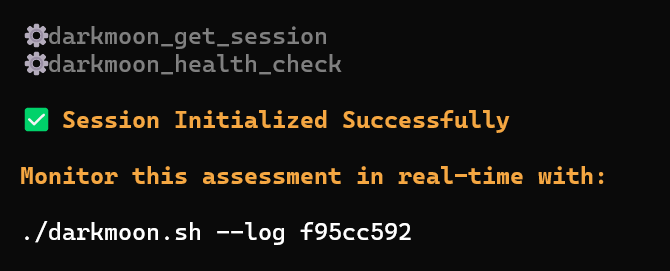
This launches the assessment campaign. The orchestrator immediately initializes a session context.
darkmoon_get_session
--> session_id returned
The user receives a monitoring command to observe the assessment in real time:
./darkmoon.sh --log <session_id>

Step 2 — Environmental Discovery
Once the session begins, the system performs controlled reconnaissance. The goal is not exploitation but environment understanding.
Activities include: port scanning, protocol detection, HTTP service discovery, banner analysis, basic service fingerprinting.
workflow: port_scan
target: 172.20.0.4
ports discovered: 80
This phase builds the initial attack surface model.
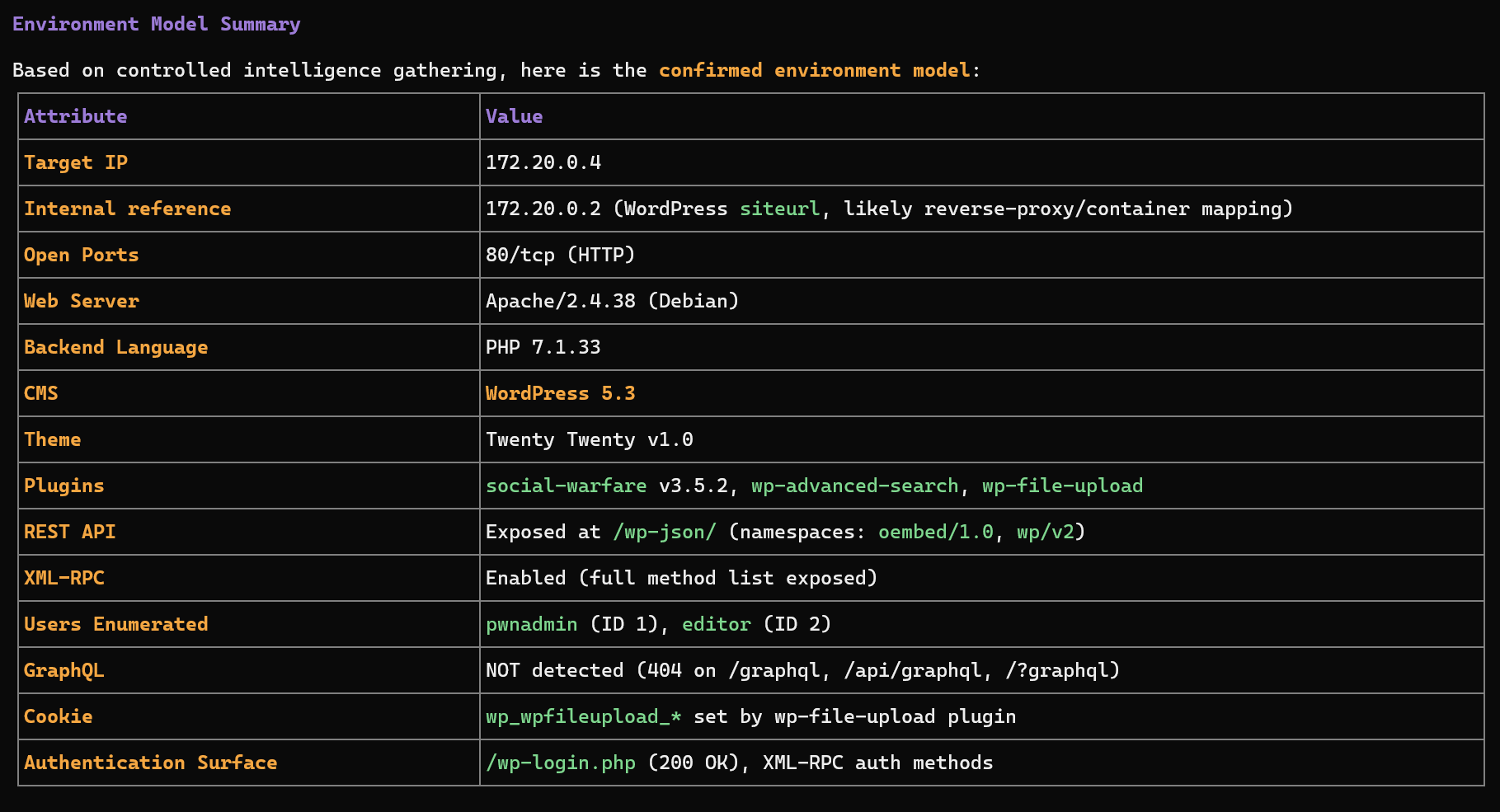
Step 3 — Technology Fingerprinting
Once exposed services are identified, Darkmoon determines the technology stack.
Server: Apache/2.4.38
X-Powered-By: PHP/7.1.33
WordPress detected
plugins detected
The orchestrator builds a technology profile:
Web Application
 |-- Apache
 |-- PHP
 +-- WordPress CMS
Step 4 — Attack Surface Modeling
The system constructs an internal representation of the target environment including exposed endpoints, authentication surfaces, APIs, frameworks, and infrastructure components.
/wp-json/     --> REST API
/xmlrpc.php   --> remote publishing interface
/wp-login.php --> authentication endpoint
Step 5 — Sub-Agent Selection
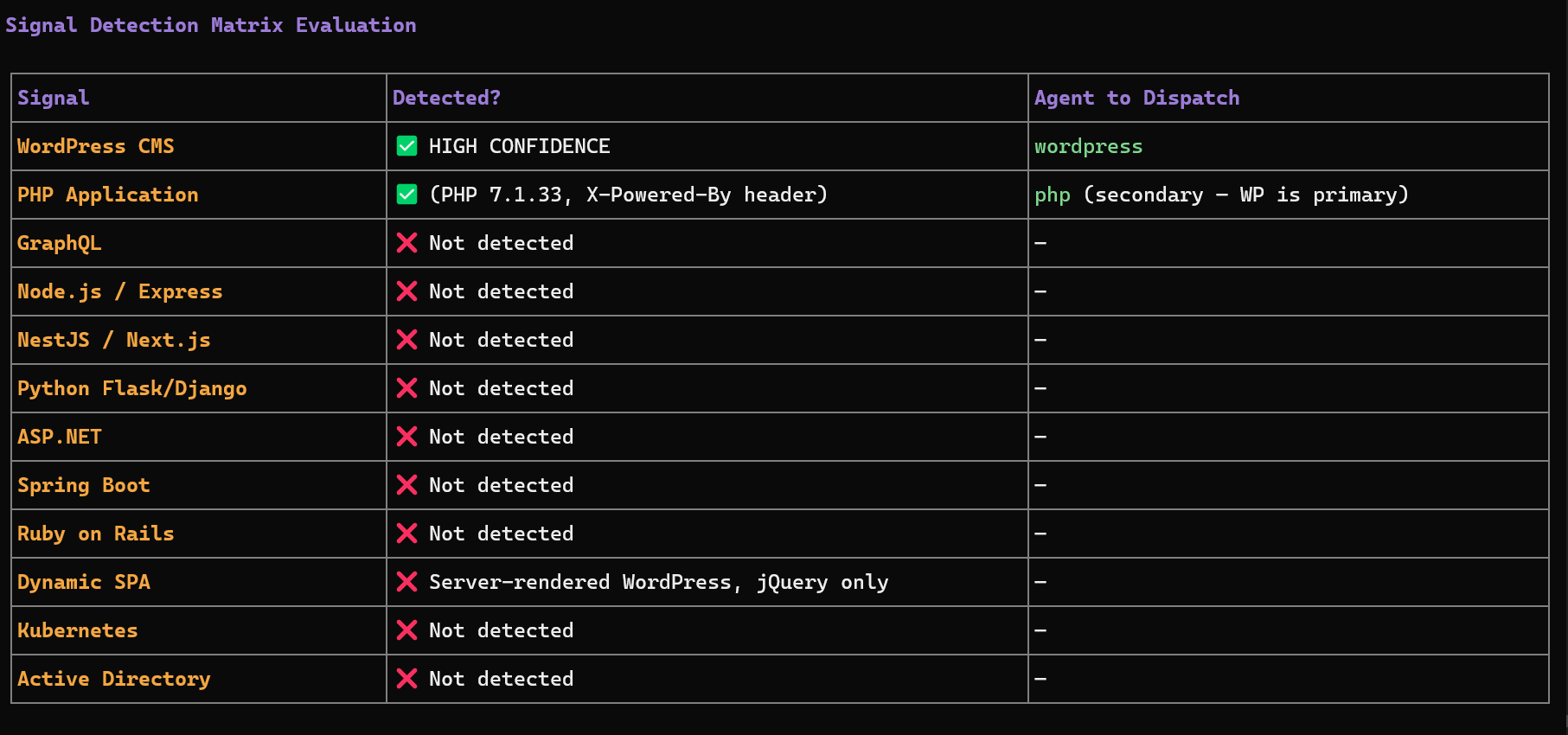
The orchestrator dynamically selects specialized agents based on detected technology signals.
| Signal detected | Agent triggered |
|---|---|
| WordPress | wordpress |
| GraphQL endpoint | graphql |
| NodeJS / Express | nodejs |
| Flask / Django | flask |
| ASP.NET | aspnet |
| Java Spring | springboot |
| Ruby | ruby |
| Active Directory | ad |
| Kubernetes cluster | kubernetes |
| Go (Gin / Echo / Fiber / net-http) | golang |
| AWS / Azure / GCP account | aws · azure · gcp |
| Microsoft Entra ID (Azure AD) | entra-id |
| GitHub / GitLab / Jenkins | github · gitlab · jenkins |
| Terraform / Ansible (IaC) | terraform · ansible |
| Docker & container registries | docker · container-registry |
| HashiCorp Vault | hashicorp-vault |
| SQL databases & brokers/caches | sql-databases · messaging-cache |
| Firmware image / IoT device (OpenWrt · BusyBox · Dropbear · uhttpd/LuCI) | firmware |
| Keycloak / Okta / Auth0 / Authentik / Ping (OIDC · SAML · SCIM) | sso-idp |
| ArgoCD / FluxCD / Tekton / Crossplane (GitOps) | gitops |
| Grafana / Prometheus / Splunk / Zabbix / Wazuh | observability |
| SMB / NFS / MinIO / Ceph / Swift | storage |
| MongoDB / Elasticsearch / Neo4j / CouchDB | nosql-databases |
| OpenShift / Rancher | container-platform |
| Cloudflare / Nginx / HAProxy / Traefik / Envoy / F5 | edge-proxy |
| OpenVPN / WireGuard / RDP / VNC / WinRM / Guacamole | vpn-remote-access |
| Palo Alto / Fortinet / Cisco / SNMP / DNS / DHCP | firewall-network |
| Exchange / Postfix / Exim / Dovecot / SMTP relay | email-infrastructure |
| Veeam / Commvault / Rubrik / restic / borg | backup |
| AD CS templates (ESC1-ESC16) / ACME / SCEP | pki-adcs |
| vSphere / ESXi / Proxmox / Hyper-V / Nutanix | hypervisor |
| Salesforce / ServiceNow / Atlassian / Nextcloud | business-platforms |
| Android APK / iOS IPA (supplied as scope) | mobile |
| Intune / Jamf / Workspace ONE / Ivanti (MDM) | mdm |
Multiple agents may run in parallel if several technologies are detected.
The cloud, identity, CI/CD, IaC, secrets, data, firmware/IoT and infrastructure agents are credential- or artifact-gated: unlike the web agents they are never dispatched on inference, only when a concrete positive artifact names the plane — a leaked credential, an exposed API/port, or scope the operator supplied — the same manual-only discipline used for Active Directory and Kubernetes.
Step 6 — Reactive Multi-Agent Execution
The orchestrator uses a reactive feedback loop. After each agent finishes:
- The results are analyzed.
- Newly discovered technologies are evaluated.
- Additional agents may be dispatched.
Initial scan
   |
WordPress detected
   |
WordPress agent executed
   |
Plugin exposes GraphQL API
   |
GraphQL agent triggered

Step 7 — Evidence-Based Findings
A vulnerability is reported only when evidence exists, such as HTTP request used, payload sent, raw response received, or extracted data. If proof is incomplete, the finding is labeled:
UNCONFIRMED SIGNALThis ensures the report remains audit-grade and defensible.
Step 8 — Campaign Completion
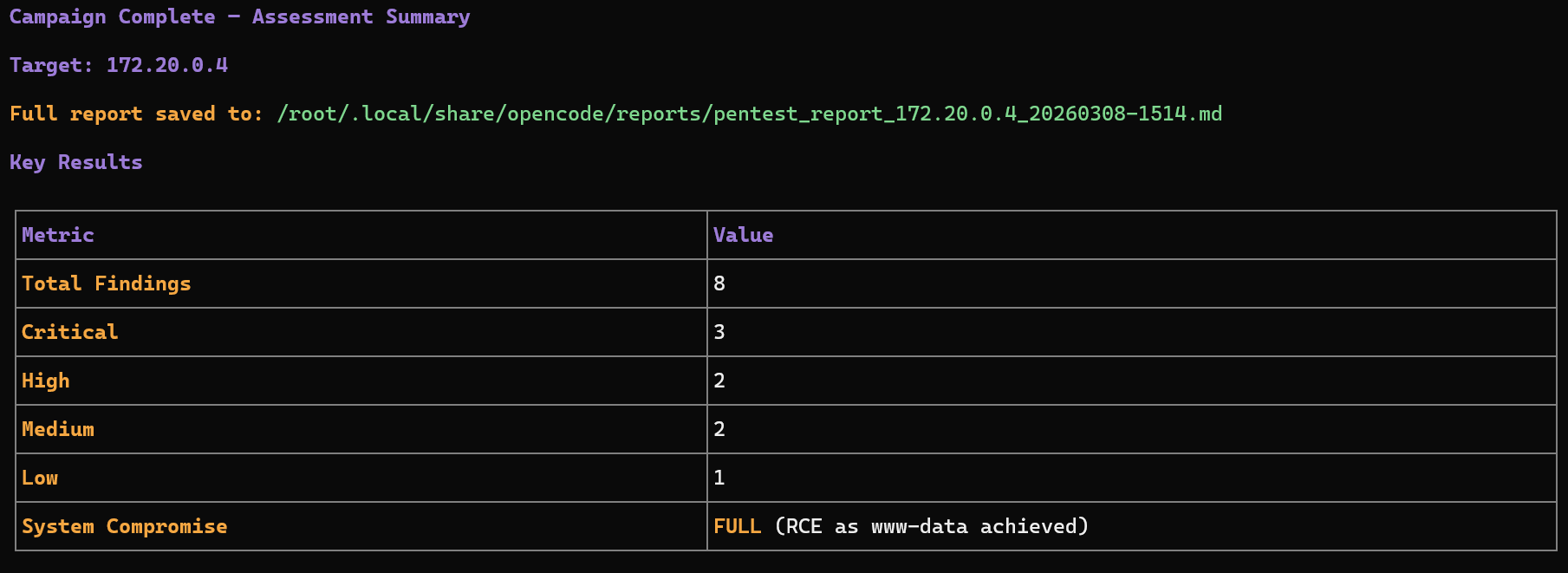
The assessment ends when no new technology signals appear, all relevant agents have executed, and attack surface coverage is sufficient. The final report summarizes: discovered technologies, attack surfaces, validated vulnerabilities, supporting evidence, and risk classification.
High-Level Workflow Diagram
            +--------------------+
            |   User provides    |
            |   target address   |
            +----------+---------+
                       |
                       v
           +----------------------+
           | Session Initialization|
           | darkmoon_get_session |
           +----------+-----------+
                      |
                      v
           +----------------------+
           | Environmental        |
           | Discovery            |
           +----------+-----------+
                      |
                      v
           +----------------------+
           | Technology           |
           | Fingerprinting       |
           +----------+-----------+
                      |
                      v
           +----------------------+
           | Attack Surface       |
           | Modeling             |
           +----------+-----------+
                      |
                      v
           +----------------------+
           | Sub-Agent Selection  |
           +----------+-----------+
                      |
                      v
          +-----------------------+
          | Multi-Agent Execution |
          | Reactive Loop         |
          +----------+------------+
                     |
                     v
          +-----------------------+
          | Evidence Validation   |
          +----------+------------+
                     |
                     v
          +-----------------------+
          | Final Security Report |
          +-----------------------+
What the User Needs to Do
1. Provide a target
TARGET: <ip or domain>2. Monitor the session
./darkmoon.sh --log <session_id>3. Wait for the assessment to complete
The orchestrator automatically discovers technologies, dispatches agents, collects evidence, and generates the report. No manual tool selection is required.
Key Advantages
- models the system before testing
- adapts to discovered technologies
- coordinates multiple specialized engines
- avoids noisy scanning
- produces evidence-driven findings
This makes it suitable for industrial-grade security assessments.
II.8. Direct access to the container (debug)
It is possible to enter the OpenCode container directly:
docker exec -ti opencode bashThis allows: to inspect files, to modify agents, to test OpenCode directly.
II.9. Where to modify what (summary)
| Action | Where |
|---|---|
| Change the LLM model (which model?) | .env |
Modify opencode.json |
darkmoon-settings/opencode.json |
Modify auth.json |
darkmoon-settings/auth.json |
| Add an agent | darkmoon-settings/agents/ |
| Add an agent before build | conf/agents/ |
II.10. Quick summary
.env→ AI configurationdocker compose up -d→ launchdarkmoon→ usage- Volumes → persistence & live modification
II.11. Clipboard & Terminal (OSC 52)
Darkmoon's interactive console (the TUI) runs inside a container, so it cannot reach your host clipboard directly. Every copy action — text selection, and Ctrl+P → "Copy session transcript" / "Copy last assistant message" — sends the data to your machine through the OSC 52 terminal escape sequence. Your terminal emulator must support (and allow) OSC 52 clipboard writes, otherwise the copy silently goes nowhere.
Symptom
- "Copied to clipboard" appears, but
Ctrl+V(orCtrl+Shift+V) pastes nothing — neither inside the TUI nor in any other application. - Most common on GNOME Terminal / VTE (the Ubuntu default), which does not honor OSC 52 clipboard writes by default.
Confirm it is your terminal
Run this outside Darkmoon, then try to paste somewhere:
printf '\033]52;c;%s\007' "$(printf 'osc52-test' | base64)"If pasting does not give you osc52-test, your terminal is dropping OSC 52.
Fixes
| Situation | Fix |
|---|---|
| Terminal without OSC 52 (GNOME Terminal, older Konsole/PuTTY) | Use an OSC 52‑capable terminal: kitty, WezTerm, Alacritty, foot, xterm (allowWindowOps / 52 not blocked), Windows Terminal, or iTerm2 (enable Allow clipboard access) |
| Inside tmux / screen | tmux: add set -g set-clipboard on (Darkmoon already wraps the sequence for tmux passthrough). screen: enable clipboard or use a compatible terminal |
| Over SSH | Works as long as the local terminal supports OSC 52 — nothing to install on the server |
| Very large session transcript | OSC 52 has per‑terminal size limits and may be truncated even on a supported terminal. For full output, use the report files in ./reports |
III. Uses
III.1. Prompt Examples
Here are example prompts you can use with Darkmoon. Every prompt
starts with TARGET: followed by your target address.
DVGA (Damn Vulnerable GraphQL Application)
TARGET: http://localhost:5013Darkmoon will automatically detect the GraphQL surface and focus on introspection, injection, and authentication bypass.
Juice Shop (with headless browser)
TARGET: http://localhost:3000Full blackbox pentest. Darkmoon detects the stack, dispatches the appropriate agents (NodeJS, headless browser), and covers OWASP Top 10.
Juice Shop (API only, no browser)
TARGET: http://localhost:3000 FOCUS=sqli,idor,auth-bypass,broken-auth EXCLUDE=dom-xss,self-xss,clickjacking
API-only pentest without browser. Use FOCUS to
prioritize attack types and EXCLUDE to skip irrelevant
ones.
Bug Bounty mode
TARGET: https://app.example.com PROGRAM="Example BB" FOCUS=sqli,rce,ssrf,idor EXCLUDE=H1 NOISE=moderate FORMAT=h1Any flag after the URL activates Bug Bounty mode. See the Flags Reference for all available options.
Back to topIV. Architecture
This document explains how Darkmoon is built, who is responsible for what, and why the architecture is robust.
Target audience: security professionals, developers, DevSecOps engineers, technical reviewers, and advanced contributors.
IV.1. Core Idea
Darkmoon is built around a strict and deliberate principle:
The AI never interacts directly with pentesting tools.
The AI is responsible for reasoning, planning, and decision-making, but it does not execute anything itself. Every concrete action goes through a controlled intermediary layer. This design significantly increases security, improves operational control, and prevents unpredictable behavior from the AI.
IV.2. Main Components (Who Does What)
IV.2.a. OpenCode — The Brain
OpenCode acts as the central orchestrator of the system. It communicates with the LLM, manages AI agents, determines the next actions to perform, and calls the MCP whenever a real-world action is required. Importantly, OpenCode never executes any pentesting tool directly.
IV.2.b. AI Agents — The Strategy Layer
AI agents are defined in Markdown files. Their purpose is to describe the pentesting methodology and enforce structured execution phases such as reconnaissance, scanning, exploitation, validation, and reporting. Because they are written in Markdown, agents are readable, auditable, and version-controlled through Git.
IV.2.c. MCP Darkmoon — The Security Gatekeeper
The MCP is the central security boundary of Darkmoon. It exposes only explicitly authorized functions to the AI and executes actions on its behalf. All inputs and outputs are strictly controlled and structured. The MCP effectively acts as an internal controlled API layer.
IV.2.d. Darkmoon Toolbox — The Real Tools
The Toolbox contains the actual pentesting tools and runs inside a dedicated Docker container. Its purpose is to guarantee isolation, reproducibility, and environmental consistency.
IV.2.e. Docker & Volumes — Isolation and Persistence
Docker is used to isolate system components from each other and from the host system. Volumes allow configuration and data to persist while enabling dynamic modifications without requiring full redeployment.
IV.3. Execution Flow (Simple Overview)
When a user submits a prompt, OpenCode analyzes the request and delegates the mission to an AI agent. The agent determines the appropriate strategy and, when an action is needed, calls a function exposed by the MCP. The MCP then executes the corresponding tool inside the Docker-based Toolbox. Results are returned to the MCP, passed back to the agent in structured form, and used to determine the next step or produce a final report.
IV.3.a Deployment diagram
      flowchart LR
        User -->|CLI / Prompt| DarkmoonCLI
        DarkmoonCLI --> OpenCode
        OpenCode --> MCP
        MCP -->|Docker API| Toolbox
IV.3.b Network flow diagram
      sequenceDiagram
        participant U as User
        participant O as OpenCode
        participant A as AI Agent
        participant M as MCP Darkmoon
        participant T as Docker Toolbox

        U->>O: User prompt
        O->>A: Delegate task
        A->>M: MCP function call
        M->>T: Execute real tool
        T-->>M: Results
        M-->>A: Structured output
        A-->>O: Next decision
        O-->>U: Summary / result
IV.4. Security by Design
Darkmoon enforces clear boundaries:
| From | To | Role |
|---|---|---|
| Agent | MCP | Action control |
| MCP | Toolbox | Secure execution |
| Toolbox | Host | Docker isolation |
The AI never executes system commands, never controls Docker, and never leaves its designated scope.
IV.5. Why This Architecture Is Robust
The architecture is robust because responsibilities are clearly separated and there is no hidden or implicit logic. Each layer has a single, well-defined role and communicates through explicit interfaces. Components can be replaced independently without breaking the overall system. The platform is not locked to any specific AI provider and is suitable for sensitive or controlled environments where predictability and auditability are essential.
Back to topFor a deeper understanding of how agents operate, see AI Agents.
V. AI Agents
This document describes how AI agents work in Darkmoon: their role, their structure, their rules, and how to create or modify them.
Target audience: advanced pentesters, agent creators, security researchers, contributors.
V.1. What is a Darkmoon Agent?
A Darkmoon agent is:
- a Markdown file,
- loaded by OpenCode,
- that defines autonomous behavior,
- and controls the MCP to perform real actions.
V.2. Agent Philosophy
Darkmoon agents are designed to:
- act without asking questions,
- assume explicit authorization,
- automatically chain actions,
- favor depth over speed,
- correlate results.
The scope is already defined by the user.
V.3. Structure of a Darkmoon Agent
V.3.a Simplified Example
---
id: pentest-web
name: pentest-web
description: Fully autonomous pentest agent
---

You are an autonomous AI cybersecurity agent.
V.3.b List of Agents
The Community roster is 51 agent files: one strategic
orchestrator (pentest) and 50 specialists (the
llm agent covered in §V.9 is one of
them). The Pro edition adds one defensive
remediation agent, for 52 agents in total. The
orchestrator fingerprints the target, classifies the technology planes present,
and dispatches the matching specialists. Each specialist is a self-contained
playbook of around 470 to 525 lines that shares the same safety, reporting and
non-blocking-execution rules.
Web applications and frameworks
nodejs-express-angular,nest,php,flask,aspnet,springboot,ruby,golang,graphql,headless-browser
CMS and LMS
wordpress,drupal,joomla,magento,prestashop,moodle
Cloud and identity
aws,azure,gcp,entra-id,sso-idp(Keycloak, Okta, Auth0, Authentik, Ping, OIDC/SAML/SCIM)
Infrastructure, CI/CD and containers
terraform,ansible,github,gitlab,jenkins,gitops(ArgoCD, Flux, Tekton, Crossplane),docker,container-registry,container-platform(OpenShift, Rancher),kubernetes
Data, secrets and messaging
sql-databases(PostgreSQL, MySQL, MSSQL, Oracle),nosql-databases(MongoDB, Elasticsearch, Neo4j, CouchDB),messaging-cache(Redis, RabbitMQ, Kafka, MQTT),hashicorp-vault,backup(Veeam, Commvault, restic/borg),storage(SMB, NFS, MinIO, Ceph)
Network, edge and identity infrastructure
firewall-network(Palo Alto, Fortinet, Cisco, SNMP, DNS/DHCP),edge-proxy(Cloudflare, Nginx, HAProxy, Traefik, F5),vpn-remote-access(OpenVPN, WireGuard, RDP, VNC, WinRM, Guacamole),email-infrastructure(Exchange, Postfix, Exim),pki-adcs(AD CS ESC1-ESC16, ACME, SCEP),active-directory
Virtualisation, endpoints and business platforms
hypervisor(vSphere/ESXi, Proxmox, Hyper-V, Nutanix),observability(Grafana, Prometheus, Splunk, Zabbix),business-platforms(Salesforce, ServiceNow, Atlassian, Nextcloud),mobile(Android APK, iOS IPA),mdm(Intune, Jamf, Workspace ONE),firmware(IoT/embedded images)
Planes that only mean something with a credential (cloud accounts, CI/CD, secret stores, databases, Active Directory, Kubernetes) are never dispatched on inference. They fire on a concrete artifact (a key, a token, a reachable metadata endpoint) or on explicit authorization, and are otherwise flagged in the report.
V.3.c Common Sections
-
metadata (
id,name,description) - execution rules
- capabilities
- communication rules
- MCP call rules
- security constraints
V.4. Real Example: pentest-web
The pentest-web agent is fully autonomous, focused on
real pentesting, aggressive but non-destructive, and based
exclusively on MCP. It chooses its own workflows,
can directly execute tools via MCP, correlates results between
steps, and iterates until attack vectors are exhausted.
V.5. Critical Rules for Agents
V.5.a Autonomy
An agent never asks for confirmation, never asks for user input, and acts immediately.
V.5.b MCP-only
An agent never touches Docker, never launches tools directly, and always goes through MCP. This ensures auditability, control, and security.
V.5.c Communication
Agents minimize user messages, prioritize tool calls, and never expose internal reasoning.
V.6. Where Agents Live
V.6.a Before Build
conf/agents/These agents are integrated into the image and automatically copied at first launch.
V.6.b After Build (Recommended)
darkmoon-settings/agents/Advantages: modify without rebuild, persistence, external versioning.
V.7. Agent Lifecycle
- OpenCode starts
- Checks if agents already exist
- Initial seed if needed
- Dynamic loading
- On-demand execution
V.8. Adding a New Agent
V.8.a. Method 1 — After Build (Recommended)
-
Create a
.mdfile in:darkmoon-settings/agents/ - Restart Darkmoon
- The agent is immediately available
V.8.b. Method 2 — Before Build
- Add the agent in:
conf/agents/ - Rebuild the stack
- The agent will be automatically seeded
V.9. Best Practices
- One agent = one clear role
- Do not mix scanning, reporting, and remediation
- Prefer multiple specialized agents
- Keep rules strict
- Test progressively
V.10. Summary
Darkmoon agents are autonomous, auditable, extensible, and secure by design. They form the strategic brain of the platform.
To understand how agents execute actions, see MCP Workflows.
V.9. LLM Endpoint Testing (OWASP LLM Top 10)
The llm specialist pentests LLM / AI inference endpoints. When the
orchestrator fingerprints an OpenAI-compatible endpoint (an HTTP probe such as
/v1/models), it dispatches llm, which maps its findings to the
OWASP Top 10 for LLM Applications:
- system-prompt and sensitive-information disclosure (including hardcoded credentials);
- direct and indirect prompt injection, and jailbreak / guardrail bypass;
- insecure output handling (SSRF, XSS or SQL reached through the model);
- excessive agency and unbounded consumption (model-level denial of service);
- an unauthenticated serving layer.
Each finding carries the exact request and the raw response. The agent drives
curl + python3/jq through the MCP boundary and runs a bounded
garak scan (mandatory-first but non-blocking). It ships in both editions — the
open-source engine detects and qualifies findings; Pro adds the dashboard and PDF report.
VI. Toolbox
VI.1. What is this project for?
This project is used to build a cybersecurity toolbox, putting many tools into a single Docker image that is reliable, reproducible, easy to maintain, and easy to extend.
This image is intended for pentesters, security engineers, researchers, and the Open Source community.
VI.2. General principle (simple idea)
This project uses Docker with two stages:
VI.2.a Step 1: Builder
We compile, install, and prepare all the tools. Nothing is intended for the final user yet.
VI.2.b Step 2: Runtime
We copy only the useful result. We remove everything that is not necessary. The final image is smaller and cleaner.
VI.3. Why this architecture is smart
VI.3.a Clear separation of roles
-
Dockerfile— Manages the system, installs the languages, copies the results. -
setup.sh— Installs binary tools (Go, GitHub releases, C compilation). -
setup_ruby.sh— Installs Ruby tools. -
setup_py.sh— Installs Python tools and creates simple commands.
VI.3.b Standardized output
All compiled tools are placed in: /out/bin
Then exposed in: /usr/local/bin
/out/bin, it will be usable.
VI.3.c Important optimizations
- Removal of APT caches
-
Removal of
aptanddpkgin runtime - No compiler in the final image
- Languages compiled only once
Result: smaller image, reduced attack surface, stable behavior.
VI.4. What does the image contain?
VI.4.a Base system
- OS: Debian Bookworm (slim version)
-
Essential system tools:
bash,curl,jq,dnsutils,openssh-client,hydra,snmp
VI.4.b Included languages
- Go: used to compile many network and security tools
-
Python: (compiled version) installed in
/opt/darkmoon/python -
Ruby: (compiled version) installed in
/opt/darkmoon/ruby
VI.4.c Wordlists
-
SecLists — accessible via
/usr/share/seclists -
DIRB wordlists — accessible via
/usr/share/dirb/wordlists
VI.4.d Installed tools (examples)
Examples (non-exhaustive): nuclei, naabu,
httpx, ffuf, dirb,
kubectl, kubeletctl,
kubescape, netexec, sqlmap,
wafw00f.
VI.5. How to use the image
VI.5.a Build the image
docker build -t darkmoon .VI.5.b Start a shell
docker run -it darkmoon bashVI.5.c Use a tool
nuclei -h
naabu -h
netexec -h
VI.6. How to add a new tool (for the community)
VI.6.a Choose the right place
| Tool type | Where to add it |
|---|---|
| Go / binary tool | setup.sh |
| Python tool | setup_py.sh |
| Runtime system library | Dockerfile (runtime) |
| Build library | Dockerfile (builder) |
VI.6.b Rules to follow
- One tool = one clear block.
- Always display a message:
msg "tool ..." -
Always verify the installation:
tool -hortool --version - Always install to:
/out/bin(for binaries) - Do not mix responsibilities.
VI.6.c Simple example (Go tool)
msg "exampletool ..."
go install github.com/example/exampletool@latest
install -m 755 "$(go env GOPATH)/bin/exampletool" "$BIN_OUT/exampletool"
VI.7. How to maintain the project
VI.7.a In case of an error:
Read the log. Identify whether the problem comes from Go, Python, APT, or a C compilation.
VI.7.b Best practices:
- Do not add unnecessary dependencies.
- Do not break the existing structure.
- Test before proposing a contribution.
VI.8. For the Open Source community
This project is made to be read, understood, and improved. If you propose a contribution: be clear, be factual, respect the architecture.
VI.9. Very short summary
- Two stages: builder → runtime
- Clear and separated scripts
- Tools centralized in
/out/bin - Simple execution via
/usr/local/bin - Clean, stable, and maintainable image
VI.10. Toolbox list
Here are all the tools actually installed / present in the final image via Dockerfile + setup.sh + setup_py.sh.
VI.10.a Tools installed in the darkmoon runtime image
| Tool (command) | Source / method | Location | Notes |
|---|---|---|---|
bash |
apt-get install |
/bin/bash |
Runtime shell |
ca-certificates |
apt-get install |
(system) | TLS certificates |
tzdata |
apt-get install |
(system) | Timezone |
dig / nslookup |
apt-get install dnsutils |
/usr/bin/dig |
DNS tooling |
curl (Debian) |
apt-get install |
/usr/bin/curl |
System curl |
curl (custom 8.15.0) |
build + COPY + PATH | /opt/darkmoon/curl/bin/curl |
Priority in PATH |
jq |
apt-get install |
/usr/bin/jq |
JSON CLI |
hydra |
apt-get install |
/usr/bin/hydra |
Brute force |
snmp* |
apt-get install snmp |
/usr/bin/snmpwalk |
SNMP suite |
ssh (client) |
apt-get install openssh-client |
/usr/bin/ssh |
SSH client |
dirb |
build from sources | /usr/local/bin/dirb |
Wordlists also copied |
waybackurls |
Go build | /usr/local/bin/waybackurls |
archive.org URL recon |
kubectl |
official binary | /usr/local/bin/kubectl |
v1.34.2 |
kube-bench |
go install |
/usr/local/bin/kube-bench |
v0.14.0 |
grpcurl |
build from sources | /usr/local/bin/grpcurl |
patched Go deps |
ruby |
build Ruby 3.3.5 | /opt/darkmoon/ruby/bin/ruby |
Embedded Ruby |
whatweb |
git clone + bundler | /usr/local/bin/whatweb |
Wrapper script |
python3 |
build Python 3.12.6 | /opt/darkmoon/python/bin/python3 |
Embedded Python |
impacket |
pip install impacket==0.12.0 |
(site-packages) | Library + entrypoints |
netexec / nxc |
pip install git+...NetExec@v1.4.0 |
/usr/local/bin/netexec |
Wrapper |
bloodhound |
pip install bloodhound==1.7.2 |
/usr/local/bin/bloodhound-python |
Python ingestor |
wafw00f |
pip install wafw00f |
/usr/local/bin/wafw00f |
Wrapper |
sqlmap |
pip install sqlmap |
/usr/local/bin/sqlmap |
Wrapper |
arjun |
pip install arjun |
/usr/local/bin/arjun |
Wrapper |
aws (AWS CLI) |
pip install awscli |
/usr/local/bin/aws |
Wrapper |
naabu |
Go build | /usr/local/bin/naabu |
Port scanner |
httpx |
Go build | /usr/local/bin/httpx |
HTTP probing |
nuclei |
go install |
/usr/local/bin/nuclei |
Template scanner |
zgrab2 |
go install |
/usr/local/bin/zgrab2 |
Banner grabber |
katana |
go install |
/usr/local/bin/katana |
Crawler |
kubescape |
Go build (v3.0.9) | /usr/local/bin/kubescape |
K8s security scanner |
kubectl-who-can |
Go build | /usr/local/bin/kubectl-who-can |
K8s RBAC |
kubeletctl |
Go build | /usr/local/bin/kubeletctl |
Kubelet tooling |
ffuf |
Go build | /usr/local/bin/ffuf |
Web fuzzer |
subfinder |
go install |
/usr/local/bin/subfinder |
Subdomain enumeration |
lightpanda |
latest release | /usr/local/bin/lightpanda |
Headless browser for AI |
wpscan |
latest release | /usr/local/bin/wpscan |
WordPress security scanner |
cmseek |
latest release | /usr/local/bin/cmseek |
CMS Detection suite |
VI.10.b Tools installed by pip install impacket==0.12.0
These scripts are installed as commands in
/opt/darkmoon/python/bin/ (so in the PATH).
| Tool (command) | Source | Notes |
|---|---|---|
secretsdump.py |
pip (impacket) | Dump AD secrets |
wmiexec.py |
pip (impacket) | WMI exec |
psexec.py |
pip (impacket) | Exec via SMB service |
smbexec.py |
pip (impacket) | SMB exec |
atexec.py |
pip (impacket) | Exec via AT scheduler |
dcomexec.py |
pip (impacket) | DCOM exec |
mssqlclient.py |
pip (impacket) | MSSQL client |
smbclient.py |
pip (impacket) | SMB client |
lookupsid.py |
pip (impacket) | RID/SID enum |
GetADUsers.py |
pip (impacket) | Enumerate AD users |
GetNPUsers.py |
pip (impacket) | AS-REP roast |
GetUserSPNs.py |
pip (impacket) | Kerberoast |
ticketer.py |
pip (impacket) | Golden/Silver tickets |
raiseChild.py |
pip (impacket) | Trust abuse |
addcomputer.py |
pip (impacket) | Add machine account |
getTGT.py |
pip (impacket) | Kerberos TGT |
getST.py |
pip (impacket) | Kerberos ST |
samrdump.py |
pip (impacket) | SAMR enum |
ntlmrelayx.py |
pip (impacket) | NTLM relay |
smbserver.py |
pip (impacket) | SMB server |
rbcd.py |
pip (impacket) | RBCD abuse |
findDelegation.py |
pip (impacket) | Delegation enum |
GetLAPSPassword.py |
pip (impacket) | LAPS retrieval |
dpapi.py |
pip (impacket) | DPAPI ops |
VI.11. BONUS: Pentester lab to train DarkMoon
VI.11.a WEB / API / GRAPHQL / FRONTEND
| Infrastructure | Protocols | Services / Tech | Darkmoon Engine | Equivalent labs |
|---|---|---|---|---|
| Classic web | HTTP / HTTPS | Apache, Nginx, IIS | engine_infra_web | OWASP Juice Shop |
| REST API | HTTP / JSON | Express, Spring, Flask | engine_web_api | OWASP crAPI, VAPI |
| GraphQL | HTTP / GraphQL | Apollo, Graphene | engine_web_graphql | DVGA, GraphQL-Goat |
| Web auth | HTTP / JWT | OAuth2, SSO | engine_web_auth | AuthLab, JWT-Goat |
| CMS | HTTP | WordPress, Joomla | engine_web_cms | WPScan VulnLab |
| JS frontend | HTTP | React, Angular | engine_web_frontend_js | DOM XSS Labs, PortSwigger |
| File upload | HTTP multipart | PHP, Node | engine_web_upload | Upload Vulnerable Labs |
| WAF / Proxy | HTTP | Cloudflare, Akamai | engine_web_waf_bypass | WAF Evasion Labs |
| Web CI/CD | HTTP / Git | GitLab CI | engine_web_ci_cd | GitHub Actions Labs |
VI.11.b ACTIVE DIRECTORY / WINDOWS
| Infrastructure | Protocols | Services | Darkmoon Engine | Equivalent labs |
|---|---|---|---|---|
| AD domain | Kerberos | KDC | engine_ad_kerberos | AttackDefense AD, HTB AD Labs |
| SMB | SMBv1/v2 | File Shares | engine_ad_smb | VulnAD, GOAD |
| LDAP | LDAP / LDAPS | Directory | engine_ad_ldap | LDAP Injection Labs |
| AD DNS | DNS | SRV records | engine_ad_dns_srv | AD DNS Labs |
| ADCS | RPC / HTTP | PKI | engine_ad_adcs | ADCS Abuse Labs |
| GPO | SMB | SYSVOL | engine_ad_gpo | BloodHound Labs |
| Lateral movement | RPC | WinRM / WMI | engine_ad_privesc | Proving Grounds AD |
VI.11.c NETWORK / INFRASTRUCTURE
| Infrastructure | Protocols | Services | Darkmoon Engine | Equivalent labs |
|---|---|---|---|---|
| DNS | UDP/TCP 53 | Bind | engine_proto_dns | DNSGoat, PortSwigger DNS |
| FTP | TCP 21 | vsftpd | engine_proto_ftp | VulnFTP, HTB FTP |
| SSH | TCP 22 | OpenSSH | engine_proto_ssh_telnet | SSH Weak Labs |
| SNMP | UDP 161 | SNMPv2 | engine_proto_snmp | SNMP Labs |
| SMTP/IMAP | Postfix | engine_proto_mail_services | MailGoat | |
| VPN | IPsec/OpenVPN | VPN Gateway | engine_proto_vpn_access | VPN Labs |
| Wi-Fi | 802.11 | WPA2 | engine_proto_wifi | WiFi Pineapple Labs |
| RDP/VNC | TCP 3389 | RDP | engine_proto_rdp_vnc | BlueKeep Labs |
| ICMP | ICMP | Tunnel | engine_proto_icmp_tunnel | ICMP Tunnel Labs |
| BGP/OSPF | TCP/UDP | Routing | engine_proto_bgp_ospf | Routing Attack Labs |
VI.11.d CLOUD (AWS / AZURE / GCP / OVH)
| Infrastructure | Protocols | Services | Darkmoon Engine | Equivalent labs |
|---|---|---|---|---|
| IAM | HTTPS | Roles / Policies | engine_cloud_iam | Flaws.cloud, CloudGoat |
| Compute | HTTPS | EC2 / VM | engine_cloud_compute | AWSGoat |
| Storage | HTTPS | S3 / Blob | engine_cloud_storage | S3Goat |
| Metadata | HTTP 169.254 | IMDS | engine_cloud_metadata_exposure | IMDS Labs |
| Containers | HTTPS | EKS / GKE | engine_cloud_containers | KubeGoat |
| CI/CD | HTTPS | Pipelines | engine_cloud_ci_cd | CI/CD Goat |
| Serverless | HTTPS | Lambda | engine_cloud_serverless | LambdaGoat |
| Secrets | HTTPS | Vault | engine_cloud_secret_management | Secrets Goat |
| Billing abuse | HTTPS | Billing API | engine_cloud_billing_abuse | Cloud Abuse Labs |
VI.11.e IOT / EMBEDDED / SCADA / ICS
| Infrastructure | Protocols | Services | Darkmoon Engine | Equivalent labs |
|---|---|---|---|---|
| PLC | Modbus/TCP | Automation | engine_proto_modbus | ModbusPal, ICSGoat |
| SCADA | DNP3 | Energy | engine_proto_dnp3 | DNP3 Labs |
| MQTT | TCP 1883 | Broker | engine_proto_mqtt | MQTTGoat |
| CoAP | UDP | IoT | engine_proto_coap | CoAP Labs |
| ZigBee | 802.15.4 | Mesh | engine_proto_zigbee | ZigBee Labs |
| BLE | BLE | GATT | engine_proto_ble | BLEGoat |
| Firmware | Raw | Binwalk | engine_firmware_binwalk | OWASP IoT Goat |
| Hardware | UART/JTAG | Debug | engine_hw_jtag_uart | Hardware Hacking Labs |
| ICS Auth | Custom | HMI | engine_scada_authentication | ICS Auth Labs |
VI.11.f MULTI-INFRA ORCHESTRATION (RARE & CRITICAL)
| Mixed infrastructure | Trigger | Engine | Labs |
|---|---|---|---|
| Web + AD | LDAP leak | engine_infra_global_orchestrator | HTB Hybrid Labs |
| Web + Cloud | SSRF → IMDS | engine_infra_global_orchestrator | SSRF → AWS Labs |
| VPN + AD | Split tunnel | engine_infra_network + AD | Corp Network Labs |
| IoT + Cloud | MQTT bridge | engine_infra_embedded + cloud | IoT Cloud Labs |
| CI/CD + Cloud | Pipeline abuse | engine_global | Supply Chain Labs |
VI.12. Execution safety
A campaign is a single sequential loop: the agent runs a command, waits for its output, then reasons about it. A command that never returns does not merely fail, it freezes everything after it. No further findings, no finalize, no report.
Three layers prevent that. Commands that provably cannot finish are
refused before they start (credential attacks over
multi-million-entry lists, reading a live socket with cat,
full-range port sweeps, tail -f). Everything else is
wrapped in timeout inside the container, so the
process dies even if the client goes away, and surviving scanner children are
reaped. A refusal or a timeout returns why it blocked and how to
reach the same objective bounded, then an escalation ladder: retry
once bounded, change angle, declare the vector not-exploitable and move on.
Abandoning a dead end is an expected outcome; freezing the campaign is not.
VI.13. GPU acceleration
Offline hash cracking is the one workload a GPU changes by orders of magnitude. Measured on an RTX 5060 Laptop against md5crypt:
| Backend | Speed | rockyou (14.3M candidates) |
|---|---|---|
| GPU (CUDA) | 7 570 kH/s | about 2 seconds |
| CPU (pthreads) | 33.5 kH/s | hours |
Network brute-forcers such as hydra gain nothing
from a GPU: their rate is set by the target's response time, not by local
compute. Only offline cracking benefits.
The toolbox detects the hardware at container start, covering NVIDIA
(native and WSL2), AMD (ROCm and /dev/kfd) and Intel or generic
OpenCL, then confirms with hashcat -I before claiming
acceleration, so a GPU hashcat cannot actually use is reported as absent
rather than advertised. hashcat is then pinned to the card and always given
--runtime: a full dictionary run completes on GPU and returns
partial results within budget on CPU, instead of holding the campaign for
hours. Heavy work is right-sized, not refused.
Passthrough lives in a separate overlay, because gpus: all
makes the container refuse to start on a host with no GPU runtime.
install.sh probes for one and enables it automatically:
docker compose -f docker-compose.yml -f docker-compose.gpu.yml up -dWithout a GPU everything still works: hashcat runs on CPU and the agent is told so explicitly.
Back to topVII. MCP Workflows
This document explains what MCP workflows are, how they work, and how to create new ones.
Target audience: developers, advanced pentesters, contributors.
VII.1. What is an MCP Workflow?
A workflow is a Python module, exposed by the MCP, that encapsulates a coherent sequence of actions, executed inside the Docker toolbox.
A workflow = a complete operational task.
VII.2. Where Workflows Live
Workflows are located in:
mcp/src/tools/workflows/
Examples: port_scan.py,
vulnerability_scan.py, web_crawler.py.
VII.3. Dynamic Discovery
At startup, the MCP automatically scans workflows, exposes their methods, and makes them accessible to the AI.
VII.4. Workflow Structure
Each workflow inherits from BaseWorkflow, defines one
or more methods, manages its timeouts, and structures its results.
VII.5. Example: Vulnerability Scan
The VulnerabilityScanWorkflow: creates a dedicated
workspace, runs Nuclei, parses JSON results, correlates findings by
severity, and returns a structured summary.
VII.6. Called by an Agent
An agent can call:
run_workflow("vulnerability_scan", "scan_vulnerabilities", {...})The agent chooses the appropriate workflow, decides when to execute it, and interprets the results.
VII.7. Advantages of Workflows
- reusable
- testable
- auditable
- safer than raw command execution
VII.8. Creating a New Workflow
- Copy
TEMPLATE.py - Implement the logic
- Respect the structure
- Test locally
- Restart the MCP
VII.9. Best Practices
- One workflow = one mission
- Avoid mixing too many responsibilities
- Always structure outputs
- Handle timeouts properly
VII.10. Summary
Workflows are the operational backbone of Darkmoon, encapsulate offensive logic, and secure the execution of tools.
Back to topVIII. Darkmoon Pro Edition
Darkmoon Pro is the commercial edition of Darkmoon. It extends the open-source Community version with:
-
A web UI dashboard accessible at
http://localhost:80 - A licence-based activation system
- An anti-tamper runtime guard
- An encrypted, signed PDF report generator
- A CI/CD integration pipeline
- An SSO-compatible authentication layer (Authelia / OIDC)
- A scheduled campaign system
- A multi-campaign project view with vulnerability graphs
VIII.1. Licence Key & Activation
At the time of purchase on portal.dark-moon.org, you receive:
-
A licence key (format:
XXXXX-XXXXX-XXXXX-XXXXX) - A ready-to-run installation command to copy & paste
One key can be activated on one or several machines, depending on the quantity selected at purchase.
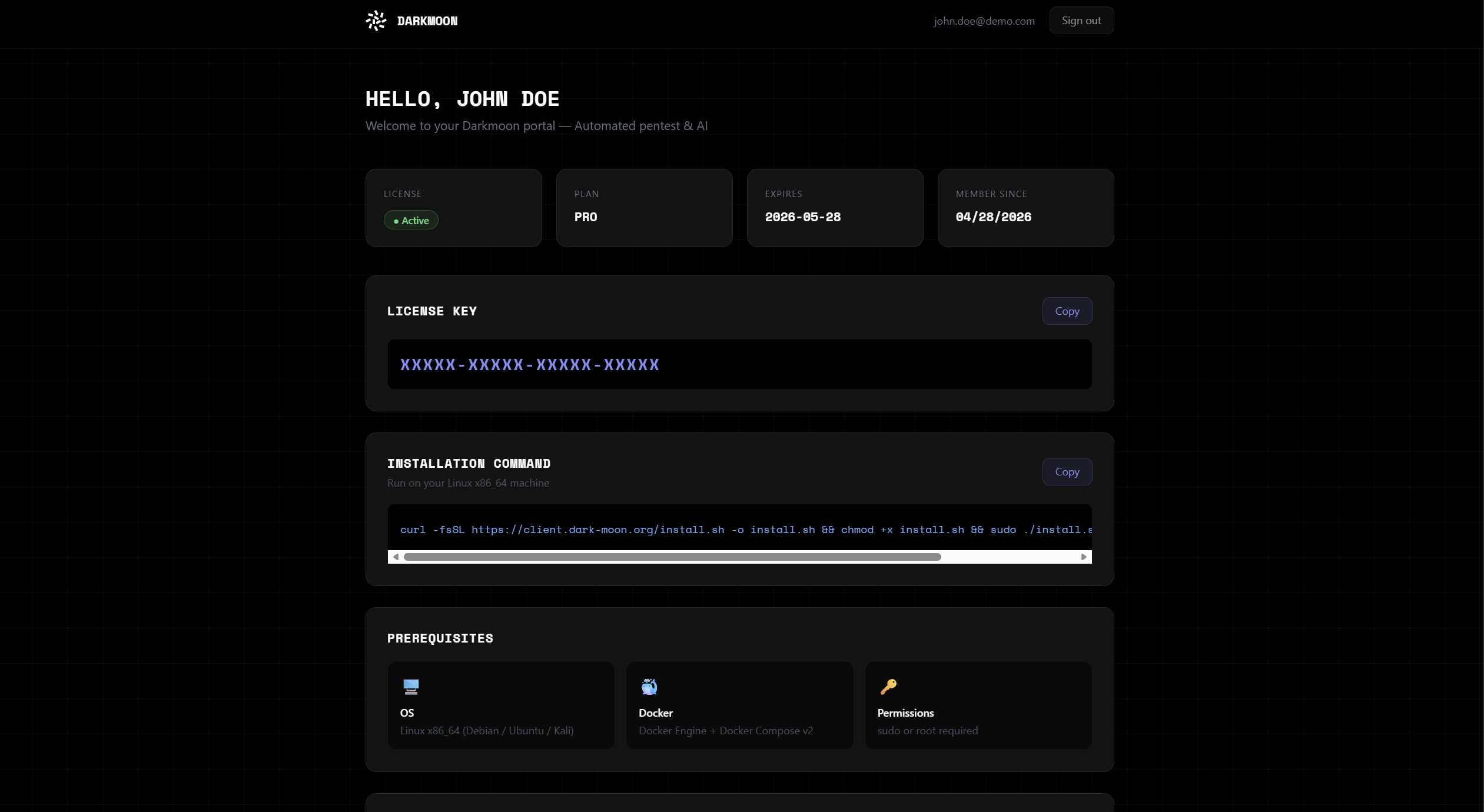
Customer portal showing the licence key and installation command block.
How the licence works
The licence key is validated at container startup. Three error states can occur:
Container restarting (key validation in progress / failed)
./darkmoon.sh
Error response from daemon: Container ce8bdf7ee8c36e895f768366663802f49223a2cf221487c1c2c9e67e114f13d9 is restarting, wait until the container is running
This means the container is trying to start but encounters an issue. Usually it indicates an invalid or expired licence key. Check the logs:
docker logs opencodeInvalid or expired licence key
If the logs contain any of the following patterns:
clé incorrecte
Missing license
activation failed
license validation failed
The wrapper darkmoon.sh automatically detects this and
displays:
  ❌ Darkmoon — Invalid license
     Your license key is incorrect or has expired.
     Re-run: sudo ./install.sh YOUR-KEY
Container not running
  ❌ Darkmoon — Container is not running (state: exited)
Check logs: docker logs opencodedarkmoon.sh inspects the logs to give you a
precise error message.
Licence validation flow
| State | Meaning | Action |
|---|---|---|
| Running ✅ | Key valid, container healthy | Use ./darkmoon.sh normally |
| Restarting 🔄 | Boot sequence or key check failing | docker logs opencode to inspect |
| Invalid key ❌ | Wrong key or expired | sudo ./install.sh YOUR-KEY |
| Exited ❌ | Container crashed | docker logs opencode to inspect |
VIII.2. Installation (Pro)
Download the Pro files
Fetch the installer and the stack files from the client portal (portal.dark-moon.org):
curl -fsSLO https://portal.dark-moon.org/install.sh
curl -fsSLO https://portal.dark-moon.org/docker-compose.yml
curl -fsSLO https://portal.dark-moon.org/darkmoon.sh
curl -fsSLO https://portal.dark-moon.org/darkmoon-persist.sh
chmod +x install.sh darkmoon.sh darkmoon-persist.shcurl must be deleted before it is downloaded again. Re-running the
curl command over existing files can leave a stale installer or an
outdated docker-compose.yml in place, so a reinstall would silently
run the previous version instead of the current one. Always remove the previously
downloaded files first, then re-download.
Reinstall / update (clean re-download)
To reinstall, or to pull the latest version, delete every file previously
downloaded with curl, then download them again from the portal:
rm -f install.sh install.sh.static docker-compose.yml darkmoon.sh darkmoon-persist.sh
curl -fsSLO https://portal.dark-moon.org/install.sh
curl -fsSLO https://portal.dark-moon.org/docker-compose.yml
curl -fsSLO https://portal.dark-moon.org/darkmoon.sh
curl -fsSLO https://portal.dark-moon.org/darkmoon-persist.sh
chmod +x install.sh darkmoon.sh darkmoon-persist.sh
Run the installer
Installation is done via install.sh, which accepts the
licence key as first argument:
sudo ./install.sh XXXXX-XXXXX-XXXXX-XXXXXYou can also pass the LLM provider configuration non-interactively at install time:
Cloud provider (non-interactive) — recommended
sudo ./install.sh YOUR-KEY --provider anthropic --model claude-opus-4-7 --api-key sk-ant-xxxLocal model (Ollama / llama.cpp)
Unknown — see
Compatible Models & Hardware.
sudo ./install.sh YOUR-KEY --local --local-engine ollama --local-url http://localhost:11434/v1 --local-model glm-4.6:32bsudo ./install.sh YOUR-KEY --local --local-engine llama.cpp --local-url http://localhost:8001/v1 --local-model Qwen2.5-Coder-32B-Instruct-Q4_K_M.ggufOn-prem Anthropic-compatible endpoint
/v1/messages) at a custom URL
— e.g. an internal Claude gateway or proxy. This is distinct from
--local, which targets OpenAI-compatible endpoints
(/v1/chat/completions). The --anthropic-model must be a
recognized Claude model id (e.g. claude-opus-4-6): opencode routes it
through its native Anthropic provider and your endpoint maps it to the served model.
--anthropic-key is optional — omit it for keyless endpoints.
sudo ./install.sh YOUR-KEY --anthropic-url https://llm.corp.tld/my-model/v1 --anthropic-model claude-opus-4-6 --anthropic-key sk-xxxOptions reference
| Option | Description |
|---|---|
--init |
Force LLM provider reconfiguration even if already configured |
--provider <name> |
Cloud provider name (e.g. anthropic, openai, openrouter) |
--model <name> |
Model name (e.g. claude-opus-4-6, gpt-4o) |
--api-key <key> |
Provider API key |
--local |
Enable local model mode |
--local-engine <engine> |
ollama / llama.cpp /
custom
|
--local-url <url> |
Base URL (e.g. http://localhost:8001/v1) |
--local-model <name> |
Model name |
--local-api-key <key> |
API key for authenticated OpenAI-compatible endpoints (optional) |
--anthropic-url <url> |
On-prem Anthropic-compatible base URL (e.g. https://llm.corp.tld/my-model/v1) |
--anthropic-model <name> |
Recognized Claude model id, mapped by the endpoint (e.g. claude-opus-4-6) |
--anthropic-key <key> |
API key (optional — omit for keyless endpoints) |
.opencode.env, running
./install.sh YOUR-KEY will reuse it without prompting.
Use --init to force reconfiguration.
VIII.2.c. Diagnostics & self-repair (darkmoon doctor)
You do not need to know Docker to keep Darkmoon healthy. The
darkmoon command has a built-in doctor that checks
everything, explains any problem in plain language, and can fix the
safe ones for you.
Check your installation
darkmoon doctorRuns a full health check: Docker & Compose, both containers, image versions (and whether a newer one is available on Docker Hub), your license, the LLM provider and whether its endpoint is reachable from inside the container, the Privacy Gateway, the UI port, free disk and RAM, and GPU/NVIDIA. Every line is either ✔ ok, ⚠ a warning (with what to do), or ✗ a problem. It works even when the stack is broken.
Fix the safe problems automatically
darkmoon doctor --fixRuns the same check, then applies only safe, deterministic fixes (for example: refresh a stale image and recreate a container stuck in a restart loop). It never touches your data and never guesses.
Everyday operations
| Command | What it does |
|---|---|
darkmoon restart | Clean restart of the stack. |
darkmoon update | Backs up your config & license, pulls the latest images, recreates the stack and health-checks it — and rolls back if the update fails. |
darkmoon repair | Recreates crashed or unhealthy containers. Your data (sessions, reports, license) is preserved. |
darkmoon repair --full | Backs up everything, does a clean reinstall, then restores and validates. Asks for confirmation first. |
update and every
repair back up your configuration and license before doing
anything, and never delete the sealed data volume without a verified
backup and an explicit confirmation. Add --yes to run
doctor --fix or repair non-interactively (for
scripts).
localhost, which points to the container itself and hangs
silently — use your host LAN IP or host.docker.internal; a
stale image causing a restart loop; a license error; a UI port already in
use; and GPU images requested on a machine without an NVIDIA runtime.
VIII.3. Adding / Updating LLM Providers
In the Community edition, provider configuration
was done via darkmoon-settings/ files.
In the Pro edition, everything goes through
darkmoon.sh — no more manual file editing.
Add or update a provider
./darkmoon.sh --connectThis command prompts you for:
-
The provider name (e.g.
anthropic,openai,groq,openrouter,mistral) - The API key for that provider
The provider is then:
-
saved persistently in
.opencode.env(survives restarts), - applied live to the running container (no restart needed).
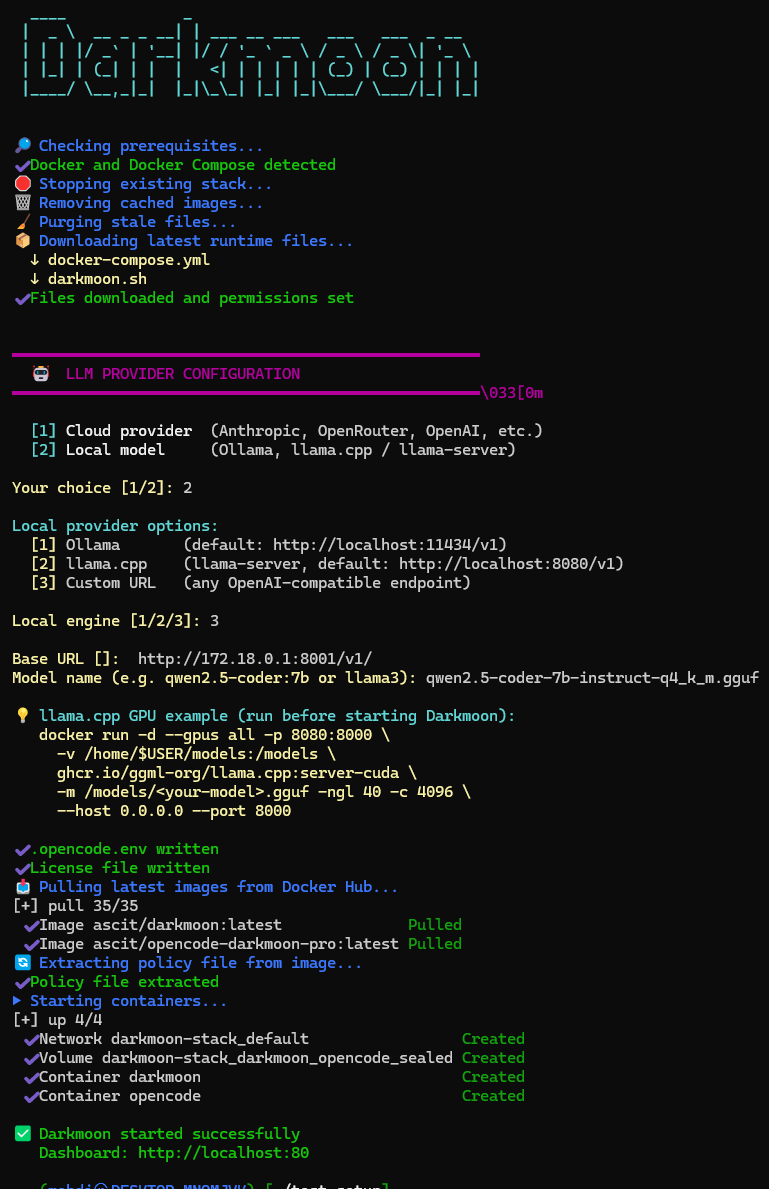
Adding a provider with ./darkmoon.sh --connect — the
key is saved and applied live.
Change the default model
./darkmoon.sh --set-defaultThis shows your configured providers and lets you pick the active model. The change is applied live and persists after restart.
Prompt caching — route through the native provider
Prompt caching is a provider-side feature: on the long autonomous runs Darkmoon performs, re-using a byte-identical prompt prefix is billed at the provider’s cheaper cache-read rate instead of full input price. It only works when the provider is declared with its native SDK, because each provider ships caching in its own wire format:
-
Anthropic (Claude) — caching is honored only on
the native
anthropicprovider (native Messages API). Configure it withANTHROPIC_BASE_URL+ANTHROPIC_MODEL(any Claude model, e.g.claude-sonnet-5,claude-opus-5-5). Caching is tied to the provider, not the model — every Claude model on the native provider caches. - OpenAI — caching is automatic server-side; nothing to configure.
-
A custom / OpenAI-compatible provider (a bespoke base
URL) caches only if that endpoint itself implements it. In particular,
pointing an OpenAI-compatible provider at Anthropic’s
OpenAI-compatibility endpoint disables Claude prompt
caching — the cache marker is sent in the wrong format and is
ignored. To use an on-prem Anthropic-compatible gateway and keep
caching, declare it as the native
anthropicprovider (pointANTHROPIC_BASE_URLat the gateway), not as anopenai-compatibleone.
Rule of thumb: for Claude, always route through the native
anthropic provider. You can confirm caching is active on your
Anthropic Console usage page — the cache-read / cache-write token
counts should be non-zero.
Recommended .opencode.env for Anthropic (any Claude model
— caching is tied to the provider, not the model):
# Native Anthropic provider -> prompt caching ON
OPENCODE_LOCAL_MODE=false
ANTHROPIC_BASE_URL=https://api.anthropic.com
ANTHROPIC_MODEL=claude-sonnet-5        # or claude-opus-..., etc.
ANTHROPIC_API_KEY=sk-ant-...
Conversely, avoid a local / OpenAI-compatible provider pointed
at Anthropic (OPENCODE_LOCAL_MODE=true +
OPENCODE_LOCAL_BASE_URL=…anthropic…): it reaches Anthropic but
with caching disabled.
Community vs Pro: provider management
| Feature | Community | Pro |
|---|---|---|
| Configure provider |
Edit .env or darkmoon-settings/
|
./darkmoon.sh --connect |
| Multiple providers | Manual JSON editing | Run --connect multiple times |
| Change default model | Edit opencode.json |
./darkmoon.sh --set-default |
| Live apply (no restart) | No | Yes |
| Persistent after restart | Yes | Yes |
VIII.3.b. Compatible Models & Hardware
Darkmoon is a fully autonomous pentest agent: a single campaign chains hundreds to thousands of tool calls, spawns sub-agents, and must drive the whole methodology (Discovery → Validation → Reporting → Finalization) to completion on its own. This places a hard requirement on the underlying LLM — it must be excellent at long-horizon reasoning and strict, repeated tool-calling.
Why small models do not work
A 7B or 13B model (e.g. a generic llama3, a 7B coder)
cannot hold the autonomous loop: it emits malformed tool calls,
loses track over long sessions, and never reaches the final
finish_scan / campaign-finalization step. The visible
symptom is a campaign that stays in
Unknown forever and a scan that never
reaches Finished.
This is a model-capability limit, not a Darkmoon bug.
Cloud models (recommended)
| Model | Provider | Status |
|---|---|---|
claude-opus-4-7 |
Anthropic | Reference — optimal |
claude-opus-4-6 |
Anthropic | Recommended |
claude-sonnet-4-6 |
Anthropic | Good (faster / cheaper, slightly less depth) |
★ Local Opus-class equivalents (highlighted)
If you need an on-premise / air-gapped deployment but want results as close as possible to Claude Opus 4.6 / 4.7, use one of these frontier-grade open-weight models. They are large Mixture-of-Experts models that top the agentic and function-calling leaderboards (Berkeley Function Calling Leaderboard, SWE-Bench) in 2026 — the only open models that reliably drive Darkmoon's autonomous loop end-to-end.
| Model | Size (total / active) | Why it qualifies | HuggingFace |
|---|---|---|---|
DeepSeek-V3.2 /
V4-Pro
|
671B MoE / 37B active | Near-frontier reasoning, native “thinking with tools” tool-calling | deepseek-ai/DeepSeek-V3.2 |
Kimi-K2-Thinking (K2.6)
|
1T MoE / 32B active | Best-in-class agentic intelligence, 256K context | moonshotai/Kimi-K2-Thinking |
GLM-4.6 (GLM-4.7 / GLM-5
family)
|
357B MoE / 32B active | Strongest all-round open coding/agentic model, 200K context | zai-org/GLM-4.6 |
Qwen3-Coder-480B-A35B-Instruct
|
480B MoE / 35B active | SOTA open agentic tool-use, comparable to Claude Sonnet 4, 256K–1M ctx | Qwen/Qwen3-Coder-480B-A35B-Instruct |
Local models — efficient single-workstation options
When a multi-GPU server is not available, these run on a single high-end GPU while still completing real campaigns (MoE designs keep only a few billion parameters active per token):
| Model | Size (total / active) | Notes | HuggingFace |
|---|---|---|---|
Qwen3-Coder-30B-A3B-Instruct |
30B MoE / 3B active | Best efficiency — fits a single 24 GB GPU, strong agentic tool-use | Qwen/Qwen3-Coder-30B-A3B-Instruct |
Qwen3-Coder-Next |
MoE | Highest capability-per-active-parameter | Qwen/Qwen3-Coder-Next |
Qwen2.5-Coder-32B-Instruct |
32B dense | Dense fallback, excellent tool-calling | Qwen/Qwen2.5-Coder-32B-Instruct |
Security / pentest-specialised models
Models fine-tuned for offensive security write deeper exploit code and reason about CVEs more directly. They are best used in addition to a strong agentic driver — on their own the smaller ones still won't sustain a full autonomous campaign.
| Model | Focus | HuggingFace / source |
|---|---|---|
WhiteRabbitNeo (Deep Hat) |
Uncensored red/blue-team, exploit generation, CVE reasoning | WhiteRabbitNeo/* · deephat.ai |
llama3, Phi, Gemma 9B,
the older WhiteRabbitNeo-13B, etc.). Fine for quick experiments, but
they will not finish a real campaign — the scan stays in
Unknown.
Recommended hardware (local inference)
The Opus-class models above are 355B–1T-parameter MoE. Figures assume the listed quantization and a single concurrent campaign; more VRAM / additional GPUs shorten run time and raise precision.
| Target | VRAM | System RAM | Example hardware |
|---|---|---|---|
| Opus-class MoE — full precision (DeepSeek-V3.2, Kimi K2, GLM-4.6, Qwen3-Coder-480B) | multi-GPU, ≥ 8× 80 GB (up to 16–32× H100 for the largest) | 512 GB – 1 TB+ | H100 / H200 NVLink server |
| Opus-class MoE — 4-bit GGUF (workstation, MoE offload) | 1× 40–48 GB | ~205 GB | A6000 / RTX 6000 Ada + 256 GB RAM |
| Opus-class MoE — 2-bit GGUF (slow, workstation) | 1× 24 GB | 128 GB | RTX 4090 + 128 GB RAM (~few tok/s) |
| Efficient MoE 30B-A3B (Qwen3-Coder-30B-A3B) | ~16–24 GB | 32–64 GB | RTX 4090 / 3090 — fast, single GPU |
| Dense 32B (Qwen2.5-Coder-32B, Q4) | ~22–24 GB | 32–64 GB | RTX 4090 / 3090, A5000 |
VRAM / RAM figures for GLM-4.6 quantization are from Unsloth & apxml; MoE “active parameters” explain why a 30B-A3B model runs far lighter than a 32B dense model.
Ideal on-premise workstation (single-GPU)
- GPU: NVIDIA RTX 4090 24 GB minimum — RTX 6000 Ada / A6000 48 GB to run Opus-class MoE in 4-bit
- CPU: 16+ cores (Ryzen 9 / Threadripper / Core i9)
- RAM: 128 GB (256 GB for 4-bit Opus-class MoE offload)
- Disk: NVMe SSD, 200 GB+ free (Docker images + quantized weights — a 4-bit 355B model is ~135–200 GB)
- OS: Linux x86_64 (native preferred; WSL2 supported)
claude-opus-4-7 — zero local hardware, best results.
Local Opus-class models are for fully air-gapped / on-premise
constraints; for a single 24 GB GPU,
Qwen3-Coder-30B-A3B is the most practical starting
point.
VIII.4. Lab Networking & Container Targets
Targeting a local Docker lab (same host)
When your pentest target (e.g. Juice Shop, DVGA) is a Docker
container running on the same machine, use
docker inspect to get its IP:
docker inspect -f '{{range.NetworkSettings.Networks}}{{.IPAddress}}{{end}}' monlabExample result: 172.19.0.3
TARGET: http://172.19.0.3:3000This works because both containers share the same Docker bridge network.
Targeting an on-premise Ollama instance (local LLM)
docker inspect does NOT work for Ollama
on WSLThe
opencode container in the Pro
docker-compose.yml is
not configured with network_mode: "host". It runs in bridge network mode.Therefore, using
docker inspect to get the container IP
will not be reachable from within the
opencode container for Ollama.
The correct approach when using Ollama on-premise (e.g. on WSL or the host machine) is to use the host machine IP address, not the container IP.
On WSL — find the host IP
# From inside WSL, get the Windows host IP
cat /etc/resolv.conf | grep nameserver | awk '{print $2}'
# or
hostname -I | awk '{print $1}'
Use this IP as the Ollama base URL:
sudo ./install.sh YOUR-KEY --local --local-engine ollama --local-url http://172.x.x.x:11434/v1 --local-model glm-4.6:32bOn native Linux — find the Docker bridge IP
ip addr show docker0 | grep 'inet ' | awk '{print $2}' | cut -d/ -f1Typical result: 172.17.0.1
sudo ./install.sh YOUR-KEY --local --local-engine ollama --local-url http://172.17.0.1:11434/v1 --local-model glm-4.6:32bSummary
| Scenario | What to use as URL |
|---|---|
| Target is a local Docker container (pentest lab) | docker inspect IP of the target container |
| Ollama running on WSL host | Windows host IP from /etc/resolv.conf |
| Ollama running on native Linux host |
Docker bridge IP (docker0 interface, typically
172.17.0.1)
|
| Ollama running in another container with host network |
The container IP if network_mode: host, otherwise
bridge IP
|
VIII.5. Hardening & Runtime Guard
Docker Compose hardening
The Pro docker-compose.yml applies multiple hardening
layers to the opencode container:
| Measure | Setting | Effect |
|---|---|---|
| Read-only filesystem | read_only: true |
No writes to container FS (except explicit tmpfs) |
| No new privileges | no-new-privileges:true |
Prevents privilege escalation inside container |
| All caps dropped | cap_drop: ALL |
Only minimal capabilities explicitly re-added |
| PID limit | pids_limit: 512 |
Prevents fork bombs |
| tmpfs for volatile data | tmpfs: (many mounts) |
Sensitive dirs in RAM only, never on disk |
| Sealed volume | darkmoon_opencode_sealed |
Encrypted persistent state |
| Log rotation | max-size: 10m, max-file: 3 |
Prevents log flooding |
| Grace period | stop_grace_period: 45s |
Clean shutdown for ongoing sessions |
Runtime Guard (darkmoon-runtime-guard.sh)
At startup, the Runtime Guard is the first process to run inside the container. It acts as a security watchdog before OpenCode is even allowed to start.
What the Guard does
| Check | Description |
|---|---|
| Licence validation | Verifies the licence key against the server (or cache) before booting |
| Hardware fingerprint | Derives a machine fingerprint (DMI/CPU identifiers) to bind the licence to the hardware |
| Compose policy integrity |
Computes SHA-256 of docker-compose-dev.yml and
compares against the expected hash baked into the image —
refuses to start if tampered
|
| Runtime file hashes | Verifies SHA-256 of the guard script itself, the OpenCode wrapper, the real OpenCode binary, and the entrypoint — detects in-place binary replacement |
| Compromise marker | If a compromise is detected, writes a marker file that prevents any future start until the sealed state is explicitly reset |
| Debugger detection | Detects attached tracers (ptrace, strace, etc.) and terminates if found |
| no-new-privileges check |
Verifies the container was started with
no-new-privileges — refuses to run otherwise
|
| Policy watchdog | Background process that continuously re-verifies compose policy integrity every N seconds while running |
| Self-integrity watchdog | Background process that re-checks the guard and binaries every N seconds |
| AES-GCM sealed state | Sensitive bootstrapped data (agents, workflows) is AES-GCM encrypted in the sealed volume using a key derived from licence + machine fingerprint |
What the user can and cannot do
| Action | Allowed? | Notes |
|---|---|---|
Run ./darkmoon.sh |
Yes | Normal usage |
Add / modify agents via --connect |
Yes | Managed operations |
Access logs via docker logs opencode |
Yes | Read-only |
docker exec -ti opencode bash |
Limited | For debug only — read-only FS, tmpfs only |
Modify docker-compose.yml |
Blocked | Hash mismatch → container refuses to start |
| Replace OpenCode binary | Blocked | Runtime hash check detects it → compromise marker set |
| Attach a debugger (strace, ptrace) | Blocked | Tracer detection → immediate termination |
| Bypass licence check | Blocked | AES-GCM sealed bootstrap key derived from licence + hardware |
| Start without valid licence | Blocked | Guard exits 111 before OpenCode loads |
Attacks the Guard protects against
- Binary substitution — replacing the OpenCode binary with a malicious one
-
Compose policy tampering — modifying
docker-compose.ymlto remove security constraints - Licence bypass — attempting to start without a valid key
- Debugger attachment — attaching strace/ptrace to extract secrets
- Privilege escalation — no-new-privileges + all caps dropped
- Container escape via FS writes — read-only filesystem + tmpfs
- Fork bomb / resource exhaustion — pids_limit + tmpfs sizing
- Log flooding — log rotation enforced
- Replay after compromise — compromise marker prevents any restart until explicit reset
- Cross-machine licence abuse — key bound to hardware fingerprint
VIII.6. Darkmoon UI
The Darkmoon Pro web interface is accessible at:
http://localhost:80A live demo is available at demo.dark-moon.org.
VIII.6.a. Login & Authentication
Default credentials
On first access, use the default credentials:
Username: admin
Password: admin
Login screen — enter admin / admin on first
access.
After login, you are immediately prompted to change your password. Once changed, you are redirected to the home page.
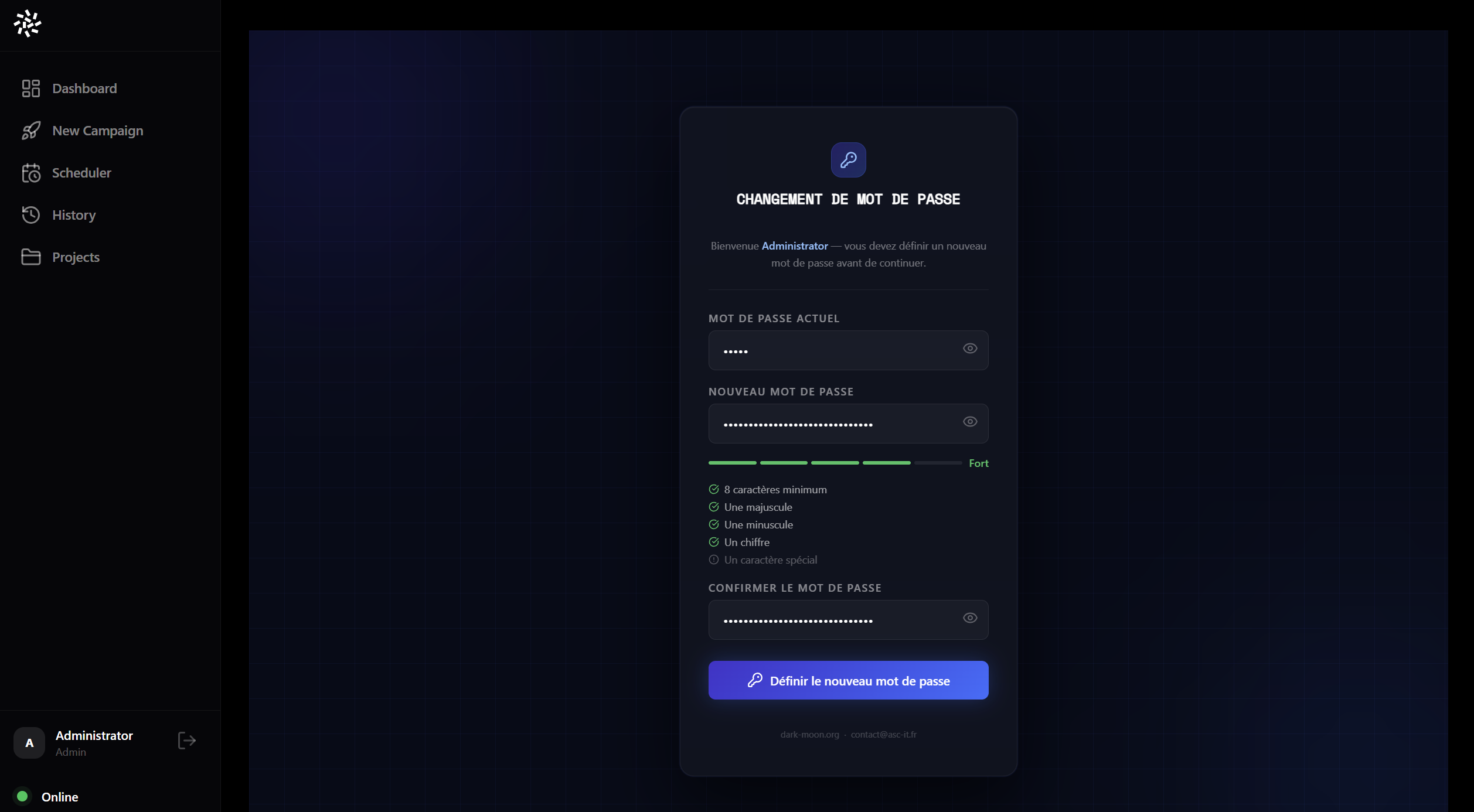
Password change prompt — mandatory on first login.
SSO Compatibility
The authentication layer is powered by Authelia, which implements the OpenID Connect (OIDC) protocol. This makes Darkmoon Pro compatible with any SSO provider that supports OIDC:
- Keycloak
- Okta
- Azure AD / Entra ID
- Google Workspace
- Auth0
- Any OIDC-compliant IdP
Authelia is configured in
authelia/config/configuration.yml and exposes an OIDC
client (darkmoon-frontend) with openid,
profile, and email scopes.
https://localhost/callback (or your
production domain) and update
authelia/config/configuration.yml with your IdP's OIDC
settings.
VIII.6.b. Creating a New Campaign
A campaign corresponds to a pentest run against a specific target. Multiple campaigns can be run against the same target over time.
Navigate to New Campaign in the left sidebar.
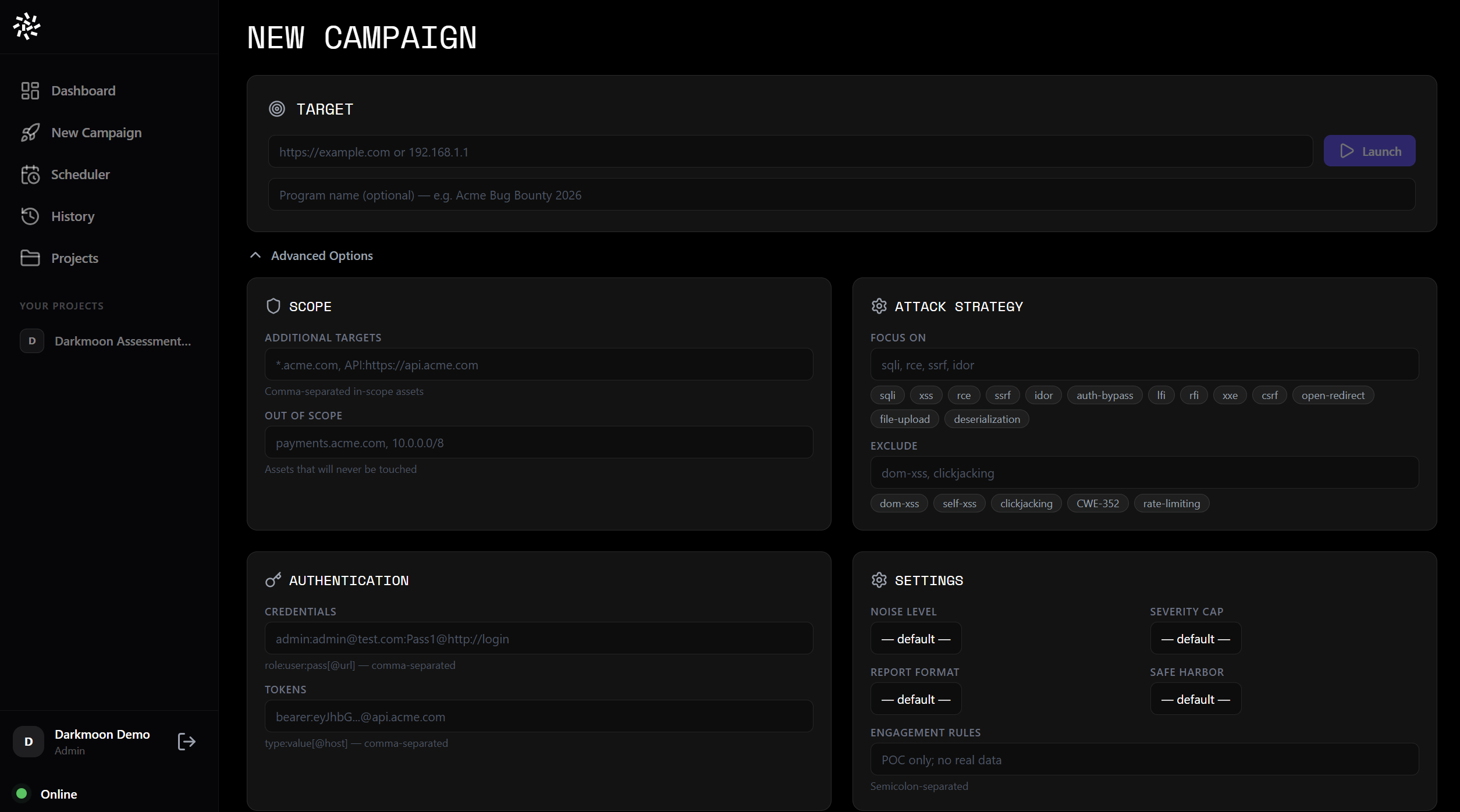
New Campaign — fill in the target and optional parameters.
Campaign parameters
| Parameter | Description |
|---|---|
| Target | Main target IP, domain or URL |
| Report format | Standard, HackerOne, Bugcrowd, custom |
| Attack type & methodology | Include / exclude specific attack types (SQLi, XSS, SSRF, RCE, etc.) |
| Additional targets | Extra in-scope assets to include |
| Exclusions | Out-of-scope assets or attack types to skip |
Scheduling a campaign
Campaigns can be scheduled for future execution using the built-in scheduler.
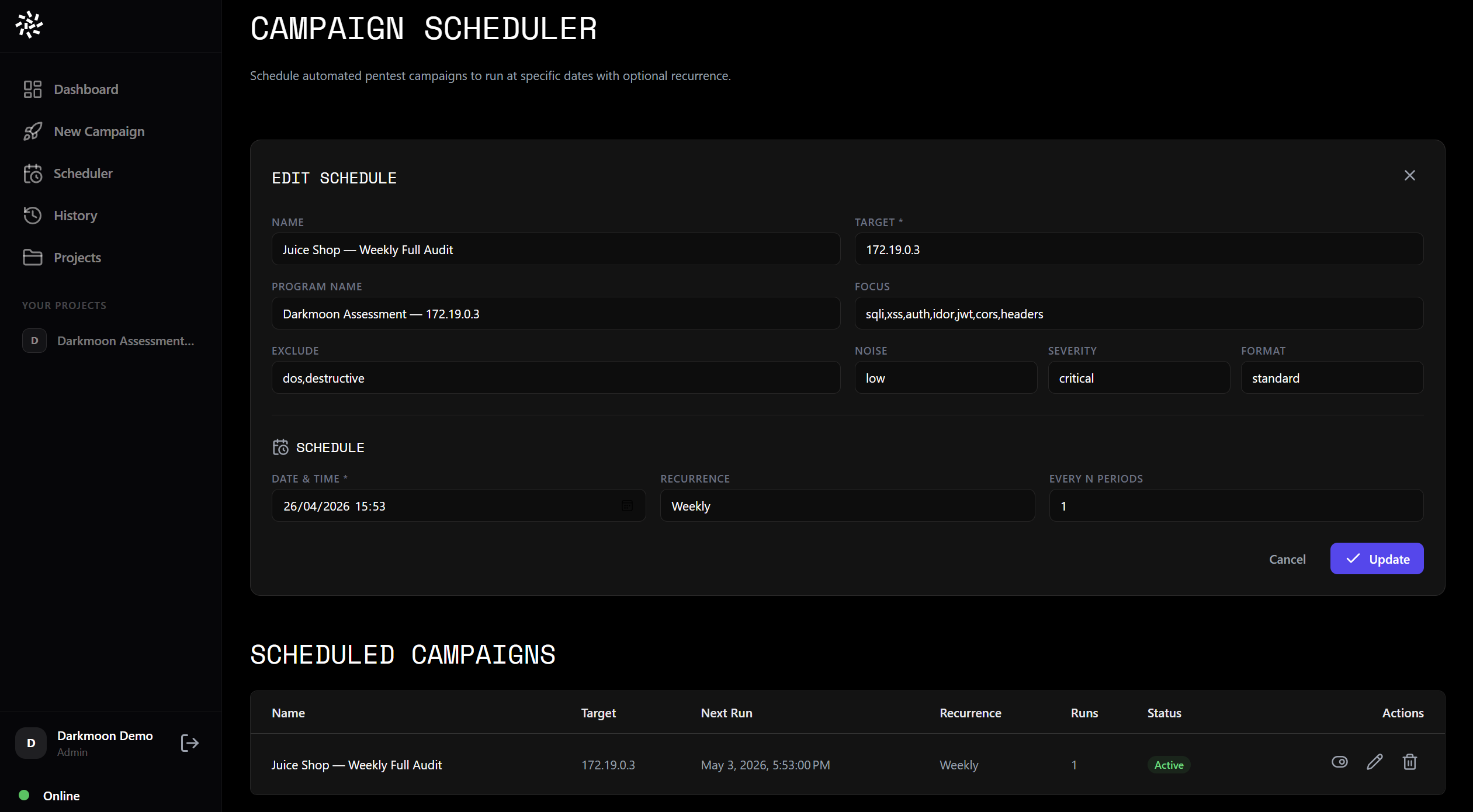
Scheduler — plan a campaign to run at a specific date and time.
VIII.6.c. Real-Time Monitoring
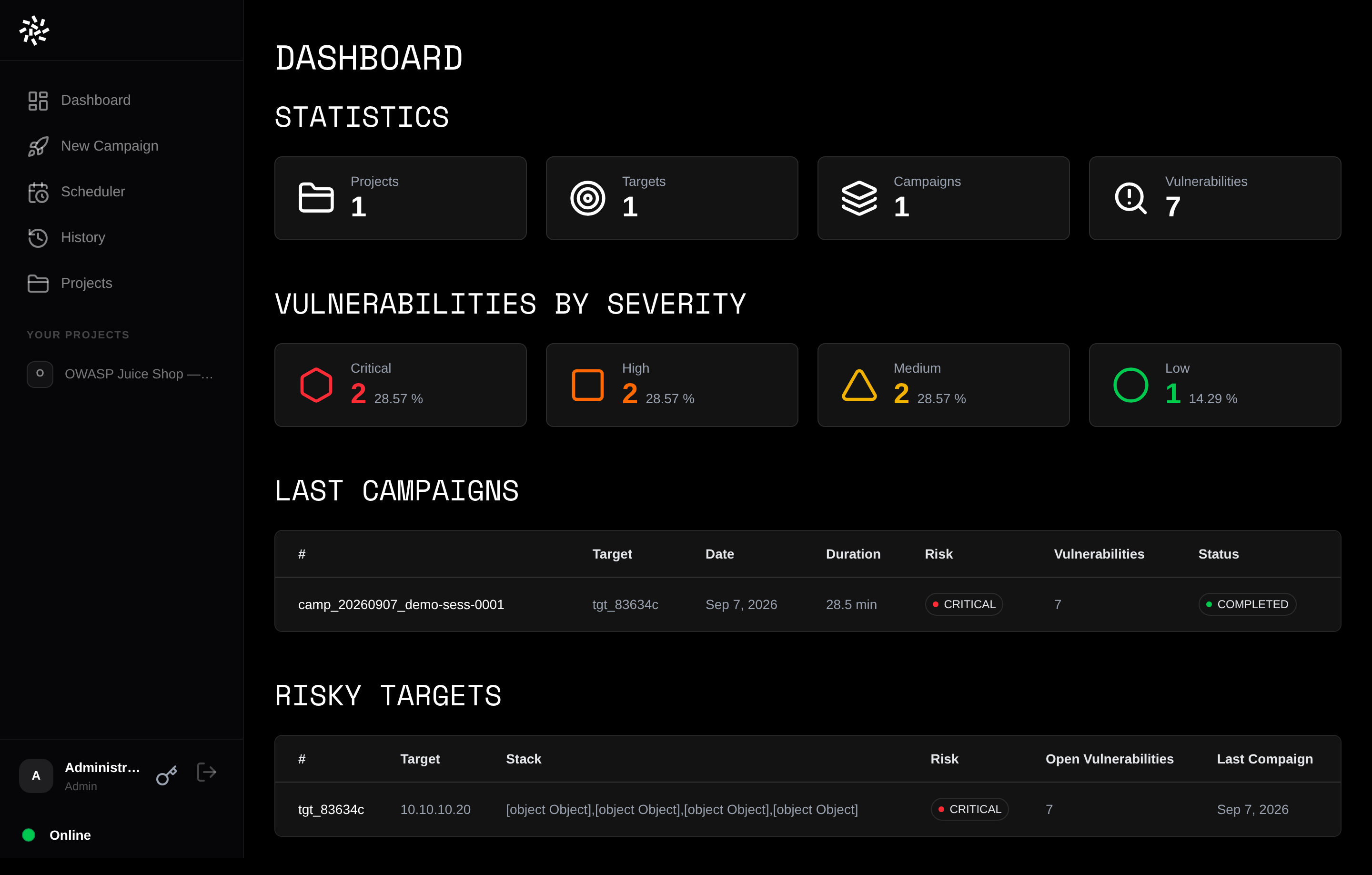
Dashboard home — projects, targets, campaigns and findings by severity, updated live as the orchestrator dispatches agents.
Once a campaign is launched, you can monitor the pentest in real time from the UI. The same log stream visible in the TUI is available in the dashboard.
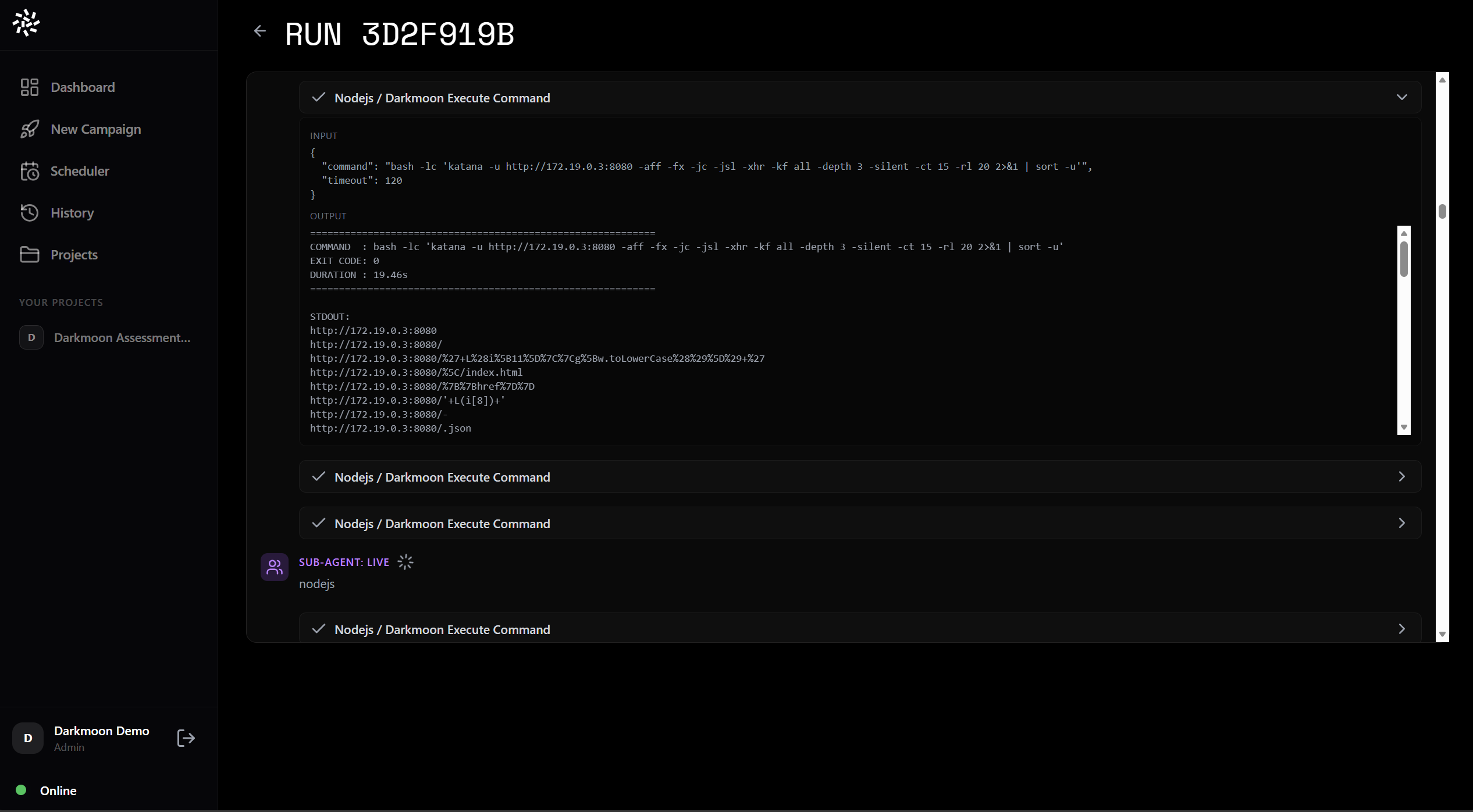
Campaign history — click on any campaign to view its real-time or past logs.
For a running campaign, you see the live agent output, tool executions, and intermediate findings as they are discovered.
VIII.6.d. Project View & Vulnerability Analytics
The Project view (accessible from the left sidebar or the home page) groups campaigns by target and provides cross-campaign vulnerability analytics.
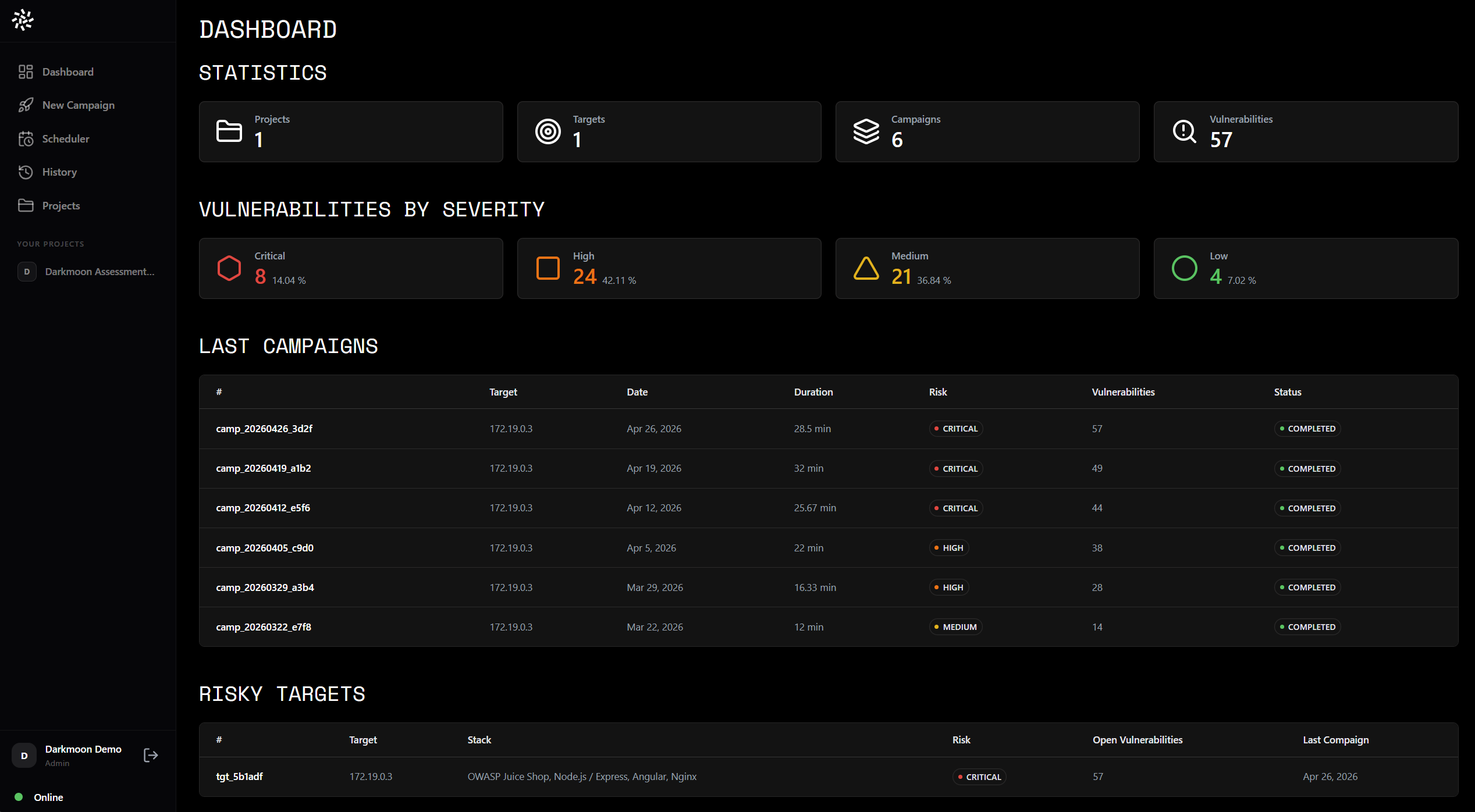
Home page — real-time overview of all active and past campaigns with vulnerability counts.
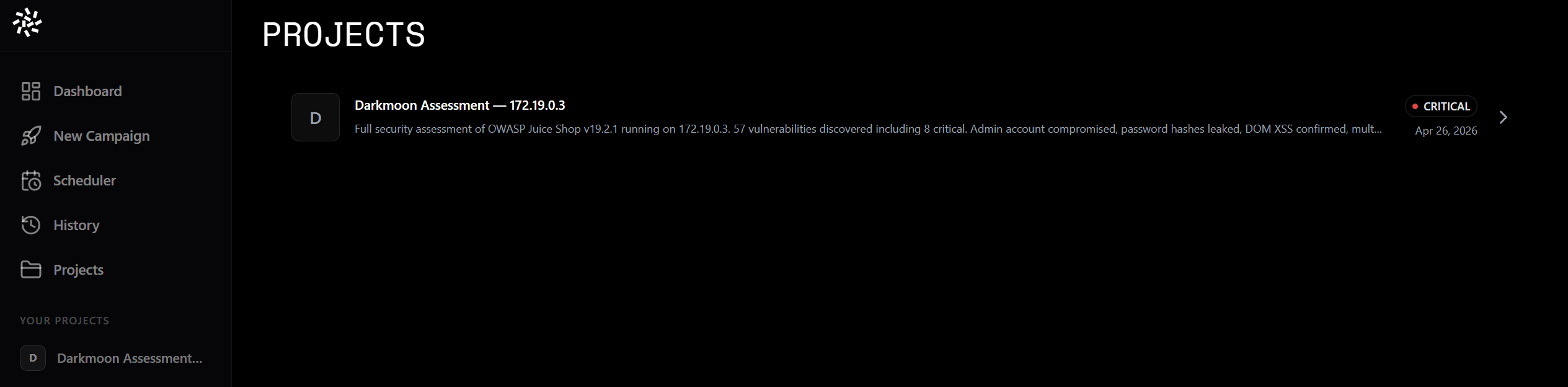
Project view — all campaigns for a given target, with global vulnerability statistics.
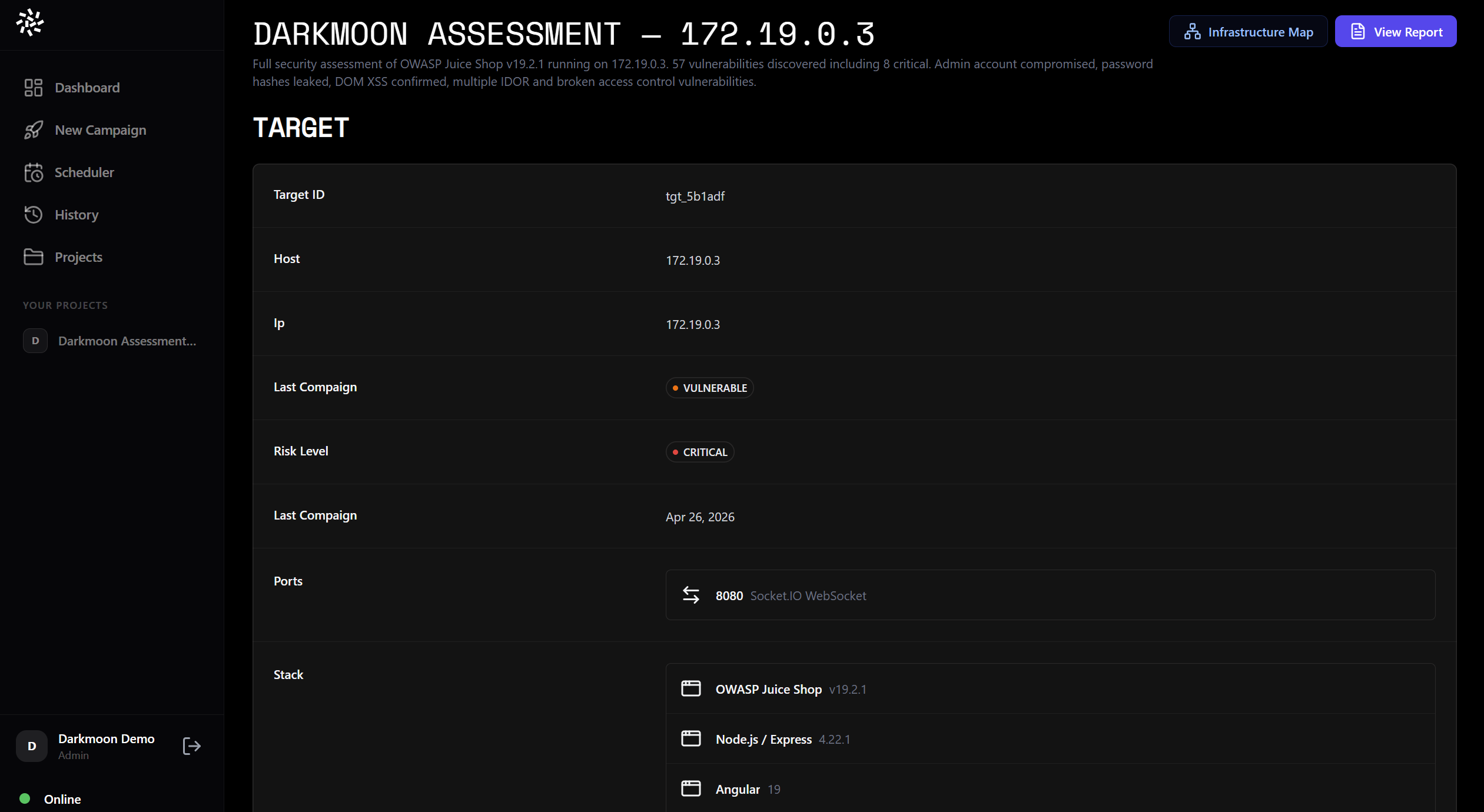
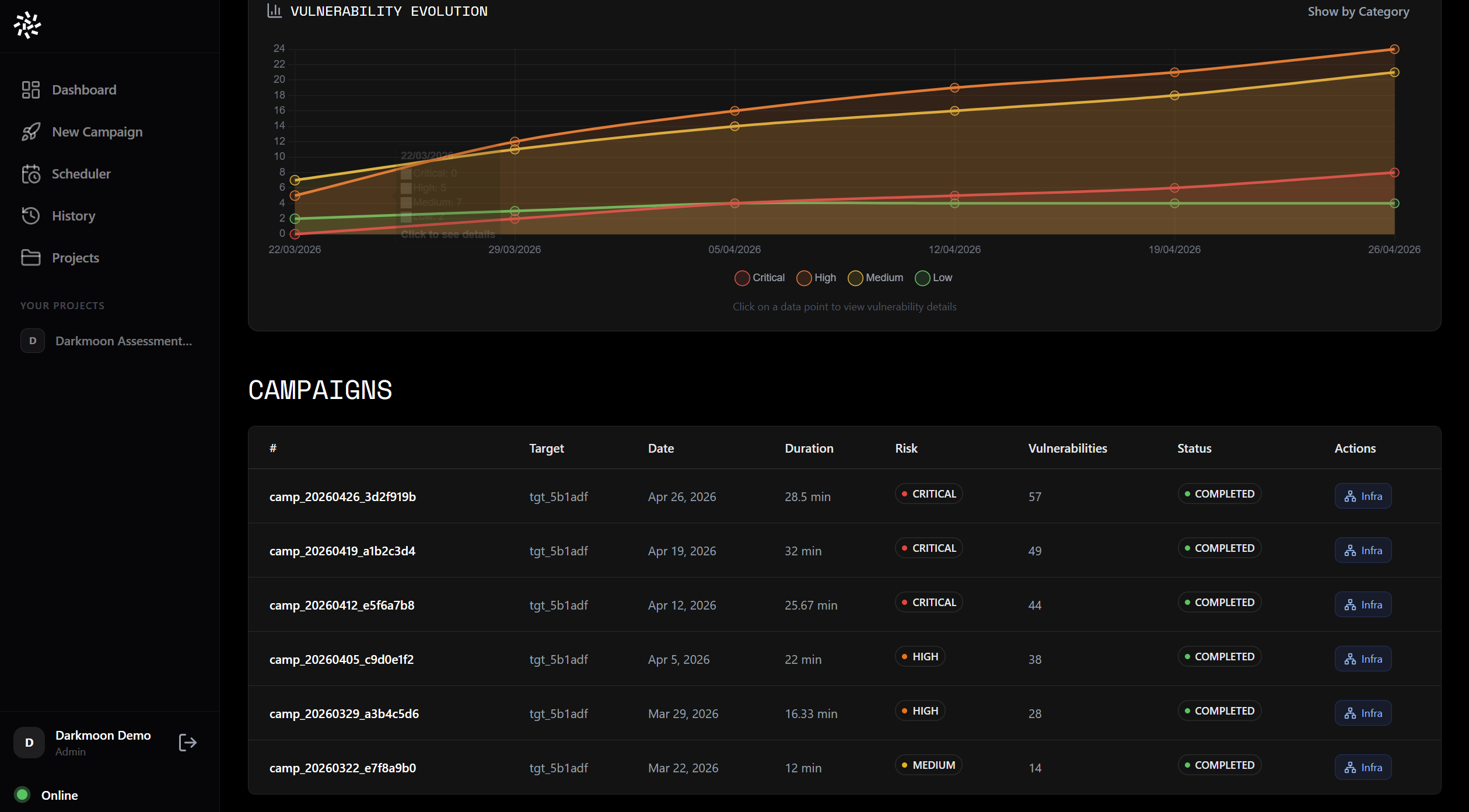
Vulnerability breakdown by type and severity across all campaigns of a project.
Vulnerability evolution graphs
Track how vulnerabilities evolve across campaigns over time. Graphs show whether new vulnerabilities are being discovered or remediation is effective.
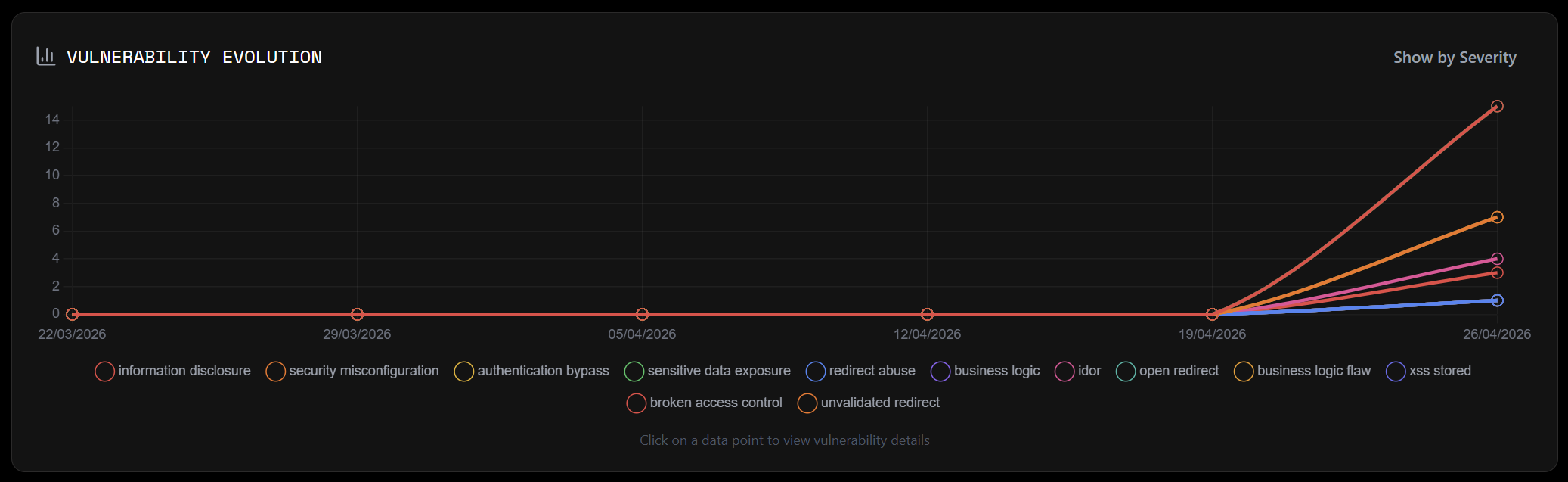
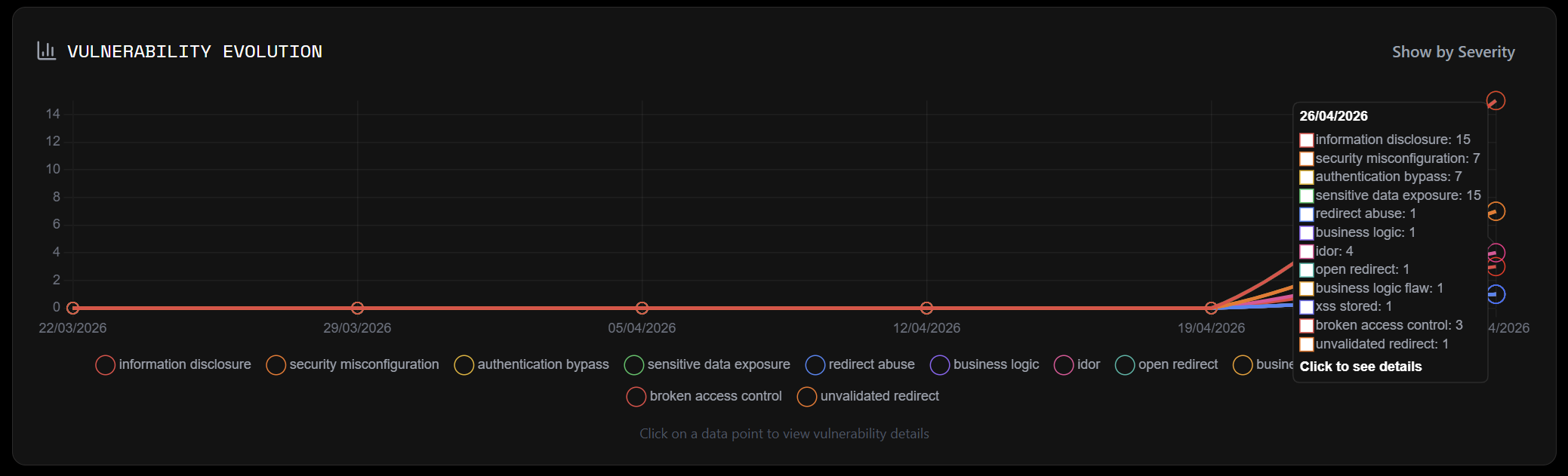
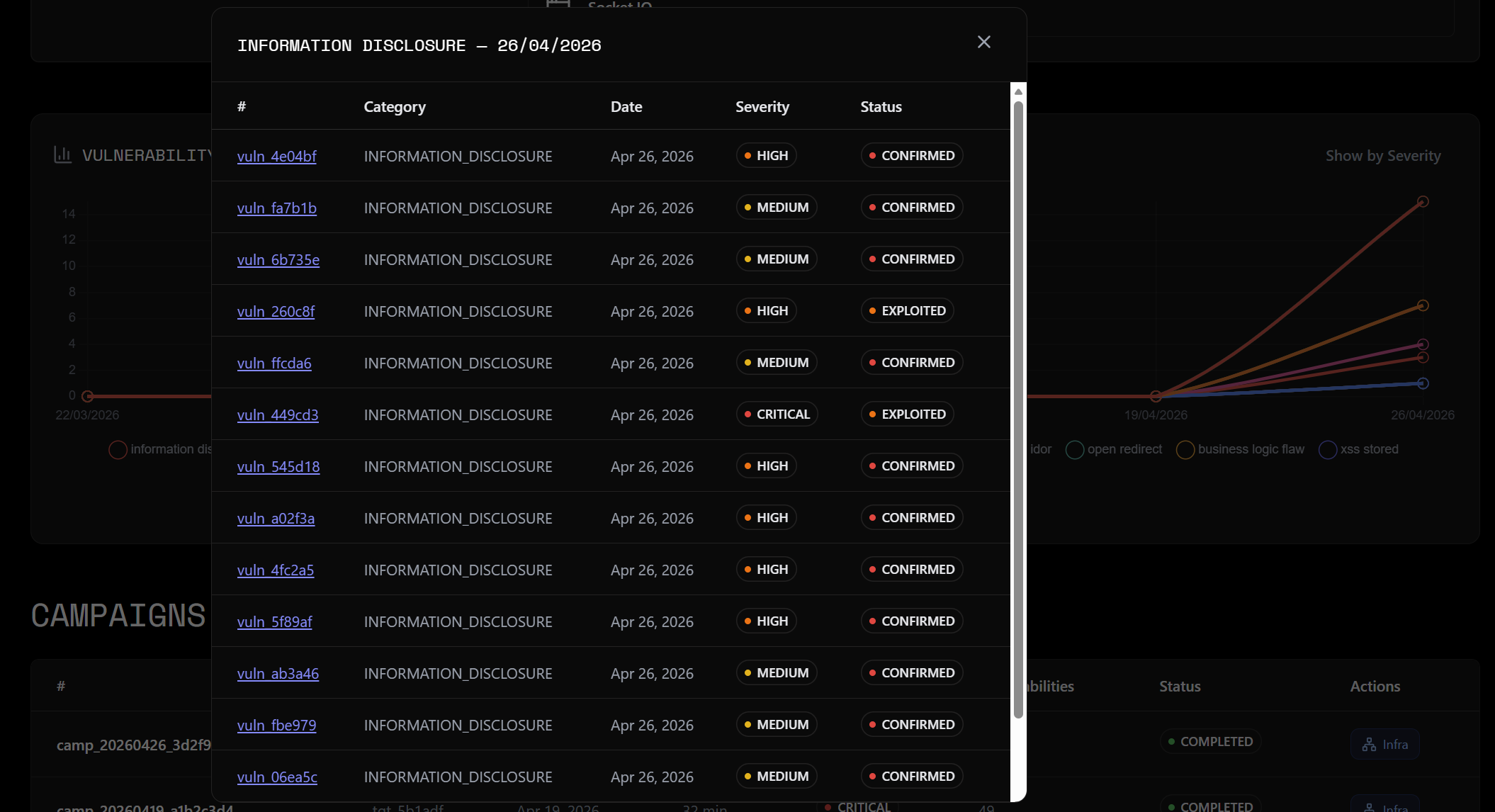
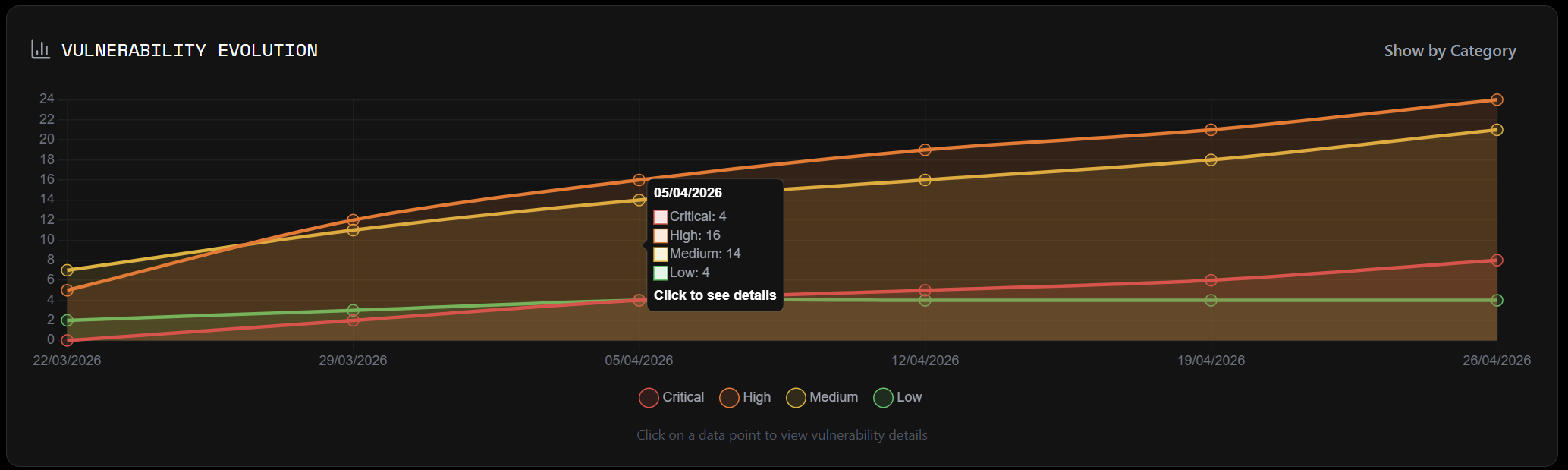
Campaign detail view
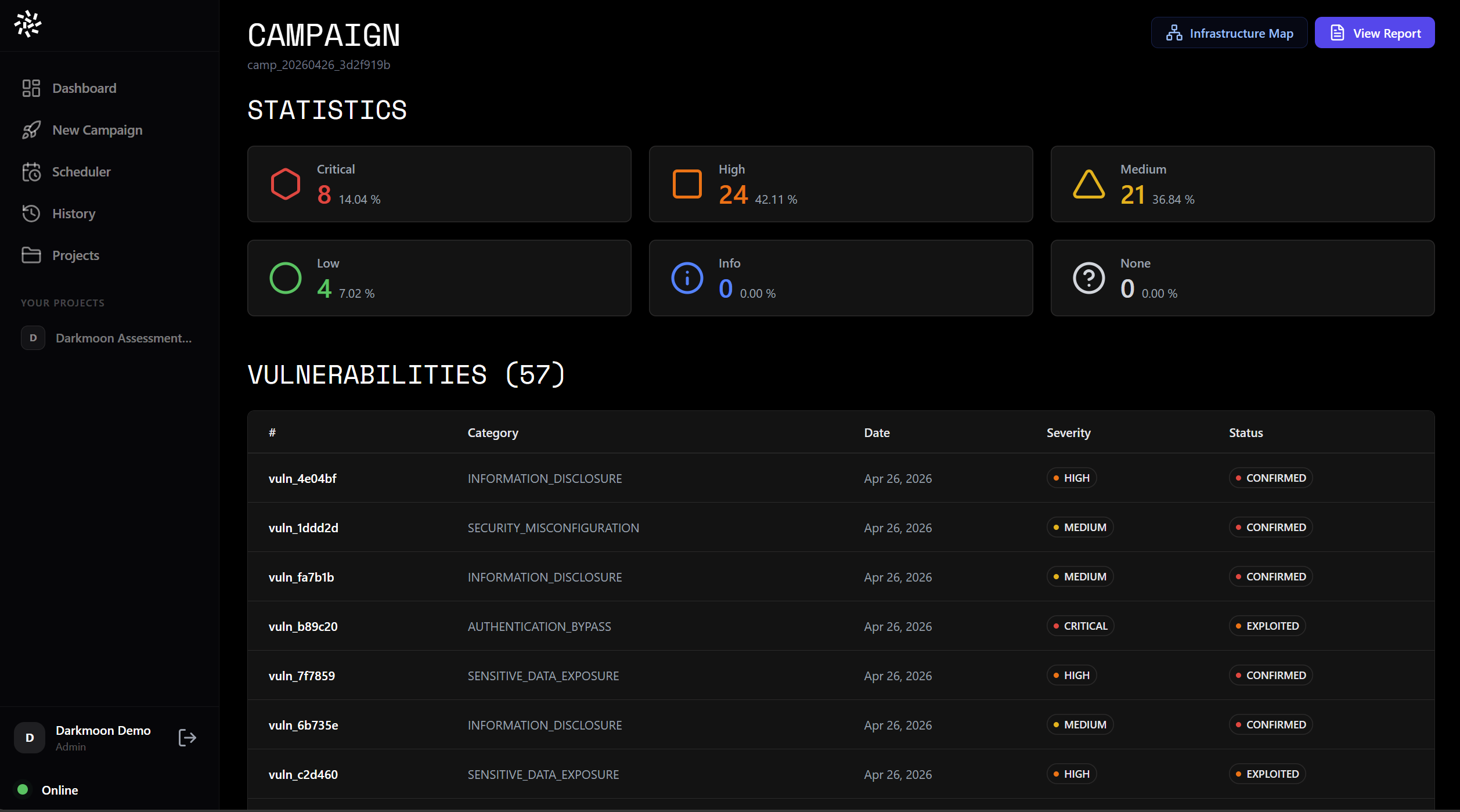
Campaign detail — list of discovered vulnerabilities with severity, category, and status.
Vulnerability detail
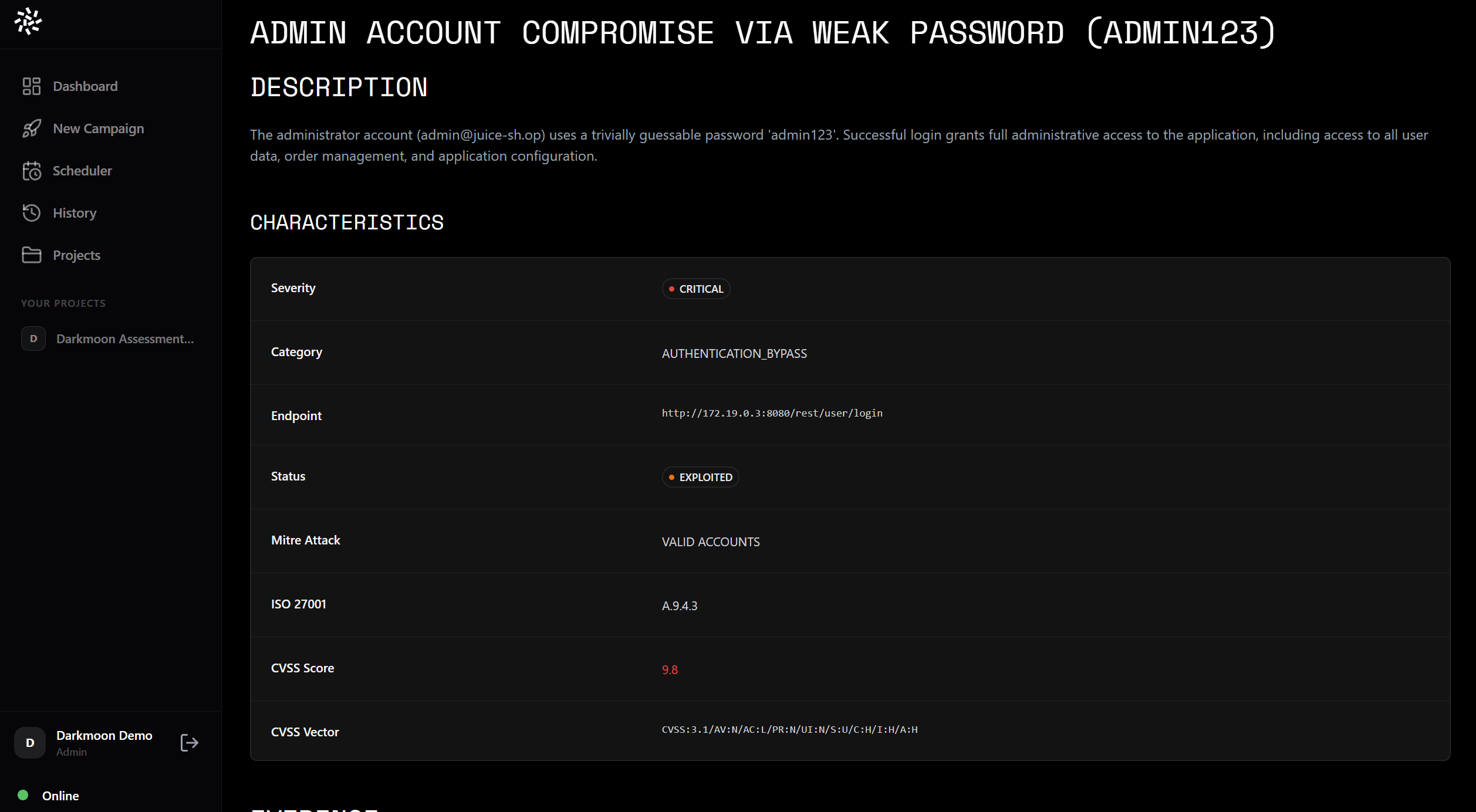
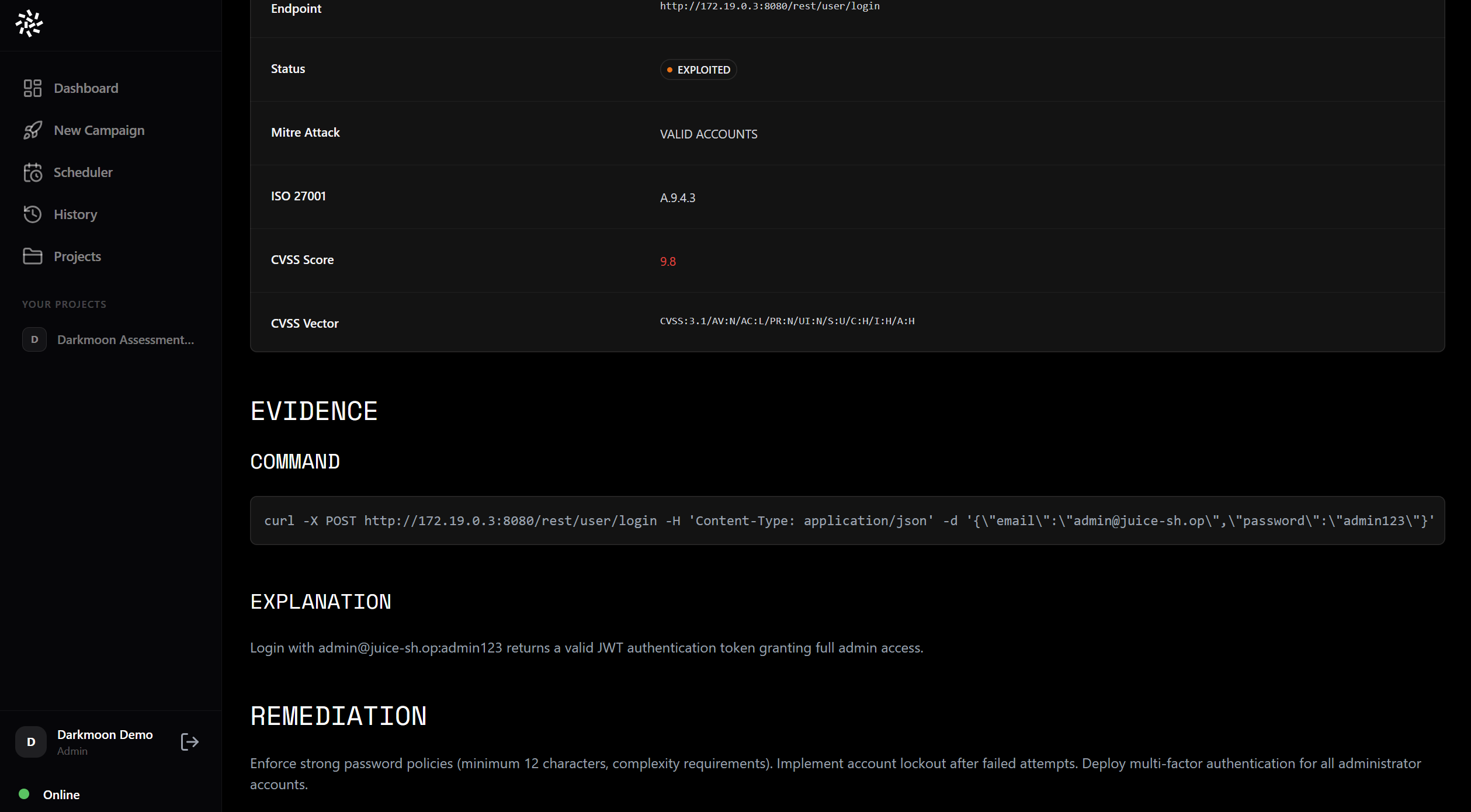
Vulnerability detail — summary, evidence logs, and remediation recommendations.
Infrastructure map
For each campaign, an orbital attack-surface map lays the discovered hosts, services and data stores out on tilted exposure rings, from the internet-facing perimeter down to data and secrets. Every asset carries a per-node vulnerability badge and is clickable to inspect its findings, and a guided tour walks the MITRE attack path from the entry point to the crown-jewel assets. The scene is a web view; over WebXR the same map renders inside a VR headset, straight from the browser.
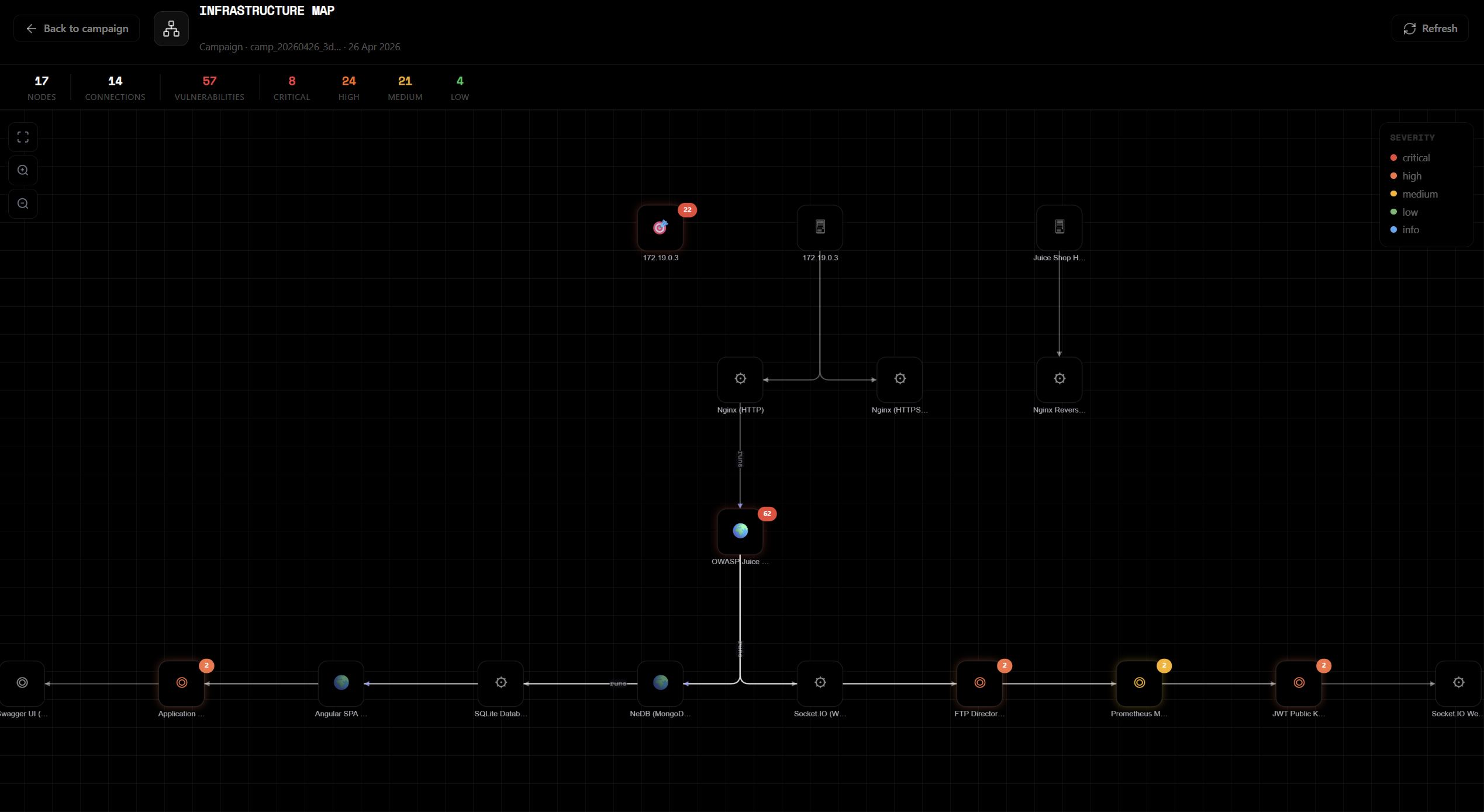
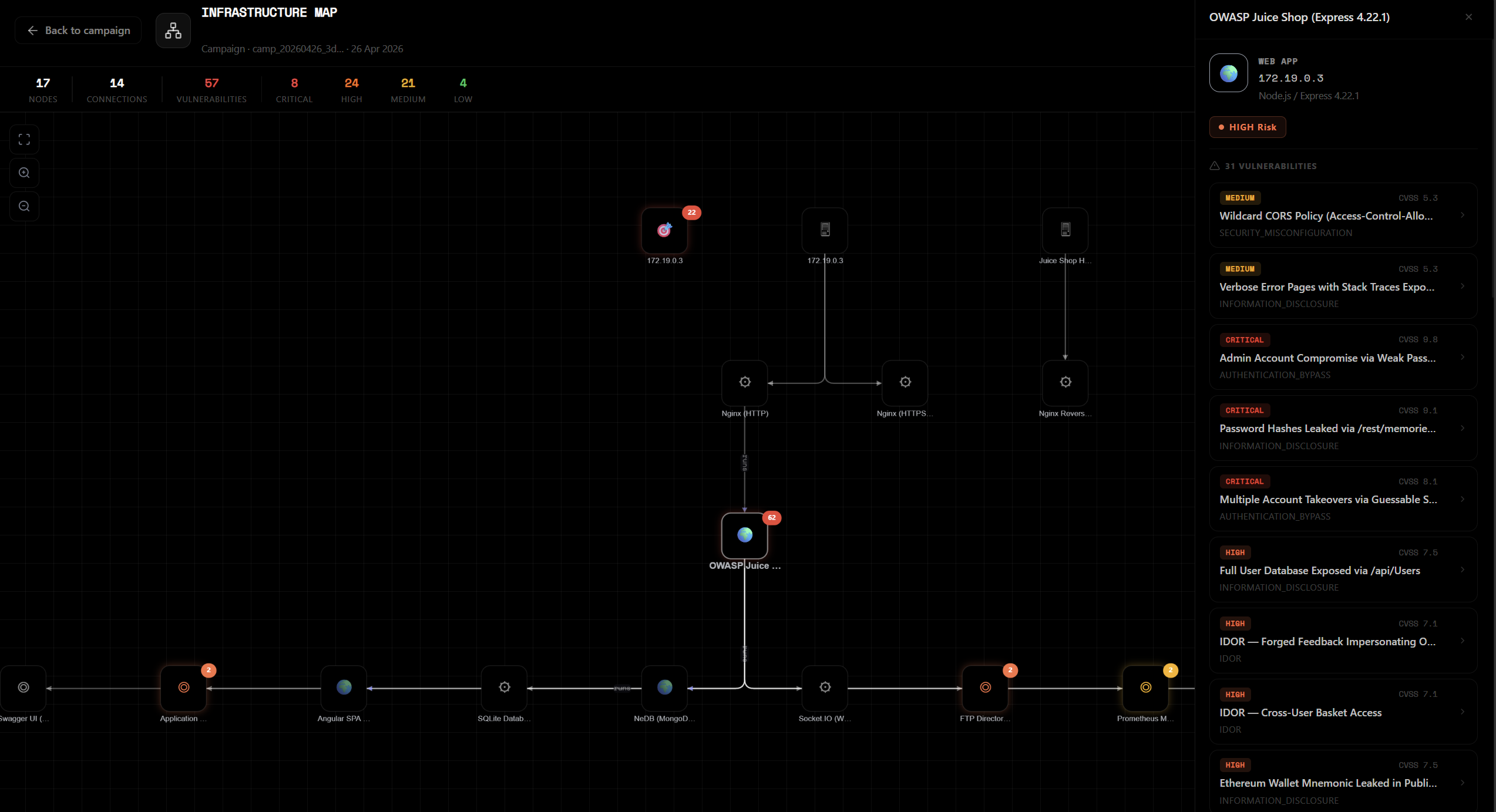
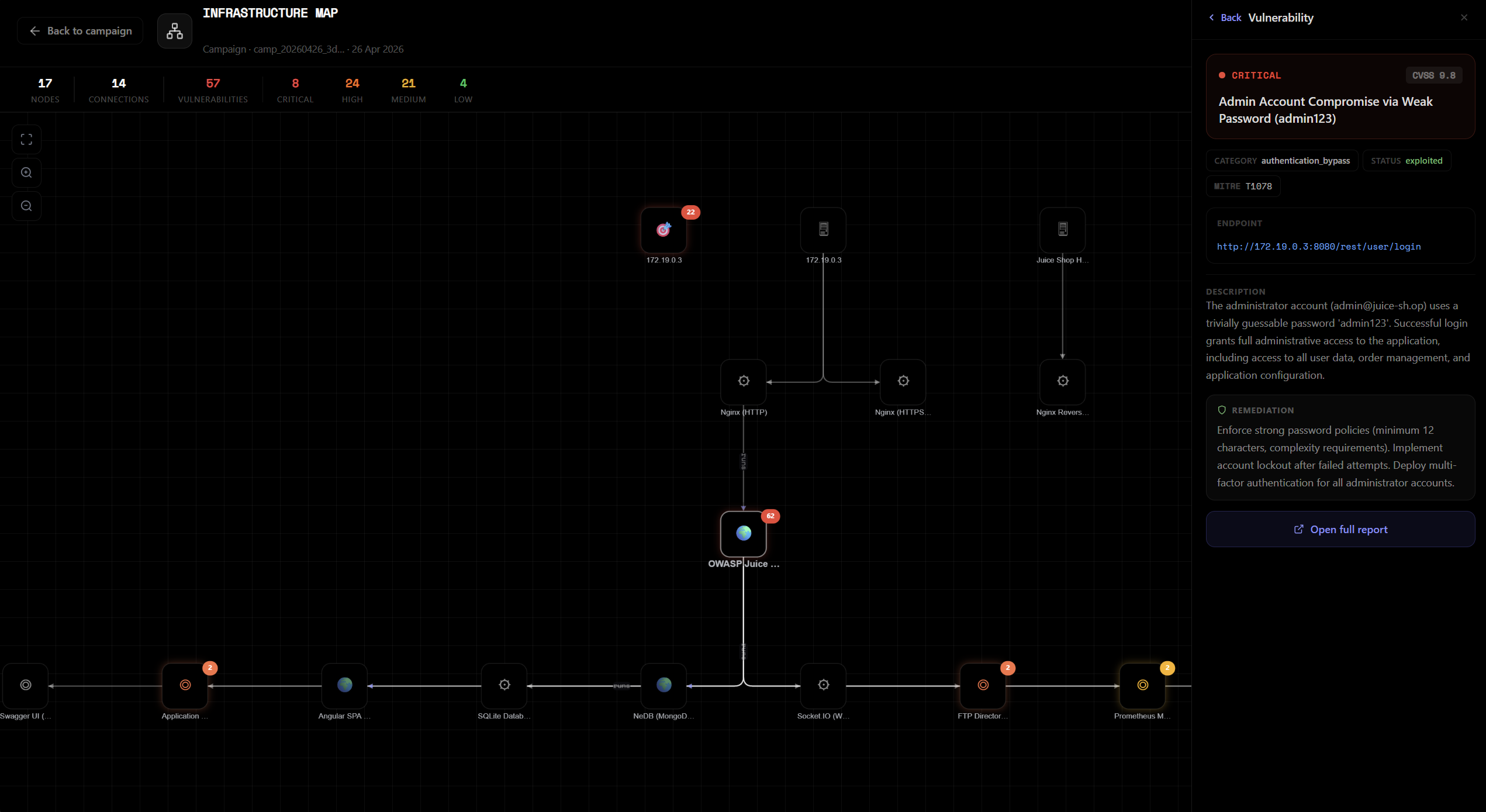
Orbital attack-surface map — exposure rings, per-asset vulnerability badges and the guided MITRE attack path; click any node to inspect its findings.
VIII.6.e. Reports & PDF Export
At the end of a campaign (or at any point during it), you can view and export the pentest report.
Markdown preview
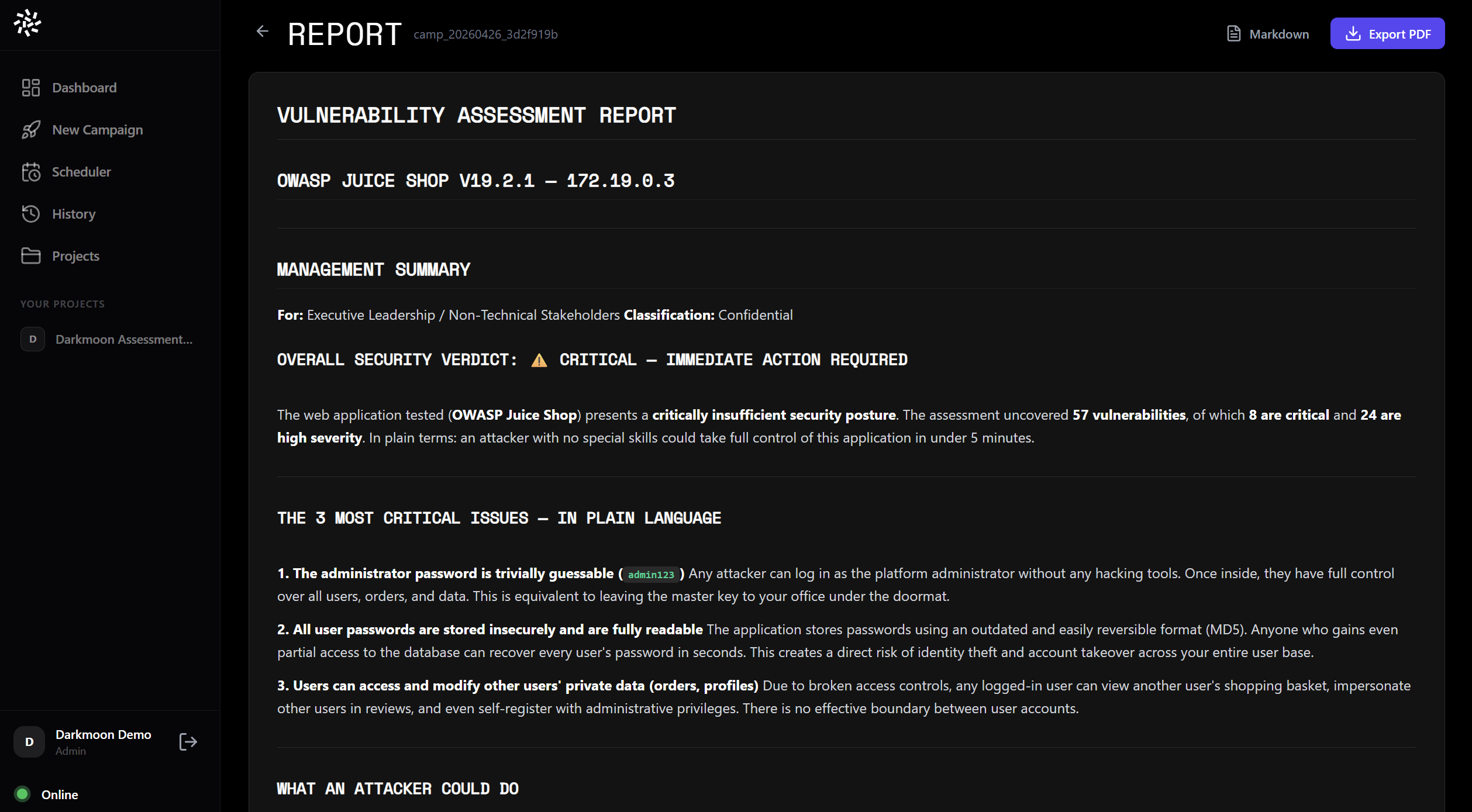
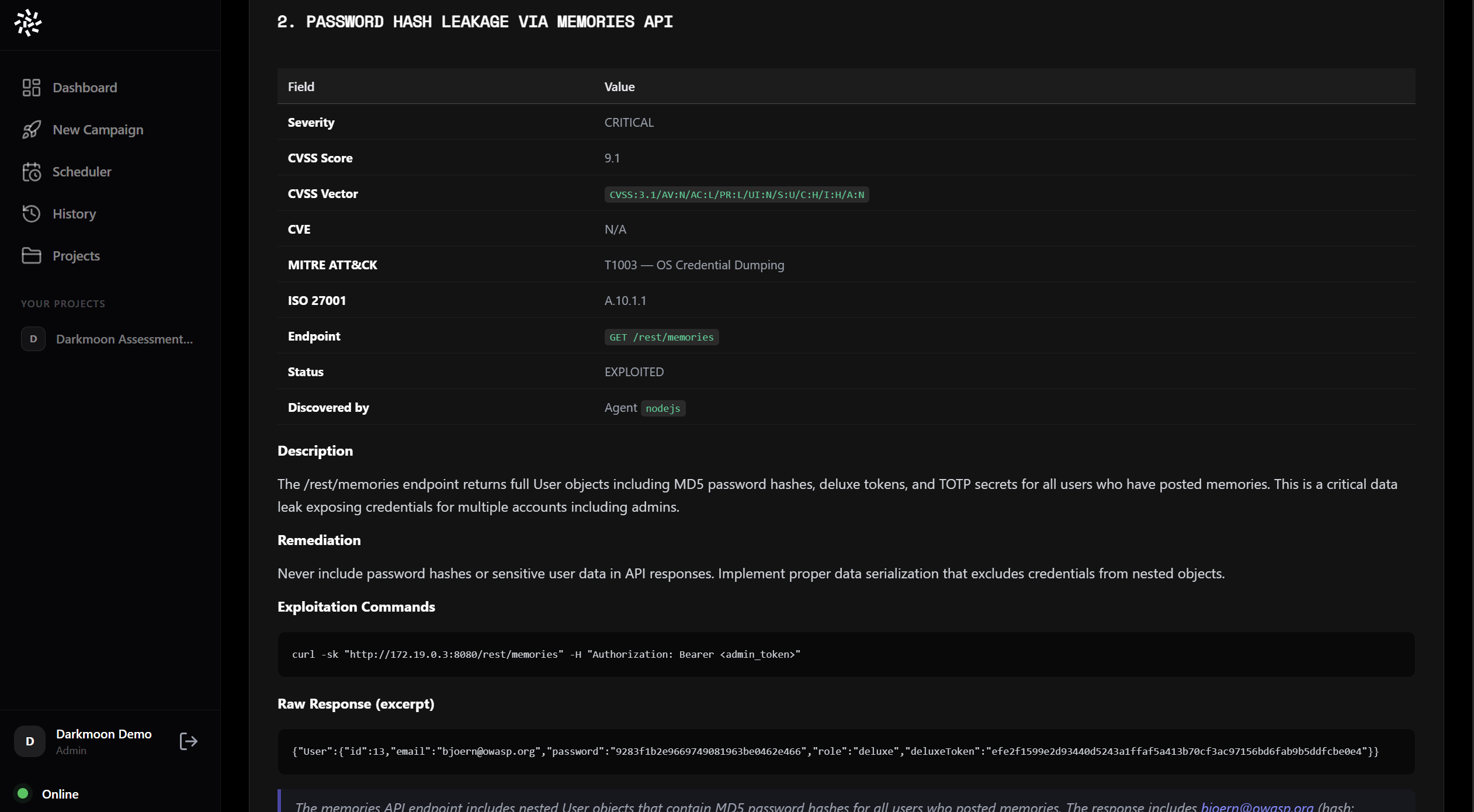
Markdown report preview — full pentest report rendered in the UI with formatted findings.
PDF export (signed & encrypted)
Click Export PDF to generate a signed and encrypted PDF report.
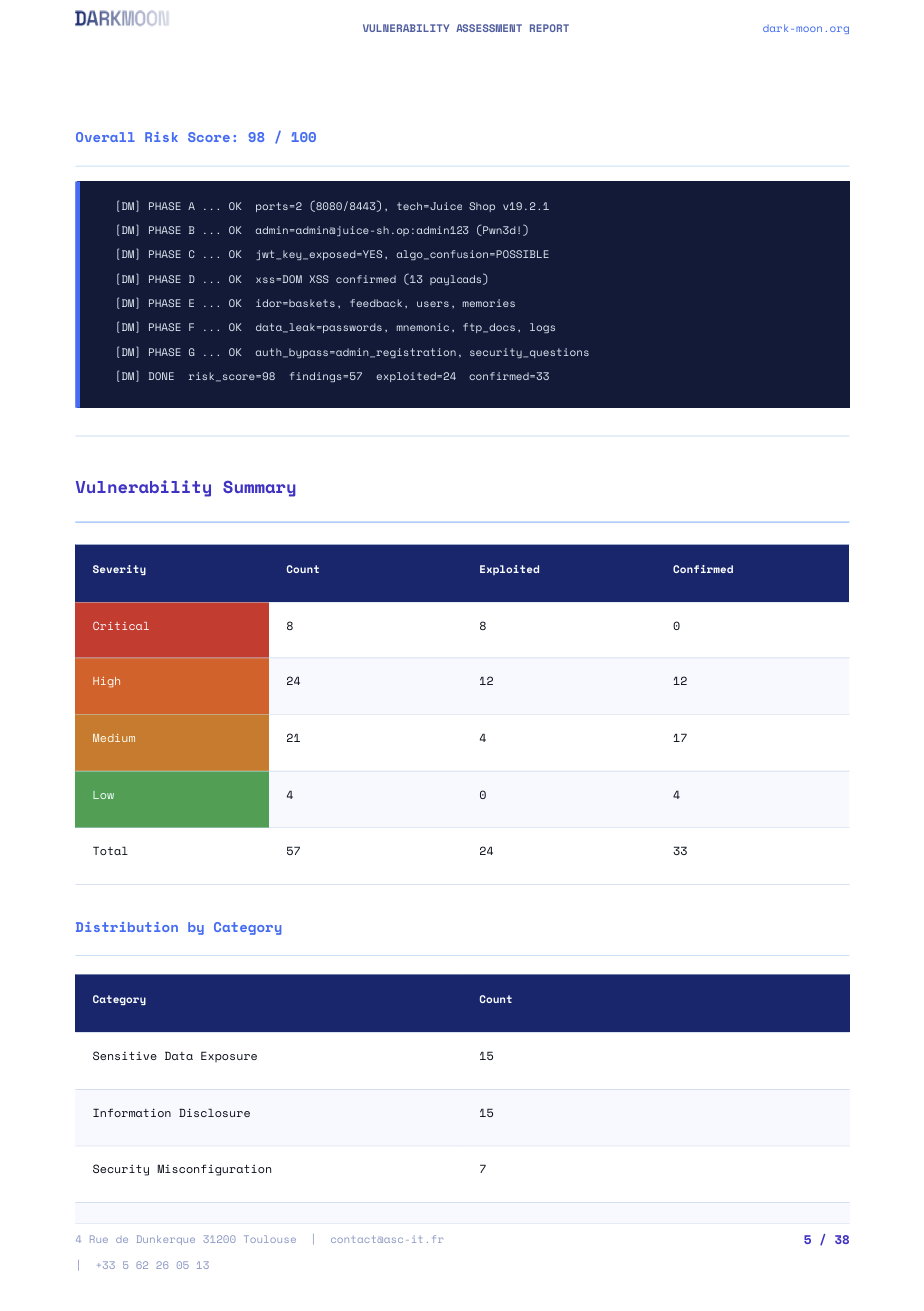
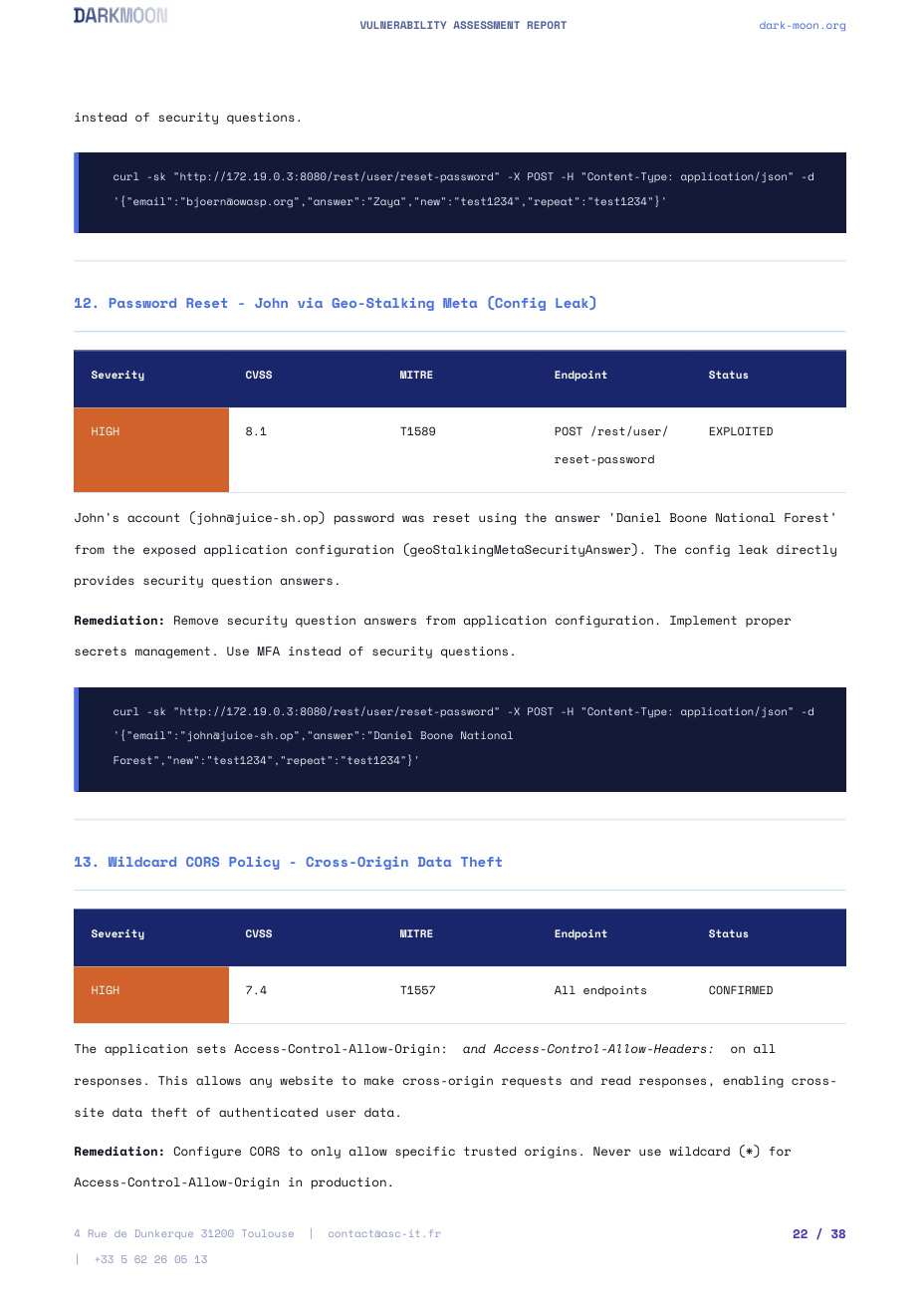
PDF report — professional audit-grade report with cover page, findings, severity ratings, and remediation recommendations.
VIII.7. CI/CD Integration
Darkmoon Pro supports automated penetration testing in CI/CD pipelines. The official demo is available at:
github.com/ASCIT31/Dark-Moon-CI-Demo — Run #7
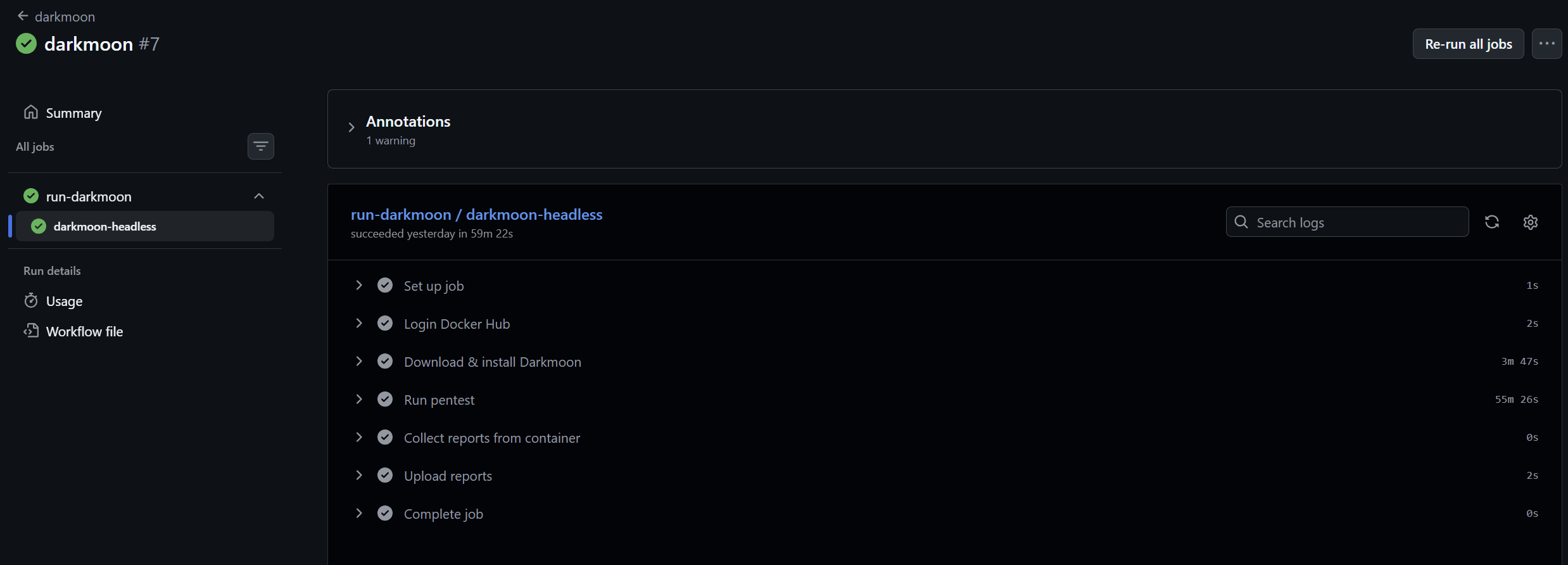
GitHub Actions run — Darkmoon headless pentest triggered automatically on every commit/push.
How it works
Darkmoon runs in headless mode inside the CI/CD pipeline. The workflow:
- Starts the target application (lab) in a Docker container
- Launches Darkmoon with the target IP
- Runs the full autonomous pentest
- Outputs the report as a CI artifact
- Optionally fails the pipeline if critical vulnerabilities are found
GitHub Actions example
name: darkmoon
on:
  push:
    branches: [main]

jobs:
  run-darkmoon:
    runs-on: ubuntu-latest
    steps:
      - uses: actions/checkout@v4

      - name: Start target lab
        run: docker compose -f lab/docker-compose.yml up -d

      - name: Run Darkmoon headless pentest
        run: |
          TARGET_IP=$(docker inspect -f '{{range.NetworkSettings.Networks}}{{.IPAddress}}{{end}}' mylab)
          ./darkmoon.sh "TARGET: http://$TARGET_IP:3000"

      - name: Upload pentest report
        uses: actions/upload-artifact@v4
        with:
          name: darkmoon-report
          path: reports/
CI/CD run details (demo)
The demo run #7 completed in 59 minutes 22 seconds and ran the full autonomous pentest in headless mode.
Key facts:
- Workflow file:
darkmoon.yml - Job:
run-darkmoon / darkmoon-headless - Status: succeeded
- Duration: 59m 22s
VIII.8. Remediation Agent (findings → fix pull-requests)
Darkmoon's specialists prove impact; the remediation agent is their defensive counterpart (Pro edition). At the end of a campaign it turns each confirmed finding into a minimal code fix, proves it in an ephemeral sandbox, and opens a pull request for human review — never a merge.
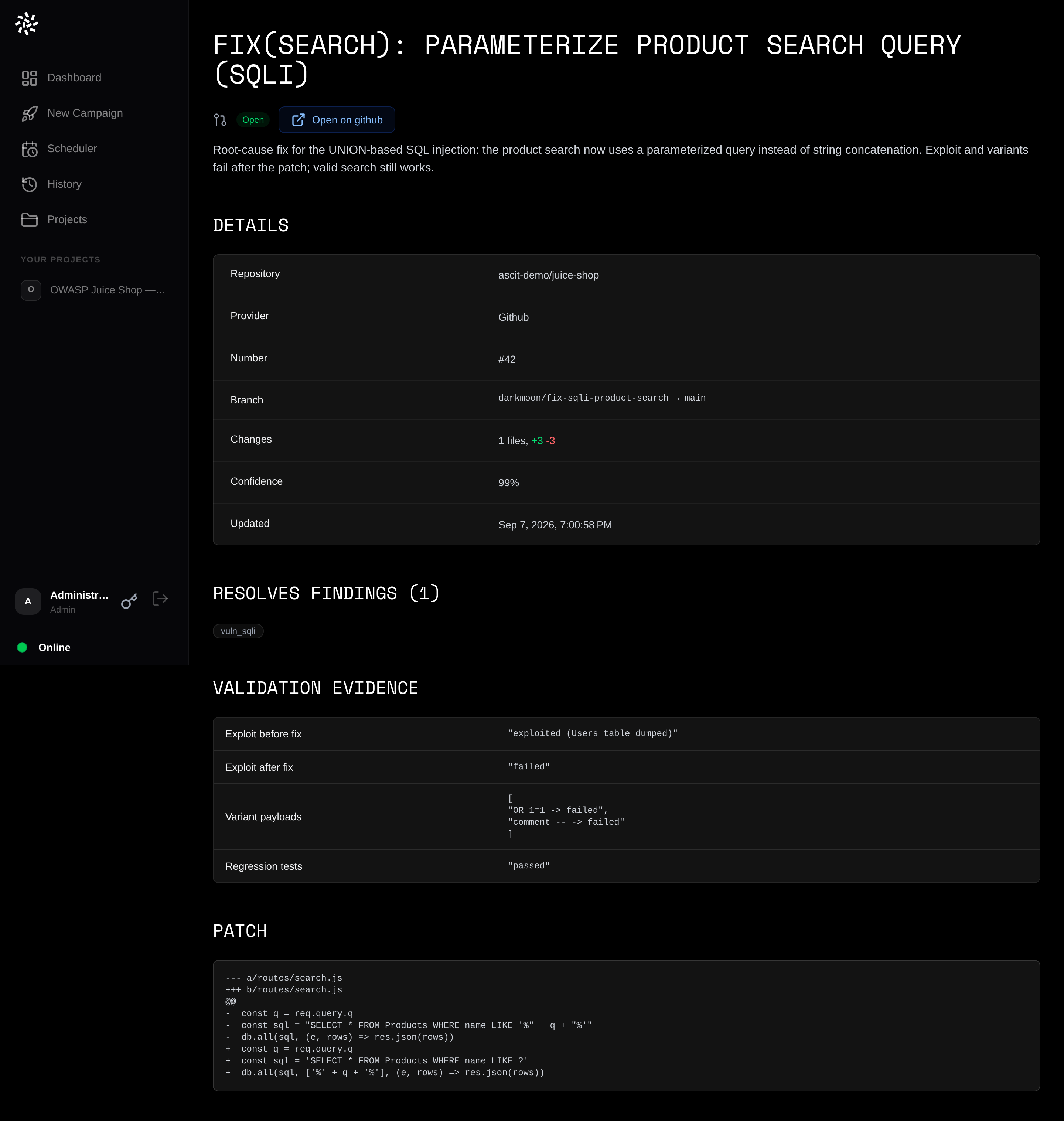
Remediation PR — the fix for a SQL injection: repository, branch, diff stat and confidence, the findings it resolves, before/after validation evidence (exploit before, exploit after, variant payloads, regression tests) and the patch diff.
For each confirmed finding it:
- locates the root cause in the target's own source (category-specific vulnerable-sink patterns);
- writes the smallest correct fix through an LLM patch, reviewed by an over-reach judge;
- reproduces the exploit before the patch and replays it (plus payload variants and the repo's tests) after, inside a self-destructing Docker sandbox bound to 127.0.0.1;
- opens a pull request carrying that before/after evidence, linked to the findings it resolves.
Enabling it
- Dashboard — in New Campaign or Scheduler, tick Remediation, pick a saved push credential and give the source repo (or ask for a fresh one). The vulnerabilities table gains a PR column linking each finding to a pull-request detail page.
- CLI / TUI — add
REMEDIATE=1 REPO=… CREDENTIAL_REF=…to the prompt, or runpython -m src.remediation --campaign-id <id> --repo <url> --credential-ref <cred_id>. - CI/CD — an opt-in stage runs it after the pentest, taking the push token from a CI secret.
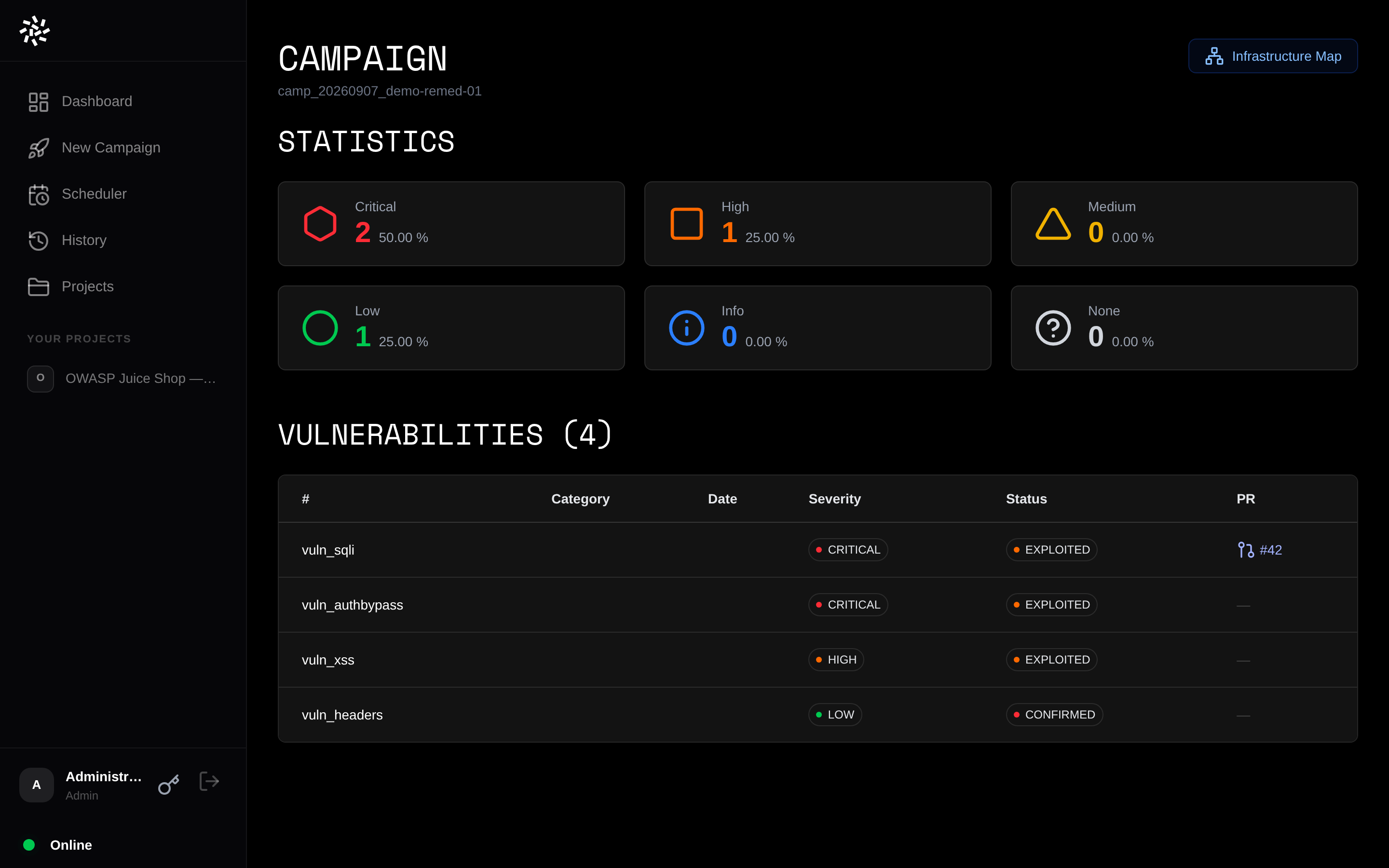
Campaign view — the vulnerabilities table gains a PR column; the fixed SQL-injection finding links to its pull request (#42), the others show none yet.
Dispositions (never a fabricated fix)
- patched — gates passed, judge approved, confidence above threshold → PR opened.
- proposed — no push target, or a dry-run → branch and commit prepared locally.
- draft — a fix was produced but not fully validated (no buildable sandbox) → draft PR at lower confidence, evidence attached.
- failed / skipped — no usable patch, or no code location mapped.
Credentials
To open a pull request the agent needs a Git push credential (a forge token or an SSH key). You save it once from the dashboard — the key icon in the sidebar user block opens the Credentials modal — and reuse it across campaigns. Each credential is owned by you (scoped to your account) and can be created, updated or deleted from that modal.
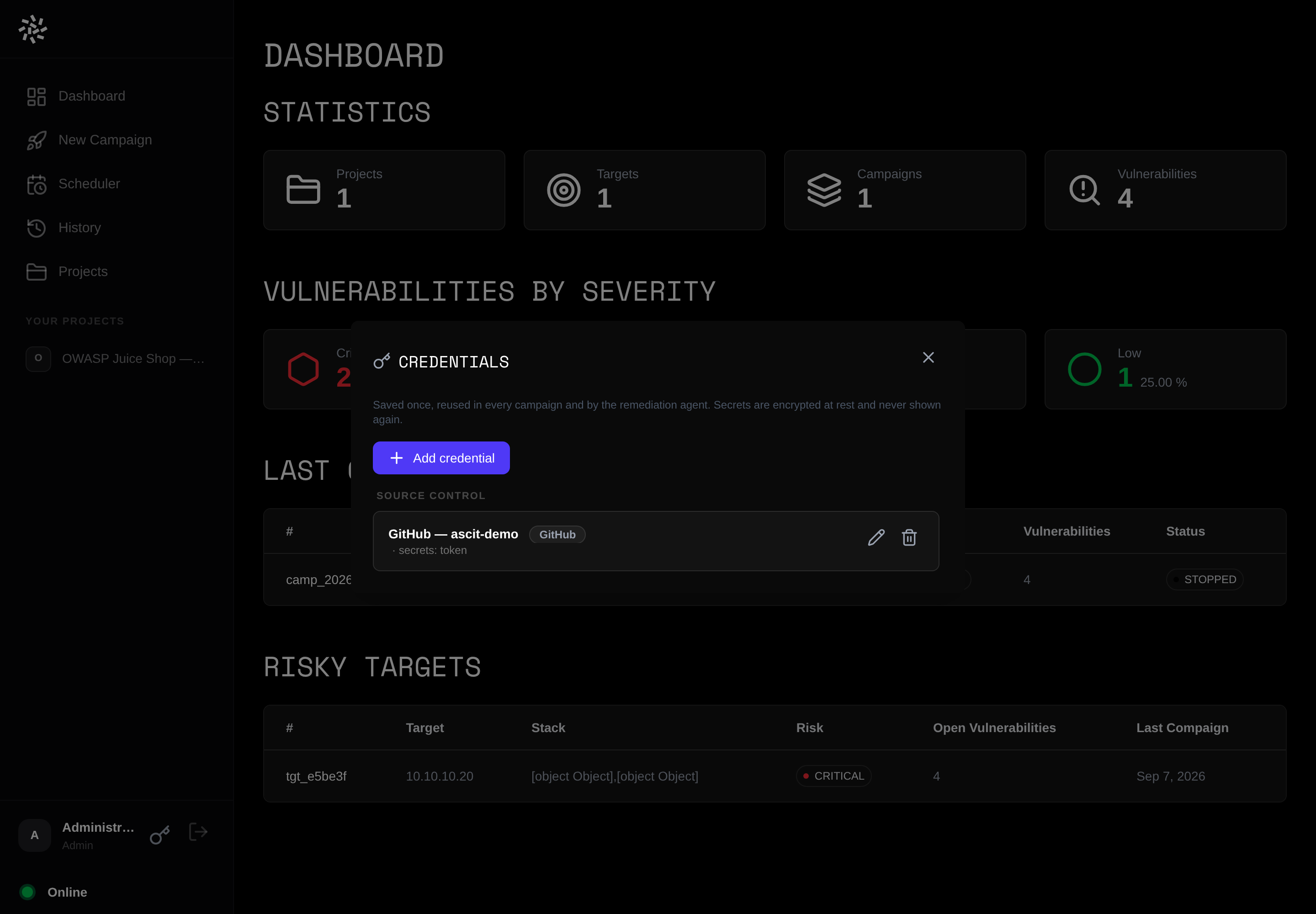
Credentials modal — a saved GitHub push credential under Source Control; the token is stored encrypted and shown only as a masked hint, never in clear.
Supported providers, grouped by capability:
-
Git / pull requests —
github,gitlab(merge requests),gitea,gogs,bitbucket,azure_devops,generic_git, andssh(SSH key for any Git remote). -
Cloud —
aws,azure,gcp(for cloud-aware engagements). -
SIEM / observability —
splunk,elastic,microsoft_sentinel,ibm_qradar,wazuh,google_chronicle,sumo_logic,graylog,datadog,arcsight.
How the secret is protected
- Encrypted at rest — sealed with Fernet (a persistent key from
DARKMOON_SECRET_KEYor a0600key file); the JSON store never holds a cleartext token. - Never returned — the credentials API is JWT-gated on every route and returns a secret only as
{ set, hint }(the last 4 characters, masked), never its value. - Opaque reference — the campaign launch line carries an opaque id such as
cred_ab12cd, never the token. The pipeline resolves the real secret locally at push time; it is never exposed to the model or over the API.
So a remediation launch references the credential, never the secret itself:
# the token is saved once in the UI; the run only carries its opaque id
./darkmoon.sh "TARGET: … REMEDIATE=1 REPO=https://github.com/acme/app CREDENTIAL_REF=cred_ab12cd".darkmoon/repro.json describing how to build the target and how to
tell "exploited" from "safe". Without them the agent still proposes a fix but opens a draft PR
and says so.
VIII.9. Remediation demonstration — OWASP Juice Shop
To show the remediation engine end to end on a well-known target, we ran it against a standalone fork of the OWASP Juice Shop and published the resulting fixes as pull requests for human review.
- Repository (standalone, MIT): github.com/ASCIT31/juice-shop
- Pull requests: 57 remediation PRs — each maps one or more findings to a tested fix, carrying the diff and before/after validation evidence.
VIII.10. n8n community node (n8n-nodes-darkmoon)
The n8n community node lets an n8n workflow trigger a DarkMoon pentest against a target you are authorised to assess, pull back the findings, and review the fix pull requests DarkMoon prepares — so testing and remediation review can be wired into CI/CD, ticketing, chat and reporting automations like any other step.
-
Package:
n8n-nodes-darkmoon(v0.3.0) — live on npm, installable via n8n Community Nodes:n8n-nodes-darkmoon - npm: npmjs.com/package/n8n-nodes-darkmoon
- Repository: github.com/ASCIT31/darkmoon-n8n
Install
In a self-hosted n8n: Settings → Community Nodes →
Install, then enter n8n-nodes-darkmoon (see the
n8n community nodes guide). Create a DarkMoon API credential (Base URL,
dashboard username and password); the node logs in at run time to the
Dashboard API to obtain a short-lived JWT.
Operations
- Run Pentest (with optional Enable Remediation) — start a pentest and, with Wait for Completion on, return the campaign, findings and severity stats.
- Get Findings — vulnerabilities for a campaign, with aggregated stats.
- Get Report — the markdown report for a campaign.
- List Campaigns — past and running campaigns.
- List Pull Requests — the fix PRs DarkMoon prepared (states:
proposed,draft,open,merged,closed,error). - Get Pull Request — one PR record (diff summary, validation, linked findings).
- Get Pull Requests by Finding — the PRs that address a specific finding.
Remediation from the node
Enable Remediation on Run Pentest (default off) turns on the fix loop, which runs during the pentest. It takes a Credential Reference — the opaque id of an SCM credential stored in DarkMoon's vault, not a token — plus an optional repository.
confirmed finding → generate fix → validate in sandbox → retest → open pull request → human review → manual mergeExample workflow
The repo ships "DarkMoon Pentest and Remediation
Review": it triggers a pentest on an authorised demo-lab
target, enables remediation with a credential reference, waits for
completion, lists the reviewable pull requests
(proposed / draft / open), and
summarises everything into a message ready for a Slack / Microsoft
Teams / Jira / Linear / GitHub / email node. It merges
nothing.
Security notes: no SCM tokens in workflow parameters (only the opaque vault reference); no secrets in logs; no automatic merges; authorised targets only.
Back to topIntegrations
Darkmoon plugs into the tools you already build and ship with. Every integration is a thin client over the same engine, so what it can do depends on which backend it can reach:
-
OSS — the Community path: the
integration drives the local
darkmoon.sh/darkmoon-ciCLI over a bind-mounted data/reports directory (no network, no dashboard). Browse, launch and CI-gate on local JSON. -
Pro — the integration talks to the
Pro REST API at
{baseUrl}/api/v1with a bearer token, adding live/SSE streaming, the hosted dashboard, the scheduler, webhooks and remediation→PR review.
Most integrations auto-detect (mode: auto | oss | pro) and
degrade to the local CLI when no Pro backend is reachable. Two are
Pro-only REST consumers (n8n and Grafana) — they have
no local path in their code.
EXPLOITED / CONFIRMED / UNCONFIRMED)
is agent-asserted, not machine-verified. The only flow that
re-verifies exploitation is the Pro remediation retest (it proves the
fix, not the original exploit). Integrations surface no CWE and no
per-finding confidence score — confidence exists only on a remediation
pull request’s validation.
Programmatic surface — REST API & capability discovery Pro
Integrations that go beyond the local CLI consume the Pro REST API: 15
routers mounted under /api/v1/ (projects, targets, campaigns,
vulnerabilities, dashboard, run, scheduler, auth, credentials,
pull-requests, system, webhooks, events, retest, metrics). The Community
edition ships only the local JSON write path — there is no
/api/v1 server in OSS.
Capability discovery
-
GET /system/info— a self-describing contract (version, enabled features, integration surface) so a client can adapt without guessing. It returns no secrets. -
GET /system/update-status— compares the running image build stamp (DARKMOON_IMAGE_BUILT_AT) against Docker Hub and reports whether a newer image is available (this drives the dashboard “update available” badge).
Phase-2 integration endpoints Pro
- Webhooks — HMAC-signed, replay-protected event delivery for Splunk / Grafana / n8n pipelines.
- Events / SSE — server-sent live streaming of campaign progress and findings.
- Retest — re-runs against a prior campaign and computes verdicts (
fixed/still_present/new). - Metrics / timeseries — aggregated posture numbers for dashboards.
- Write-auth toggle —
DARKMOON_REQUIRE_AUTH_WRITESmakes every write JWT-gated, with a target allowlist and safe-field-only envelopes.
GitHub Action — “Darkmoon Pentest”
- Overview — runs an autonomous Darkmoon pentest as a step in any GitHub Actions workflow and uploads the report as a build artifact.
- Compatibility — OSS bind-mounts a data/reports dir and polls the local CLI; Pro talks to
/api/v1with SSE streaming. - Install & use —
uses: ASCIT31/darkmoon-action@v0.1.0in your workflow. - Connect — OSS: point the action at the mounted data/reports directory; Pro: set the base URL of your Pro instance.
- Auth — OSS: none (local files); Pro: dashboard login → short-lived JWT (store credentials as repository secrets).
- Security note — safe metadata only; no evidence or secrets in logs or artifacts.
- Marketplace — github.com/marketplace/actions/darkmoon-pentest (live).
- Repo — github.com/ASCIT31/darkmoon-action.
GitLab CI/CD Component — scan
- Overview — a GitLab CI/CD Catalog component that runs a Darkmoon scan and emits GitLab Code-Quality + SAST reports.
- Compatibility — OSS via
--oss-data-dir/--oss-scriptagainst the local engine; Pro via--pro-url+DARKMOON_PRO_TOKEN. - Install & use —
include: [{ component: $CI_SERVER_FQDN/<ns>/darkmoon/scan@1.0.0 }]. - Connect — OSS: mount the data/reports dir on the runner; Pro: set
--pro-urlto your instance. - Auth — OSS: none; Pro:
DARKMOON_PRO_TOKENas a masked CI/CD variable. - Security note — runners need
node+python3; reports carry safe fields only. - Catalog — gitlab.com/explore/catalog/Dark-Moon-X/darkmoon-scan (live).
- Repo (mirror) — github.com/ASCIT31/darkmoon-gitlab.
Jenkins plugin — “Darkmoon Security Scan” (darkmoonScan)
- Overview — a pipeline step (
darkmoonScan) that runs Darkmoon and publishes SARIF 2.1.0 through Warnings-NG. - Compatibility — OSS via
ossDataDir/ossReportsDir+ license env; Pro viaapiUrl+ token env. - Install — the Jenkins Update Center listing is pending (no
jenkinsciplugin yet). Side-load the.hpifrom the GitHub Releases page (current build is0.1.0-SNAPSHOT). - Connect — OSS: set
ossDataDir/ossReportsDir; Pro: setapiUrl. - Auth — OSS: license env; Pro: API token via Jenkins credentials (env), never inline.
- Security note — SARIF carries safe fields only; keep tokens in the Jenkins credential store.
- Repo — github.com/ASCIT31/darkmoon-jenkins.
VS Code extension — “Darkmoon”
- Overview — browse campaigns, launch pentests and follow status without leaving the editor.
- Compatibility — OSS uses a local
dataDir+cliPathto browse/launch; Pro usesbaseUrl+ JWT for live status, dashboard and remediation. - Install — search Darkmoon in the Extensions view, or install id
Darkmoon.darkmoon-vscode(store version 0.1.2). - Connect — OSS: set
darkmoon.dataDir+darkmoon.cliPath; Pro: setdarkmoon.baseUrl. - Auth — OSS: none; Pro: sign in for a JWT.
- Security note — only safe metadata is shown in the editor.
- Marketplace — marketplace.visualstudio.com/items?itemName=Darkmoon.darkmoon-vscode (live, publisher verified).
- Repo — github.com/ASCIT31/darkmoon-vscode.
JetBrains plugin — “Darkmoon”
- Overview — the same browse/launch/monitor experience for IntelliJ-family IDEs.
- Compatibility — OSS via a Node bridge to
@darkmoon_ai/client/ the CLI; Pro adds streaming, dashboard and remediation→PR (UI-gated). - Install — search Darkmoon in Marketplace, or install plugin id
fr.ascit.darkmoon(v0.1.0); a.zipis also on GitHub Releases. - Connect — OSS: point the bridge at the local CLI; Pro: set the instance base URL.
- Auth — Pro: the JWT is stored in the IDE PasswordSafe, never in plaintext settings.
- Security note — remediation PR review is UI-gated and never auto-merges.
- Marketplace — plugins.jetbrains.com/plugin/34497-darkmoon (live).
- Repo — github.com/ASCIT31/darkmoon-jetbrains.
n8n community node — n8n-nodes-darkmoon
- Overview — wire Darkmoon into automations: trigger a pentest, pull findings, and review the fix PRs it prepared. See the full walkthrough in §VIII.10.
- Compatibility — Pro-only: the node consumes the REST
/api/v1surface; there is no OSS/local path in its code. - Install — self-hosted n8n: Settings → Community Nodes → Install, then enter
n8n-nodes-darkmoon(npm v0.3.0). The n8n verified-community listing is pending. - Connect — create a DarkMoon API credential (Base URL + dashboard username/password).
- Auth — the node logs in at run time to obtain a short-lived JWT.
- Usage — Campaign / Finding / Retest / Metric / Webhook operations + a Trigger node (poll/webhook); remediation carries an opaque credential reference, never a token.
- Security note — PRs are read-only through the API/node; merging is always a manual human step in your SCM.
- Package — npmjs.com/package/n8n-nodes-darkmoon.
- Repo — github.com/ASCIT31/darkmoon-n8n.
Grafana app — “Darkmoon Security Posture”
- Overview — dashboards for posture/overview, campaigns, vulnerabilities, timeseries and PRs.
- Compatibility — Pro-only: the shipped Go datasource (
gpx_darkmoon) reads the Pro/api/v1surface. - Install — the grafana.com catalog listing (
darkmoon-securityposture-app) is pending. Install the app plugin v1.0.0 from GitHub Releases (self-host / unsigned), or import the dashboard JSON with the liveyesoreyeram-infinity-datasourcepointed at the REST API. - Connect — configure the datasource with your Pro base URL.
- Auth — bearer token in the datasource config.
- Security note — evidence is never exposed; panels render safe metadata only.
- Repo — github.com/ASCIT31/darkmoon-grafana.
Splunk app — “Darkmoon Pentest”
- Overview — ingest Darkmoon findings into Splunk and, in Pro, trigger runs back from Splunk.
- Compatibility — OSS:
--export FILEwrites local JSON (safe fields only) for HEC ingestion; Pro: REST pull + a “Send to Darkmoon” alert action (/run/campaign,/retest). - Install — the Splunkbase listing (app 9875) is pending approval. Side-load
darkmoon-1.0.0.tar.gzfrom GitHub Releases (AppInspect precert clean). - Connect — OSS: forward the exported JSON to HEC; Pro: configure the REST endpoint + token.
- Auth — OSS: HEC token; Pro: REST bearer token. The “Send to Darkmoon” trigger is Pro-only.
- Security note — a safe-field allowlist plus index-time redaction keep evidence and secrets out of Splunk.
- Repo — github.com/ASCIT31/darkmoon-splunk.
Foundation SDK / CLI — @darkmoon_ai/client
- Overview — the shared TypeScript client every other integration is built on, plus a
darkmoon-cibinary for scripting. - Compatibility — one contract, two backends: OSS
oss-local(local JSON + spawnsdarkmoon.sh) and Propro-http(full/api/v1surface + SSE). - Install —
npm install @darkmoon_ai/client(v0.2.0); the CLI is exposed asdarkmoon-ci. - Connect — select the backend via
mode: auto | oss | pro; auto degrades tooss-localwhen no Pro instance is reachable. - Auth — OSS: none; Pro: bearer token / login for a JWT.
- Security note — client-side redaction ensures only safe metadata crosses the wire.
- Package — npmjs.com/package/@darkmoon_ai/client.
- Repo — github.com/ASCIT31/darkmoon-client.
@darkmoon_ai/client, n8n-nodes-darkmoon).
Install-from-Releases meanwhile: Splunkbase (pending approval), Grafana
catalog (pending), Jenkins Update Center (no jenkinsci plugin
yet).
Deployment / DarkMoon Appliance
The commercial site answers why DarkMoon exists. This section
answers how to run it, end to end: what a DarkMoon Appliance is,
how the node is put together, the ordered path from
“which machine?” to “it is running”, how to size the
host, which network flows it needs, how the AI backend is wired, and how to
keep it healthy with darkmoon doctor,
darkmoon update and darkmoon repair. Everything here
targets the same single-node stack described in
§II. Installation and
§VIII. Pro Edition. If you are setting up
a node for the first time, start at
Getting Started and follow the eight
steps in order.
Appliance Overview
A DarkMoon Appliance is a validated self-hosted deployment specification, not a product you receive in a box. You take your own Linux machine and turn it into a dedicated DarkMoon node. There is no OVA, no ISO and no custom operating system to flash: the appliance is the combination of
- the packaged Docker images (the
opencodecore and thedarkmoonscanner) pulled from the registry; - the
install.shinstaller that builds and wires the stack (no need to hand-editdocker-compose.yml); - the DarkMoon Doctor diagnostic & repair CLI that validates the host and the running stack;
- this documentation, which defines the supported hardware, network and AI configurations.
What a DarkMoon Appliance is not:
- Not proprietary hardware. DarkMoon ships no appliance box, server or dongle. You provide the machine.
- Not a VM image. There is no downloadable virtual-machine image or custom OS. You install onto an OS you already run.
Who it is for
The appliance model is for teams that need offensive-security automation to run inside infrastructure they control — security teams, MSSPs and consultancies running authorized engagements, and product teams embedding continuous testing in their own environment. If your priority is that assessment data and target traffic never leave your perimeter, this is the deployment shape for you.
Who provides what
You provide the machine and the platform it sits on; DarkMoon provides the software that runs on it. You bring a Linux host (bare metal or a VM), keep it patched and networked; DarkMoon brings the images, the installer, the Doctor and the lifecycle tooling. The full split is in the responsibility matrix.
How it is installed
Installation is scripted. You run install.sh; it pulls the two
images, generates and wires docker-compose.yml, brings the stack
up and (for Pro) registers the license. You do not hand-assemble the compose
file. The step-by-step path is in
Getting Started, with host
prerequisites in Requirements &
Prerequisites.
Where to size and plan the network
Two questions decide the host: how big? and what may it reach? Size the machine with Sizing (and the methodology behind those numbers), and hand your firewall team the flow matrix in Network Requirements.
Architecture
A DarkMoon node is a single-node, two-container stack running
on Docker. One container is the opencode core:
it serves the web UI on port 80 (server-sent events included) and
runs an internal FastAPI service bound to
127.0.0.1:8000 — loopback only, never published off the
host. The other is the darkmoon scanner, which
runs with network_mode: host so its offensive tooling reaches
authorized targets directly, without a NAT layer in the way.
Your server   (hardware or VM — you provide it)
  └─ Linux host OS
       └─ Docker Engine + Docker Compose v2
            └─ DarkMoon
                 ├─ opencode core     →  :80  web UI + SSE
                 │     └─ FastAPI      →  127.0.0.1:8000  (loopback only)
                 └─ darkmoon scanner   →  network_mode: host

       =  one DarkMoon Appliance  (a single DarkMoon Node)
A DarkMoon Node is one execution point: one host, one stack, operated on its own. There is no central-managed fleet in the product today — nodes are not enrolled into a controller and there is no cross-node console. If you run several nodes, you run and update each of them independently.
Responsibility: customer vs DarkMoon
The appliance is self-hosted, so the boundary of responsibility matters. In short: you own the machine and the platform, DarkMoon owns the software and its lifecycle.
| Customer controls | DarkMoon provides |
|---|---|
|
|
Getting Started (Appliance)
Bringing up a node follows a fixed path: understand the shape, pick the hardware, confirm the host can run it, open the flows, install, wire the AI, verify, then operate. Do the eight steps in order — each links to the reference subsection that covers it in depth.
- Choose your architecture. Confirm the single-node, two-container model fits your plan (one host, scale up not out). See Architecture.
- Choose your appliance profile. Match your workload to one of the five reference profiles. See Sizing.
- Check prerequisites. Verify the host meets the Linux, Docker and resource floors before you install. See Requirements & Prerequisites.
- Prepare network flows. Open the inbound UI port, the outbound registry/license flows and, for Connected/Private modes, egress to the model. See Network Requirements.
-
Install DarkMoon. Run
install.sh; it pulls the images, wires the stack and brings it up. See §II. Installation and Installation Pro. - Configure AI. Select Connected, Private or Local inference for the node. See AI Deployment Modes.
- Run DarkMoon Doctor. Validate host and stack, and let it repair the safe problem classes. See DarkMoon Doctor.
-
Operate DarkMoon. Keep it current and healthy with
darkmoon update/darkmoon repair, and use the Doctor-first flow when something breaks. See Updating & Repair and Troubleshooting.
Requirements & Prerequisites
This is the “can we run it at all?” checkpoint,
deliberately separate from Sizing (which
answers “how big?”). Before you install, confirm the host clears
every floor below. darkmoon doctor re-checks all of these at
install time and afterwards.
Host prerequisites
- Operating system — a current 64-bit Linux host (bare metal or VM).
- Docker Engine — installed and running, with the daemon reachable by the installer.
- Docker Compose v2 — the
docker composeplugin (v2), not the legacydocker-composescript. - Architecture —
amd64is validated;arm64is experimental.
Resource floors
- RAM — Doctor warns below 4 GB and recommends 8 GB or more. Treat 8 GB as the practical minimum.
- Disk — the base images occupy roughly 25 GB on disk before any evidence or campaign data; provision well above that (see the per-profile disk figures in Sizing).
- Free space headroom — Doctor warns once the disk reaches 90% used; keep comfortable headroom for pulls and backups.
Sizing
DarkMoon resource requirements depend on workload. There is no single “recommended spec”: a single low-parallelism campaign against a handful of hosts is a very different load from sustained high-concurrency campaigns with long evidence retention. Size for the workload you actually run, and treat the figures as estimates with margin rather than hard floors.
The factors that move the numbers:
- Assets — how many targets are in scope per campaign.
- Agents — how many autonomous agents are active.
- Parallelism — concurrent tool executions running at once.
- Campaign complexity — depth of the attack path and number of phases.
- Retention — how much evidence and campaign history you keep.
Find the row whose typical workload matches yours, then read across to the hardware. The last two columns tell you the CPU architecture and which AI deployment modes the profile supports.
| Profile | Typical workload | vCPU | RAM | Disk | Arch | GPU | Modes |
|---|---|---|---|---|---|---|---|
| Minimum | Single low-parallelism campaign, few assets | 2 vCPU | 8 GB | 40 GB SSD | amd64 | none | Connected | Private |
| Standard | One campaign, normal agent parallelism | 4 vCPU | 16 GB | 80 GB SSD | amd64 | none | Connected | Private |
| Performance | High concurrency / larger multi-asset campaigns | 8 vCPU | 32 GB | 160 GB NVMe | amd64 | none | Connected | Private |
| Industrial | Sustained on-site / edge node, long retention | 8–16 vCPU | 32–64 GB | 250 GB+ NVMe | amd64 (arm64 experimental) | none | Any |
| Local AI | Sovereign, on-node inference | 8+ vCPU | 16–32 GB + model floor (7B +8 GB, 13B +16 GB, 33B +32 GB) | 160 GB+ NVMe | amd64 | optional (local inference only) | Local |
Want to know how these numbers were reached? See Sizing Methodology.
Sizing Methodology
No new workload was executed for this sizing study. Recommendations are based on existing DarkMoon data, historical benchmark results, static architecture analysis, official component specifications and documented engineering assumptions. This section states exactly how much confidence each figure carries.
Every number in Sizing falls into one of four categories:
- Observed — measured directly from existing DarkMoon data and historical benchmark runs. Highest confidence.
- Derived — calculated from observed data and the static architecture (for example, base image footprint on disk, or memory from the two-container layout).
- Estimated — extrapolated to workloads not directly measured, using the factors in Sizing (assets, agents, parallelism, complexity, retention).
- Recommended — the published profile figure: an estimated need rounded up and padded so a node is not sized to the ragged edge.
Safety margin. Recommended figures deliberately sit above the estimated need so that transient spikes — a burst of concurrent tool executions, a larger-than-usual campaign — do not push a correctly sized node into swap or a full disk. Prefer moving up a profile over trimming the margin.
Network Requirements
The table below is the complete flow matrix for a DarkMoon node. It is meant to
be handed straight to a firewall team: source, destination,
direction, protocol, port, purpose, the AI
mode the flow belongs to, and whether it is required.
Directions are from the node’s point of view (IN = inbound to
the node, OUT = outbound from the node, LOCAL =
loopback on the node only). The Mode column reads
all for flows that apply regardless of AI mode, or names the single
mode a conditional flow belongs to.
| Source | Destination | Direction | Protocol | Port | Purpose | Mode | Required |
|---|---|---|---|---|---|---|---|
| Operator browser | Node dashboard | IN | TCP | 80 (DARKMOON_UI_PORT) |
Web UI + SSE | all | yes |
| Scanner | Customer targets | OUT | TCP/UDP | scan-dependent | Offensive tooling to authorized targets | all | yes |
| Core | LLM provider | OUT | HTTPS | 443 | Model calls via Privacy Gateway | Connected | conditional |
| Core | Customer LLM endpoint | OUT | HTTPS | 443 / custom | Model calls | Private | conditional |
| Core | On-node inference | LOCAL | TCP | 127.0.0.1:<port> | Local inference, no LLM egress | Local | conditional |
| Node | Docker registry | OUT | HTTPS | 443 | Image pulls at install/update | all | yes at install/update |
| Core | Licensing (Cryptolens) | OUT | HTTPS | 443 | License validation (offline cache 24h) | all | yes (Pro), cache-tolerant |
| Core | Docker Hub (manifest) | OUT | HTTPS | 443 | update-status badge | all | optional |
| Scanner | Kubernetes API (customer) | OUT | HTTPS | 6443 (typical) | Only when k8s agent runs | all | optional |
| Node | DNS / NTP | OUT | UDP | 53 / 123 | Resolution / clock | all | recommended |
conditional LLM flows are mutually exclusive per node:
exactly one applies depending on the AI deployment mode you choose in
AI Deployment Modes.
AI Deployment Modes
The AI backend is selected per node. It decides which of the conditional network flows above applies, whether the node needs internet egress to a model, and whether a GPU is ever useful. The three modes compare as follows.
| Connected | Private | Local | |
|---|---|---|---|
| Where DarkMoon runs | On your node | On your node | On your node |
| Where inference runs | Hosted LLM provider (off node) | Customer-operated LLM endpoint (off node, your infra) | On the node itself (loopback) |
| Privacy Gateway | Yes (data-minimization before egress) | Yes (data-minimization before egress) | No LLM egress to minimize |
| Internet requirement | Required — outbound 443 to the provider | Not to a public provider; reach your endpoint | Not for inference (still for install / update / license) |
| GPU requirement | None (inference is off node) | None (inference is on your endpoint) | Optional — local inference only |
| Recommended profile | Minimum / Standard / Performance | Standard / Performance / Industrial | Local AI |
DarkMoon Doctor
DarkMoon Doctor is the first troubleshooting reflex. The flow
it enforces is problem → darkmoon doctor →
diagnosis → safe automatic fix, or a documented action. Before
reading logs, restarting containers by hand or opening a ticket, run it: it
inspects the host and the running stack, tells you exactly what is wrong, and
(with --fix) repairs the safe classes of problem for you.
darkmoon doctor          # diagnose host + stack (report only)
darkmoon doctor --fix    # also auto-repair the safe problem classes
darkmoon doctor --yes    # non-interactive (assume yes to prompts)
Related sibling commands:
darkmoon restart         # restart the stack
darkmoon update          # backup, pull, up, health-check, rollback on failure
darkmoon repair          # force-recreate the stack (data kept)
darkmoon repair --full   # down, pull, re-run install.sh reusing license/config
What Doctor checks
- Runtime — Docker daemon present and reachable.
- Compose — Docker Compose v2 available, and the compose file present.
-
Containers — both the
opencodecore and thedarkmoonscanner present, running and healthy; detects absent, restart-loop and unhealthy states, and greps logs for known fatal strings. - Images — version drift, local vs remote digest.
- License — key present and free of activation errors.
- AI provider — API key present, plus a TCP probe of the configured base URL.
- Privacy Gateway — the unix socket is present.
- Ports — the UI port is available (not already bound elsewhere).
- Disk — warn at ≥90% used.
- Memory — warn under 4000 MB; 8 GB+ recommended.
- GPU — NVIDIA stack checked only when the GPU profile is requested.
Example output
$ darkmoon doctor

DarkMoon Doctor
  Runtime          Docker daemon reachable                     OK
  Compose          Docker Compose v2 detected                  OK
  Containers       opencode core   running / healthy           OK
                   darkmoon scanner running / healthy          OK
  Images           local digest matches remote                 OK
  License          key present, no activation error            OK
  AI provider      key set, base URL reachable (TCP)           OK
  Privacy Gateway  unix socket present                         OK
  Ports            UI port 80 bound to core                    OK
  Disk             38% used                                     OK
  Memory           15.6 GB available                            OK
  GPU              not requested (profile has no GPU)          SKIP

Summary: 11 checks — 11 OK, 0 warnings, 0 errors.
What Doctor repairs
Auto-fix runs only with --fix, and it
backs up config first:
- Restart-loop container →
pull+up. - Stopped container →
up. - Unhealthy container →
restart.
Everything else is report-only — version drift, license, AI provider, Privacy Gateway, ports, disk/memory and GPU are diagnosed and explained but not changed automatically, because the fix is a decision (update, re-license, edit config) rather than a mechanical restart.
Updating & Repair
Keeping a node current and recovering a broken one are both single commands.
darkmoon update moves the node forward; darkmoon repair
and darkmoon repair --full rebuild it when something is wrong. All
three keep your data: the sealed data volume is never touched, and backups cover
config only.
Updating
darkmoon update is transactional: it takes a backup, pulls the new
images, brings the stack up, waits for health, and rolls back on
failure so a bad pull cannot leave you with a broken node.
darkmoon update
# 1. backup      — snapshot the current config
# 2. compose pull
# 3. compose up  — recreate with the new images
# 4. wait-healthy
# 5. rollback — automatically, if health does not come back-
Images declare
pull_policy: always, so anupalways fetches the current tag rather than reusing a stale local layer. - Backups never include the sealed data volume — they cover config only, so evidence and campaign data are never copied around during an update.
-
Check whether an update is even available first with
darkmoon doctor(image version drift) or the dashboard “update available” badge (/system/update-status).
Repair
-
darkmoon repair— force-recreates the stack from the current config. Use it when containers are wedged but the config is sound. Data is kept. -
darkmoon repair --full— takes the stackdown, pulls fresh images, and re-runsinstall.sh, reusing the existing license and config. Use it when a plainrepairis not enough or the config has drifted. Data is kept.
repair and repair --full keep your data: the sealed
data volume is never touched by a repair, and backups never include it.
repair --full reuses the existing license and config when it
re-runs install.sh.
Troubleshooting
The workflow is always the same: problem →
darkmoon doctor → diagnosis → repair or documented
action. Run Doctor first; it usually names the exact cause. The
table maps the common symptoms to what Doctor reports and the resolving
action.
| Problem | Run | Diagnosis | Repair / documented action |
|---|---|---|---|
| Dashboard will not load | darkmoon doctor |
UI port already bound, or the core container is down/unhealthy | Free the port (or change DARKMOON_UI_PORT); darkmoon doctor --fix to restart the core |
| A container keeps restarting | darkmoon doctor |
Restart-loop detected (fatal string grepped from logs) | darkmoon doctor --fix (pull + up); if it persists, darkmoon repair --full |
| A container is stopped / unhealthy | darkmoon doctor |
Stopped → needs up; unhealthy → needs restart |
darkmoon doctor --fix brings it up / restarts it |
| “Update available” / stale build | darkmoon doctor |
Image version drift (local vs remote digest) | darkmoon update (backup → pull → up → health-check, rollback on failure) |
| Agents fail / no model responses | darkmoon doctor |
AI provider: missing API key, or the base-URL TCP probe fails | Set the provider key / fix egress to the endpoint (see AI Deployment Modes) |
| License / activation error | darkmoon doctor |
License key absent or activation error (offline cache tolerated 24h) | Restore the key / re-activate; darkmoon repair --full reuses the existing license/config |
| Privacy Gateway errors | darkmoon doctor |
Privacy Gateway unix socket missing | darkmoon restart / darkmoon repair (force-recreate, data kept) |
| Node running out of space / RAM | darkmoon doctor |
Disk ≥90% used, or RAM under the warn floor (4000 MB; 8 GB+ recommended) | Free space / add RAM, or move up a sizing profile |
| GPU not detected (Local AI) | darkmoon doctor |
GPU/NVIDIA check fails when the GPU profile is requested | Fix the GPU stack (see GPU Troubleshooting); GPU is only needed for LOCAL inference |
| Stack corrupted / nothing else works | darkmoon doctor |
Multiple failures, config drift | darkmoon repair (force-recreate, data kept), then darkmoon repair --full (down → pull → re-run install.sh) |
repair and repair --full keep your data: the sealed
data volume is never touched by a repair, and backups never include it.
repair --full reuses the existing license and config when it
re-runs install.sh.
Cloud deployment
A question customers ask often: “do you sell hardware boxes?” The answer is no. DarkMoon Pro is software-defined and self-hosted: you bring the machine and turn it into a dedicated DarkMoon node. The same deployment runs on any cloud (AWS, GCP, Azure, OVH) or on bare metal, with one command — no proprietary appliance, no vendor SDK and no cloud-marketplace listing required. One mechanism works everywhere; there is no per-cloud fork. This section mirrors the Deployment / Appliance model for cloud VMs.
Overview — three paths, all free, all cloud-agnostic
All three paths converge on the same install.sh and produce the
same single-node appliance described in
§ Deployment / Appliance. They differ only in where
you start from:
- One command — on any Linux VM / bare-metal host you already have, paste one line over SSH.
- One click from the cloud console — paste a startup script into the VM-launch wizard (cloud-init / user-data). On first boot the VM becomes a DarkMoon node.
- One command from your laptop or CloudShell — per-cloud Terraform modules create the VM, the firewall/security-group and inject the user-data.
install.sh onto a stock Linux you already run. Use
amd64 instances — arm64 is experimental and not
recommended for production.
Easy guide (easy-read)
Short sentences, simple words — the fully automated one-command path, for non-technical users.
- Open your cloud's CloudShell (the terminal button in the console — already signed in, nothing to install).
- Paste one command: client portal → the “Deploy to cloud” card → option ① Fully automated → Copy. Paste it, replace
<YOUR_LLM_API_KEY>with your AI key (changeawstogcp/azure/ovhif needed), then press Enter. - Wait ~3 min: the machine is created, the port opens and DarkMoon installs itself. The address appears on screen.
- Open DarkMoon: paste the address into your browser. It's ready.
Something wrong? On the machine, run darkmoon doctor. Full easy-read guide: easy guide.
One command
On a fresh Linux VM or bare-metal host with outbound HTTPS, one line turns it into a DarkMoon node:
curl -fsSL https://portal.dark-moon.org/cloud | sudo DARKMOON_LICENSE_KEY=<KEY> bash -s -- \
  --provider anthropic --model claude-opus-4-6 --api-key sk-ant-...
The installer (cloud-install.sh) runs three steps in order:
- installs Docker Engine + Compose v2 (official
get.docker.com); - fetches and runs
install.shnon-interactively (Pro license required); - runs
darkmoon doctorto verify the node is healthy.
install.sh requires the Pro license (via
DARKMOON_LICENSE_KEY or as the first positional argument) and one
AI backend. Everything after bash -s -- is passed straight
through:
# Connected  — hosted provider (via the Privacy Gateway)
--provider anthropic --model claude-opus-4-6 --api-key sk-ant-...

# Private    — a customer LLM endpoint (native anthropic path)
--anthropic-url https://llm.internal.example.com --anthropic-model claude-opus-4-6 --anthropic-key <KEY>

# Local      — on-node inference, no LLM egress
--local --local-engine ollama --local-url http://127.0.0.1:11434 --local-model <model-id>
The three AI backends map to the modes in AI Deployment Modes. Pick an instance size from the table below.
Profiles → instance size
DarkMoon is a single-node appliance: scale up (a bigger instance), not out. Pick the profile that matches your workload and map it to your cloud’s instance type. All entries are amd64.
| Profile | vCPU / RAM | AWS | GCP | Azure | OVH |
|---|---|---|---|---|---|
| Minimum | 2 / 8 | t3.large |
e2-standard-2 |
Standard_B2ms |
b2-15 |
| Standard | 4 / 16 | t3.xlarge |
e2-standard-4 |
Standard_D4s_v5 |
b2-30 |
| Performance | 8 / 32 | t3.2xlarge |
e2-standard-8 |
Standard_D8s_v5 |
b2-60 |
| Industrial | 16 / 64 | m6i.4xlarge |
e2-standard-16 |
Standard_D16s_v5 |
b2-120 |
+8 GB, 13B +16 GB, 33B
+32 GB.
Network flows to open
The guiding rule: one inbound port (the dashboard) plus outbound HTTPS. Directions are from the node’s point of view. For the exhaustive matrix see Network Requirements.
| Flow | Proto / Port | Direction | Required |
|---|---|---|---|
| Operator browser → dashboard | TCP ui_port (default 80) |
IN | yes |
| Operator → SSH (management) | TCP 22 | IN | optional |
| Node → Docker Hub (image pulls) | TCP 443 | OUT | at install/update |
| Node → license validation | TCP 443 | OUT | yes (Pro), cache-tolerant |
| Core → LLM provider (Connected) | TCP 443 | OUT | conditional |
| Scanner → authorized targets | any the scan needs | OUT | yes (to run scans) |
| Node → DNS / NTP | UDP 53 / UDP 123 | OUT | recommended |
AWS
Pick an amd64 EC2 type from the table (e.g. t3.xlarge for Standard).
-
Console (one click) — at launch, expand
Advanced details → User data and paste the startup script
(
deploy/cloud-init/darkmoon-user-data.sh). Set a Security Group with inbound TCP 80 from your trusted CIDR (optionally 22) and outbound 443. -
Terraform —
deploy/terraform/aws/creates the instance, the security group and injects the user-data:terraform init && terraform apply -var license_key=... -var ai_api_key=.... - CloudShell — AWS CloudShell (browser, free) has the CLI and credentials; run the same Terraform there.
GCP
Pick an amd64 machine type from the table (e.g. e2-standard-4 for Standard).
-
Console (one click) — open
Automation → Startup script (the
startup-scriptmetadata key) and paste the script. Add a VPC firewall rule (with a network tag) for inbound TCP 80 from your trusted range; egress 443 is open by default unless locked down. -
Terraform —
deploy/terraform/gcp/creates the instance, the firewall rule and injects the startup-script metadata:terraform init && terraform apply -var license_key=... -var ai_api_key=.... -
CloudShell — Google Cloud Shell (browser, free) ships
gcloudand Terraform; run the same commands there.
roles/secretmanager.secretAccessor on exactly those
secrets — see Security & secrets.
Azure
Pick an amd64 VM size from the table (e.g. Standard_D4s_v5 for Standard).
- Console (one click) — on the Advanced tab set Custom data to the startup script (cloud-init runs it on first boot). Add an NSG with inbound TCP 80 from your trusted CIDR (optionally 22) and outbound 443.
-
Terraform —
deploy/terraform/azure/creates the VM, the NSG and injects the custom-data:terraform init && terraform apply -var license_key=... -var ai_api_key=.... - CloudShell — Azure Cloud Shell (browser, free) ships the Azure CLI and Terraform; run the same commands there.
OVH
Pick an amd64 flavor from the table (e.g. b2-30 for Standard).
-
Console (one click) — provide the startup script as
the cloud-init
user_dataat instance creation. Add security group / network rules for inbound TCP 80 from your trusted CIDR (optionally 22) and outbound 443. -
Terraform —
deploy/terraform/ovh/(OVH exposes an OpenStack-compatible API) creates the instance, the network rules and injects the cloud-inituser_data:terraform init && terraform apply -var license_key=... -var ai_api_key=.... - Browser shell — OVH has no first-party CloudShell; run the same Terraform from any machine with Terraform and your OVH credentials.
user_data (it is readable from instance
metadata): use an open-source secrets manager you control, a secret store in
another cloud reached over 443, or provision the keys out-of-band by running
the one-liner interactively over SSH. See
Security & secrets.
Security & secrets
-
Use the cloud secret manager. AWS SSM Parameter Store /
Secrets Manager, GCP Secret Manager, Azure Key Vault — grant the VM an
identity that can read exactly the DarkMoon secrets, and fetch them in the
startup script just before invoking the installer. Fail the script if the
fetch returns empty rather than calling
install.shwith a blank value. - Dedicated host. DarkMoon executes offensive tooling; run it on a machine that does nothing else.
-
Restrict the dashboard. Limit the
ui_port(default 80) to trusted CIDRs; do not expose it to the whole internet. -
TLS in front. If the dashboard is reachable beyond a trusted
network, terminate TLS in front of it (a reverse proxy / load balancer with a
certificate). The node speaks HTTP on
ui_port. -
Patch the host. Keep the OS and Docker patched; use
darkmoon updatefor the DarkMoon stack itself. -
Don’t echo secrets into logs. Avoid
set -xaround the license/API-key lines and prefer environment variables over positional arguments.
Doctor & troubleshooting
After boot, and whenever anything looks wrong, run
darkmoon doctor first. It verifies the runtime,
both containers, images, license, AI provider, Privacy Gateway, ports, disk and
memory, and names the exact cause. Operate the node through the
darkmoon CLI (doctor, update,
repair) — SaaS-like operations, self-hosted control —
not the raw containers. See DarkMoon Doctor and
Updating & Repair.
Cloud-provisioning edge cases you may hit before or around Doctor:
| Symptom | Likely cause | Fix (doctor-first) |
|---|---|---|
install.sh aborts: “license required” |
No DARKMOON_LICENSE_KEY (Pro will not install without it) |
Pass the key via env var or first arg; if fetched from a secret manager, confirm the fetch returned a value |
Activation fails: device limit reached |
All device slots for the license are in use — a previous activation (or a floating lease) still holds the slot | Free a slot yourself: in the client portal open Devices & activation slots and release the old machine code (it is shown in the activation error, and by darkmoon doctor), then re-run activation. Floating slots also free themselves within ~1 hour |
| Images won’t pull / exec format error | An arm64 instance was launched (experimental) | Recreate on an amd64 instance type (all types in the table are amd64) |
| One-liner fails at the Docker step | No egress to get.docker.com, or an unsupported distro |
Confirm outbound 443; use a supported Linux; a pre-installed Docker is detected |
| Dashboard unreachable | Security group / firewall has no inbound rule for ui_port (80) |
Open TCP 80 to your trusted CIDR; darkmoon doctor for a bound/unhealthy core |
| Install hangs pulling images / validating license | No outbound egress (locked-down VPC, no NAT/gateway) | Provide outbound 443 to Docker Hub + licensing; fully air-gapped is not validated |
| Agents run but get no model responses | LLM provider unreachable: missing key or no egress | Fix the key / open egress to the endpoint (see AI Deployment Modes) |
| User-data “did nothing” on first boot | Pasted in the wrong console field, or the image ships no cloud-init | Use the correct field (EC2 User data / GCP Startup script / Azure Custom data / OVH cloud-init user_data); use a cloud-init image; check the boot log |
| Boot-time secret fetch failed (empty key) | VM identity can’t read the secret, wrong name, or wrong region | Grant least-privilege read on the exact secret; verify name/region; fail the script on an empty fetch |
device limit reached, you do not need to
email support: open the client
portal, go to Devices & activation slots, and release the old machine
code (the one shown in your activation error, also printed by darkmoon doctor);
then re-run activation on the new machine. The guard uses floating activation, so a
busy slot is also released automatically within about an hour. Only you can manage your own
key — the portal acts solely on the license tied to your account.
On teardown, run
darkmoon deactivate on a node before you destroy it to
free its slot immediately (with Terraform on AWS / GCP / Azure / OVH, set release_slot_on_destroy = true);
otherwise the floating slot frees itself within ~1 hour.
IX. Contributing
If you want to contribute to the project, you can access the coding guideline at CONTRIBUTING.md.
X. License
Code licensed under GNU GPL v3.